
Allocation Orders (Step 3)
1. Members
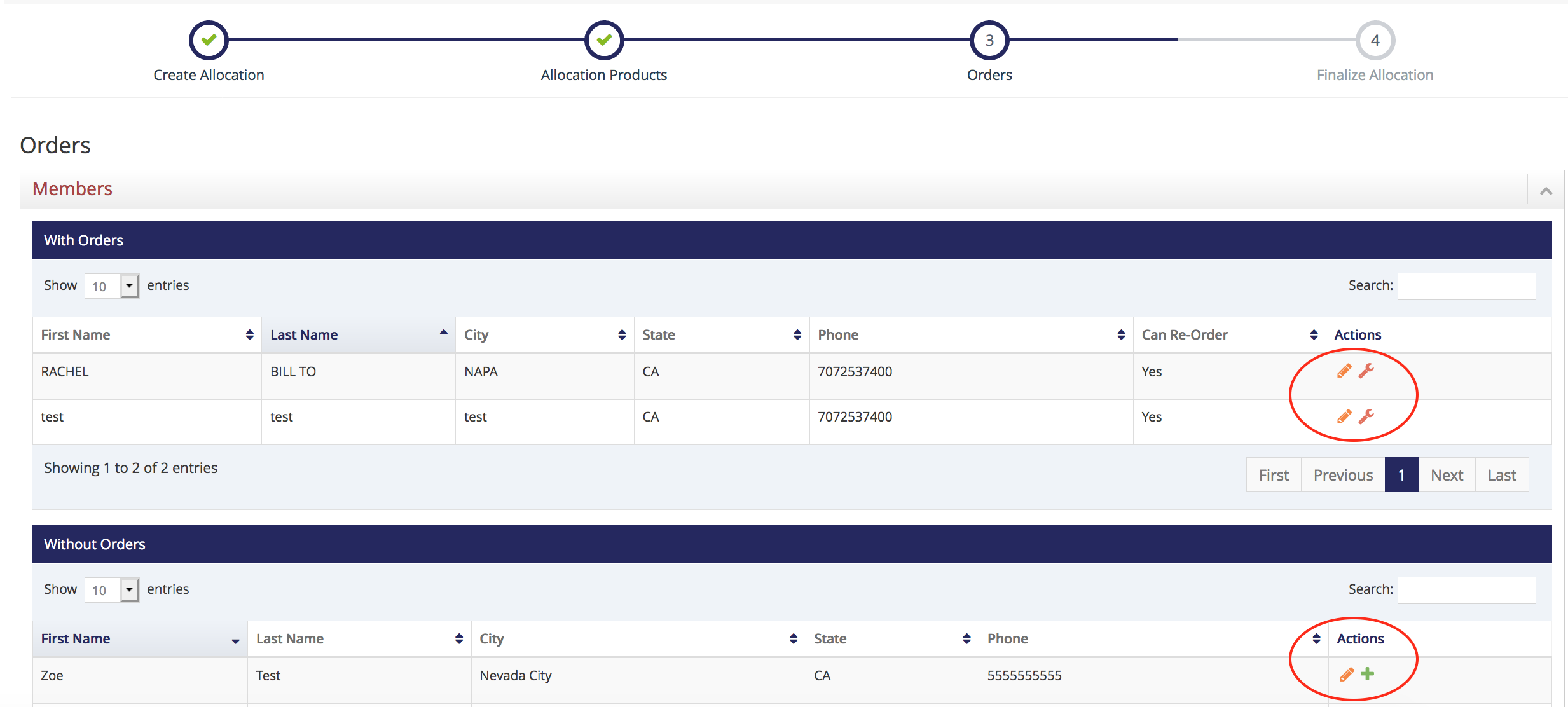
- Members section expands to show members with orders
- Actions column: the edit pencil icon will open the member's profile
- Actions column: the wrench icon will open to the member's Allocation tab so that the member's allocation can be customized
- Members section expands to show members without orders
- Actions column: the edit pencil icon will open the member's profile
- Actions column: the plus sign icon will open the OMS to create an Allocation order for this member
2. Orders
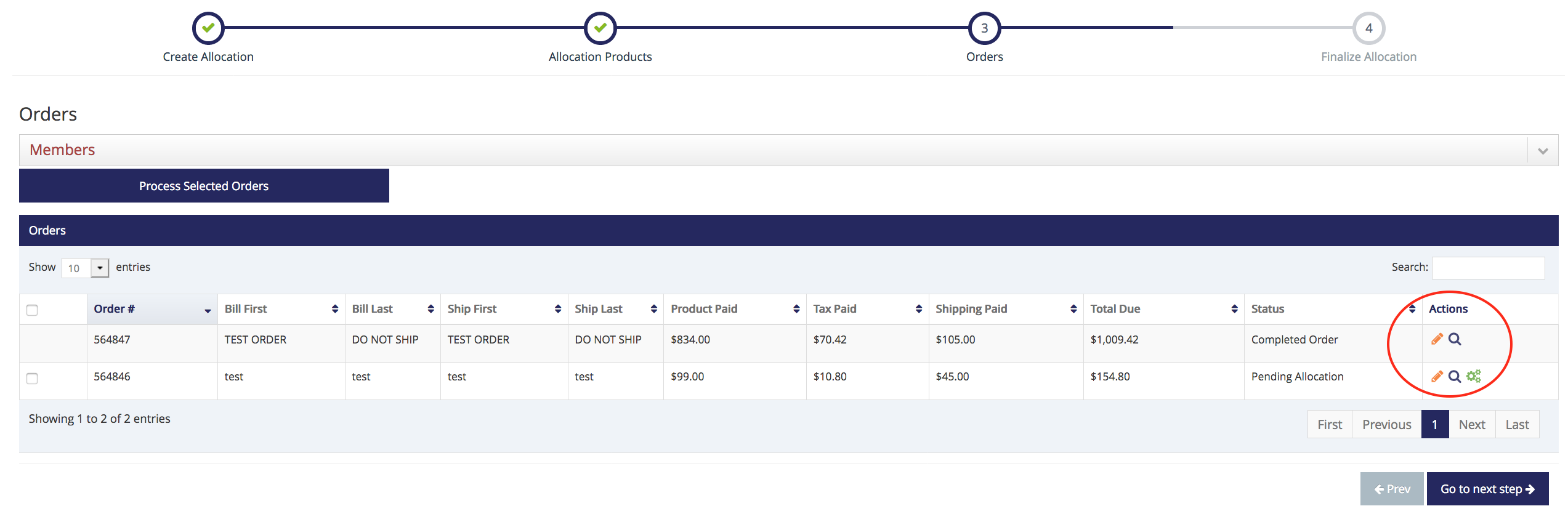
- Allocation orders display in the Orders section on Step 3
- Action column: the edit pencil icon will open the order in the OMS section for editing and processing
- Action column: the magnifying glass icon will open the order for viewing
- Action column: the gears icon will process the order