
What is an Authorized Order?
An Authorized order occurs when a credit card payment has been approved for the full order total, but the order does not complete or reach a Completed status. In this state, the funds are reserved by the card issuer but have not yet been captured.
Example: A transaction that gets closed out on the tip screen will be stuck in an Authorized status until manual action is taken.
Traditionally, this was a back-end task involving your team to reach out to your gateway to capture the payments manually...who has time for that?
With the Authorized Order Management feature, you can handle these transactions directly from the TabletPOS system and reopen the tip screen if needed. If your business accepts tips, add Authorized Order Management to your daily close-out routine.
Enable the Permissions
Prompt on Login
Add a Tip Option
Capture Payments
Authorized Order Management
Enable the Permissions
Authorized Order Management permissions are controlled at the Sales Associate record level. Assign the permission to each Sales Associate who needs access to the Authorized Orders menu. Once you open the Sales Associate record, locate the Authorized Order Management permission and set it to Enabled, then save the record.
You can reach the Sales Associate record by navigating to the Store icon > Orders > Sales Associate in the eWinery admin panel.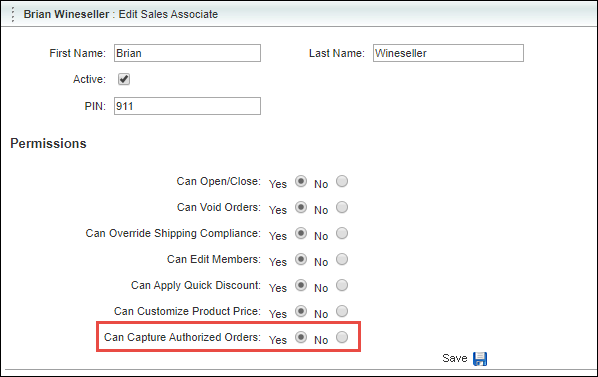
Or you can find the Sales Associate record by navigating to the Settings > User Management > Sales Associate in the vinSUITE admin panel.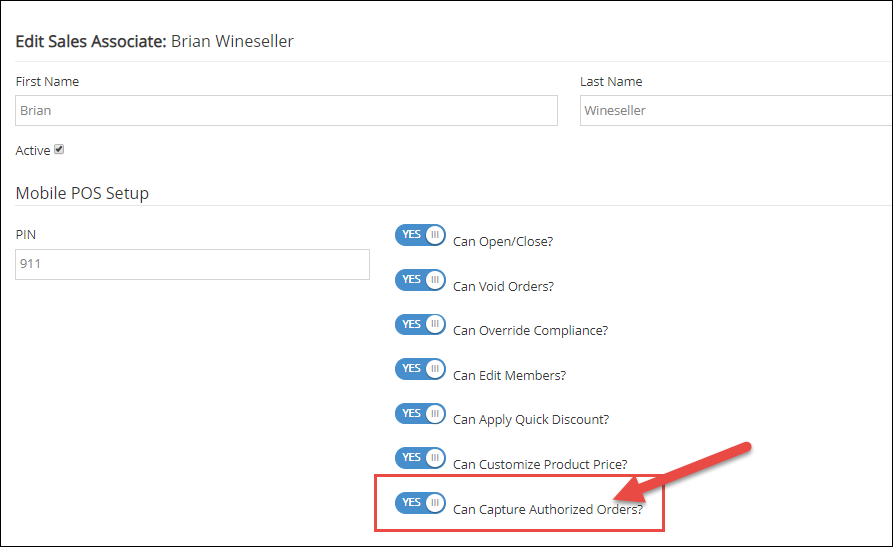
Prompt on Login
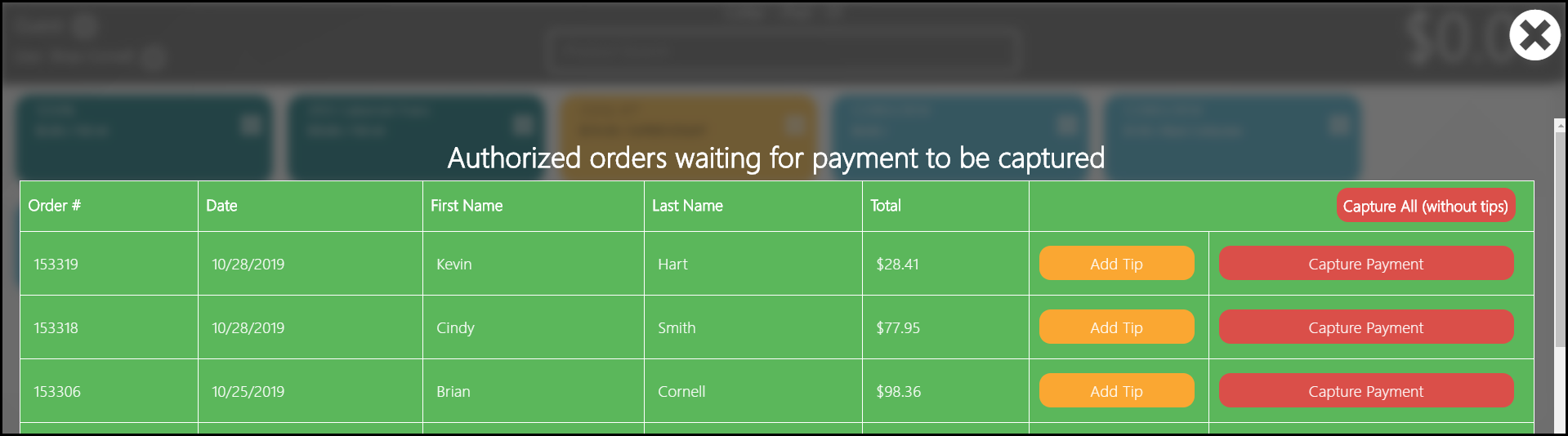
Once permission has been granted, the sales associate will be presented with the Authorized order screen when they log in for the first time each day.
Add a Tip Option
To reopen the tip screen for an authorized order, follow these steps:
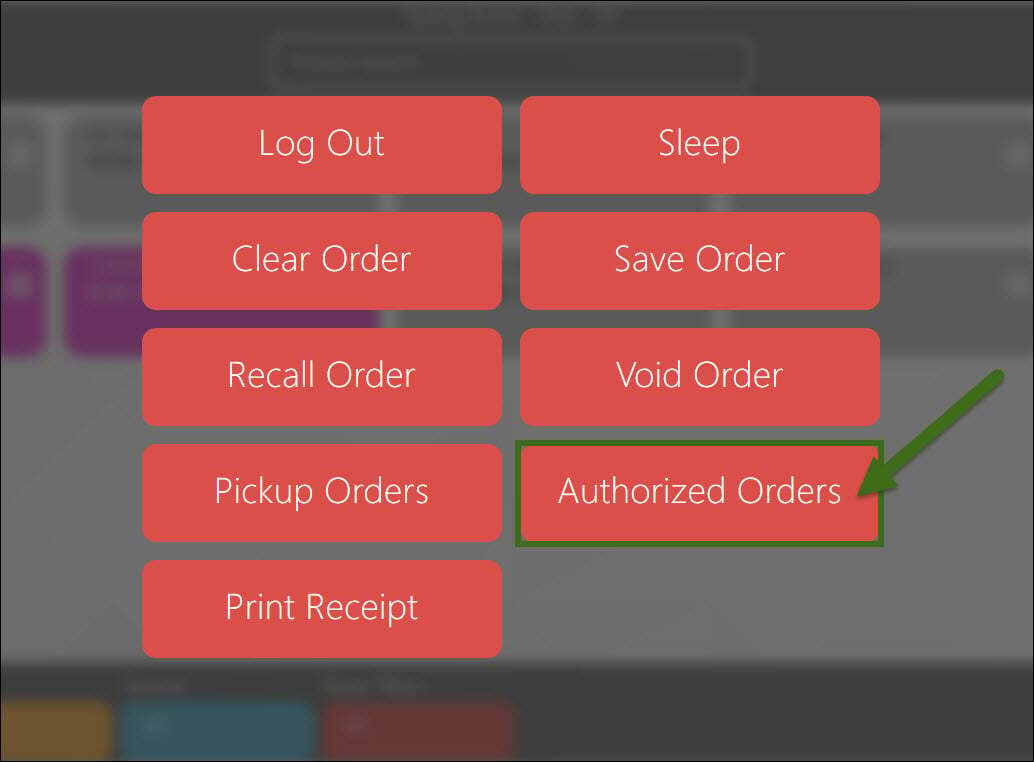
- Go to Cashier options
 and tap the Authorized Orders button.
- The list of authorized orders will appear.
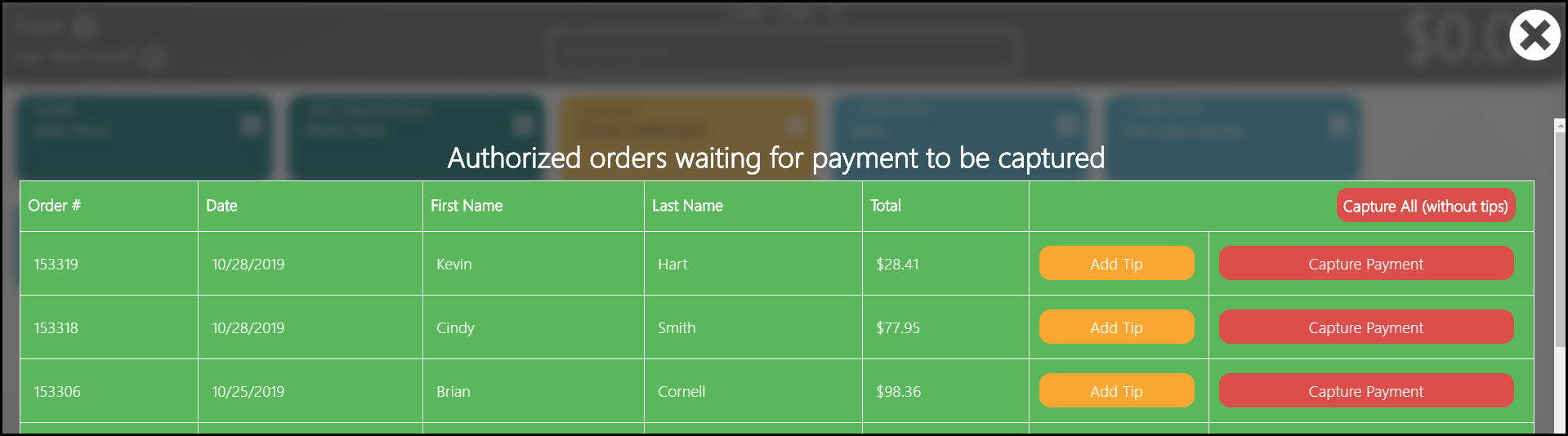
- Select the appropriate order and tap the Add Tip button.

- The tip screen will reopen for that transaction. Enter the tip amount and complete the transaction. The order will then be captured and moved to a Completed status.
Capture Payments
When it comes to capturing payments, we have provided options to capture all authorized payments at once, or capture them one at a time. Both options are done from the Authorized orders menu.
How do you capture all payments at once (without tips)?
1) Go to Cashier options and click in the 'Authorized Orders' button.
:

2) Click the 'Capture All (without tips)' button.

Capture Payment by transaction
1) Go to Cashier options
and click in the 'Authorized Orders' button.
:
2) Tap the 'Capture Payment' button next to the appropriate order.
