
This article will walk you through how to configure order exports and inventory decrements in NVPOS orders to to the vinSUITE Admin Panel. This should take about 15-30 minutes.
1. Open Product Control. 
2. Select CartConnect and 'Run Application'. 
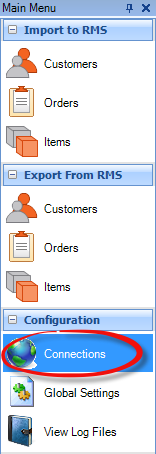
3.On the left side choose 'Connections'.
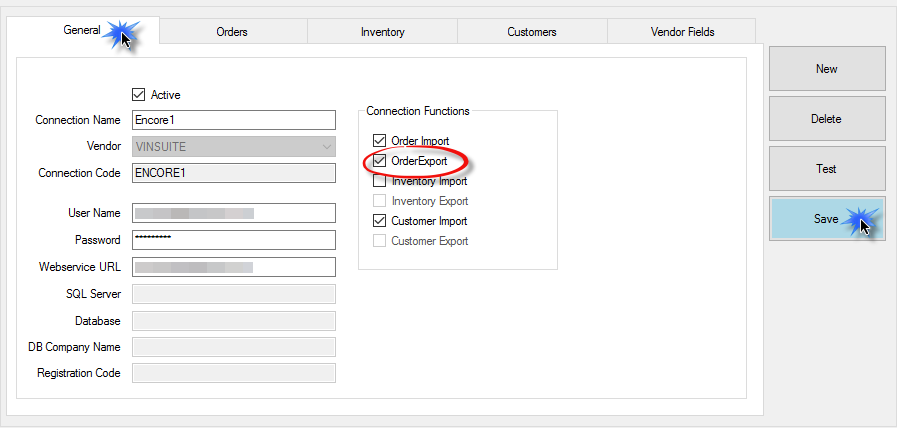
4. Now select the 'General' tab and check 'Order Export' - Hit 'Save' when done.
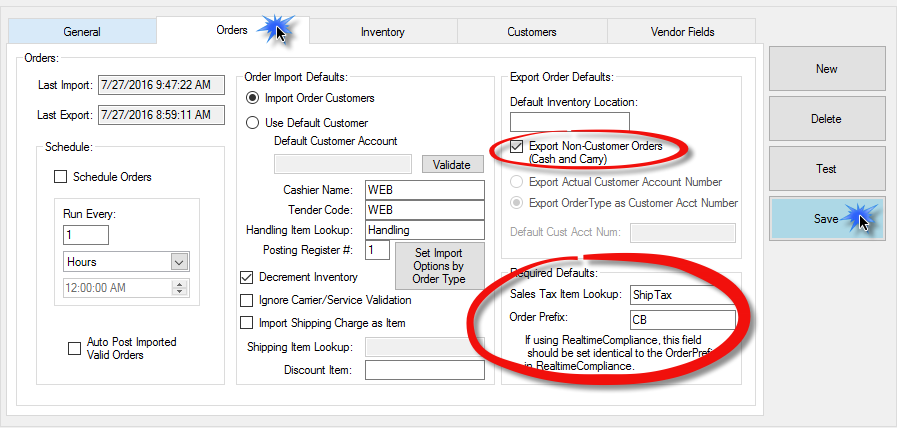
5) Now select the 'Orders' tab and check 'Export Non-Customer Orders' - and if you use Realtime Compliance, the 'Sales Tax Lookup' and 'Order Prefix' should be filled out. - Hit 'Save' when done.
6) Now select the 'Vendor Fields' tab and fill in the options - Hit 'Save' when done.
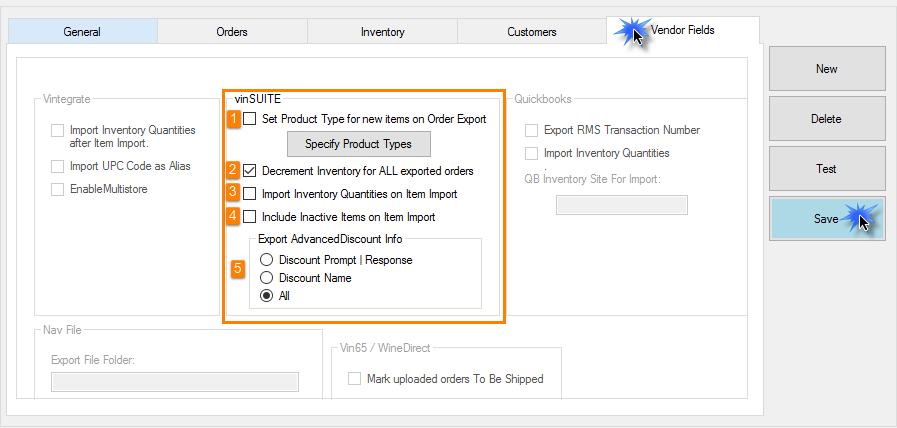
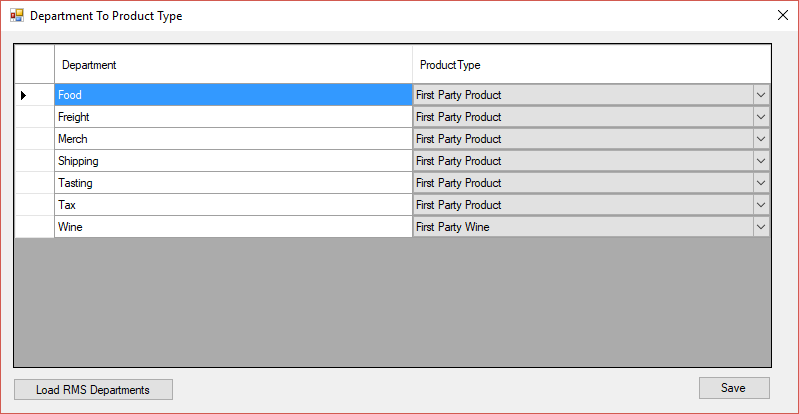
1. If you want CartConnect to set the Product Type for NEW Items on Order Exports
- If product 'xxxx' is in the Food Department then Export as a First Party Product
- You still need to go into product properties and fill in the details
* Hit Save when done *
2. Check for Decremented Inventory for ALL exported orders.
3. If you do use Item Import then check this to include Inventory Quantities.
4. Check if you want to include inactive items on the item import.
5. Check if you want to export any AdvancedDiscount info from RMS to VinSuite.
Congratulations, you have now setup order Exports from RMS into vinSUITE