
Configure your TabletPOS app
Admin Panel Settings
1) In the vinSUITE admin panel, click the orange 'Settings' button in the top right of your screen. From the drop-down menu, choose 'System Settings'.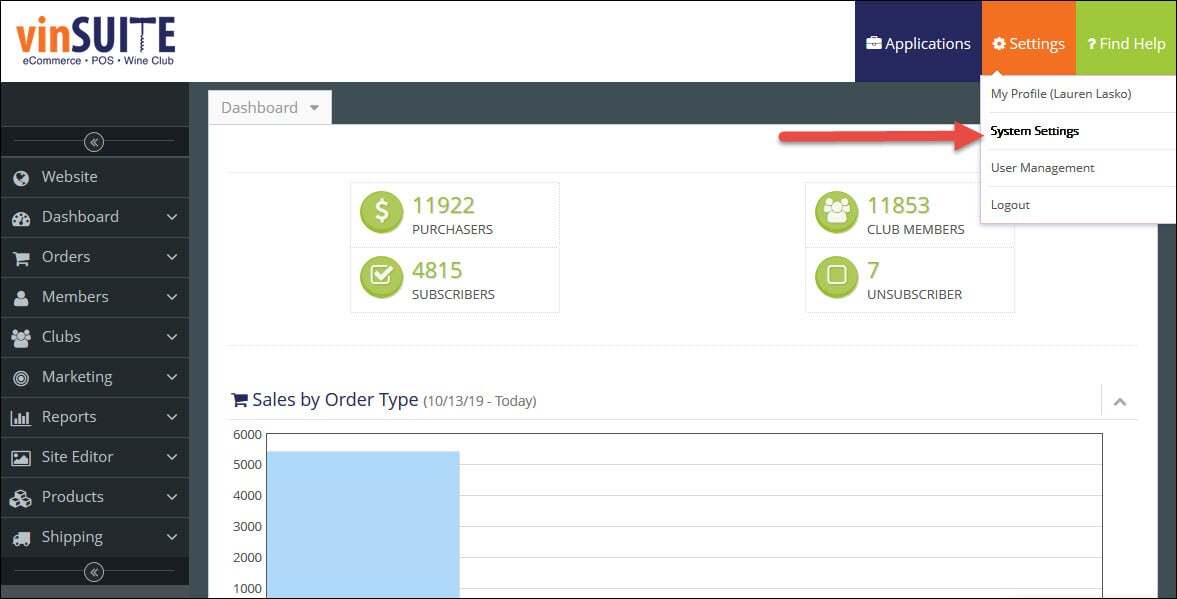
2) The System Settings will open in the work space. Click the 'Mobile POS' tab from the Settings sub-menu.
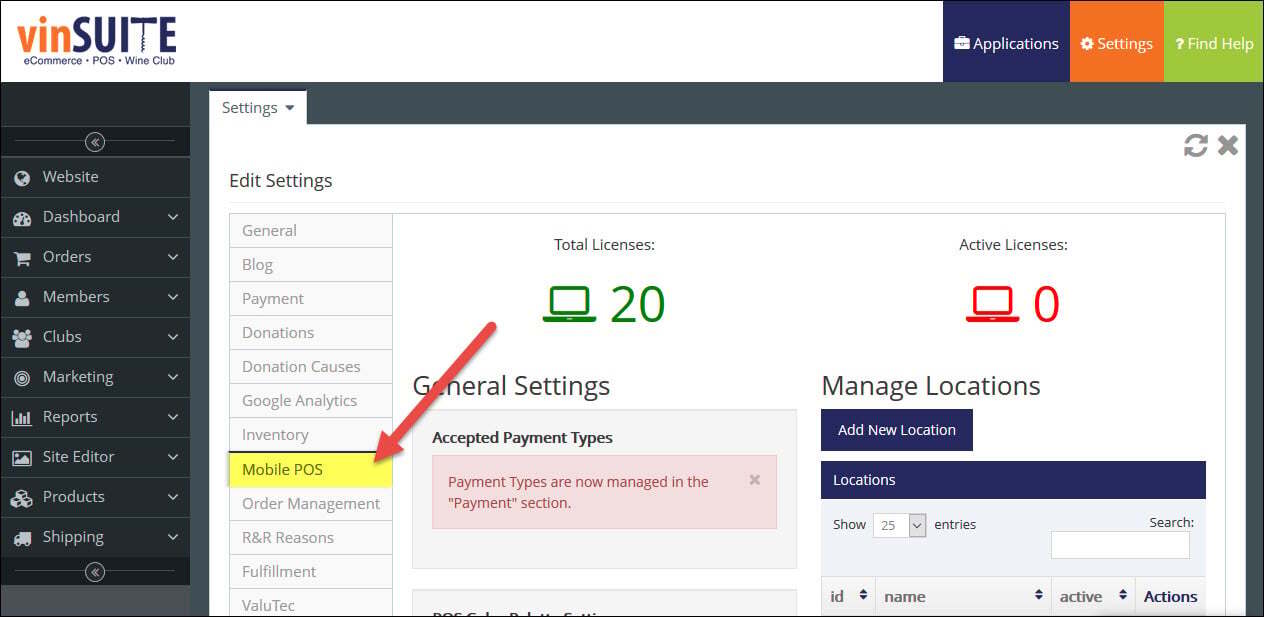
3) Edit any appropriate fields. There are multiple smaller sections within the page will be explained in greater detail.
Note: In the eWinery Admin Panel, the Mobile POS tab can be found clicking on the Settings icon and navigating to the MPOS tab.
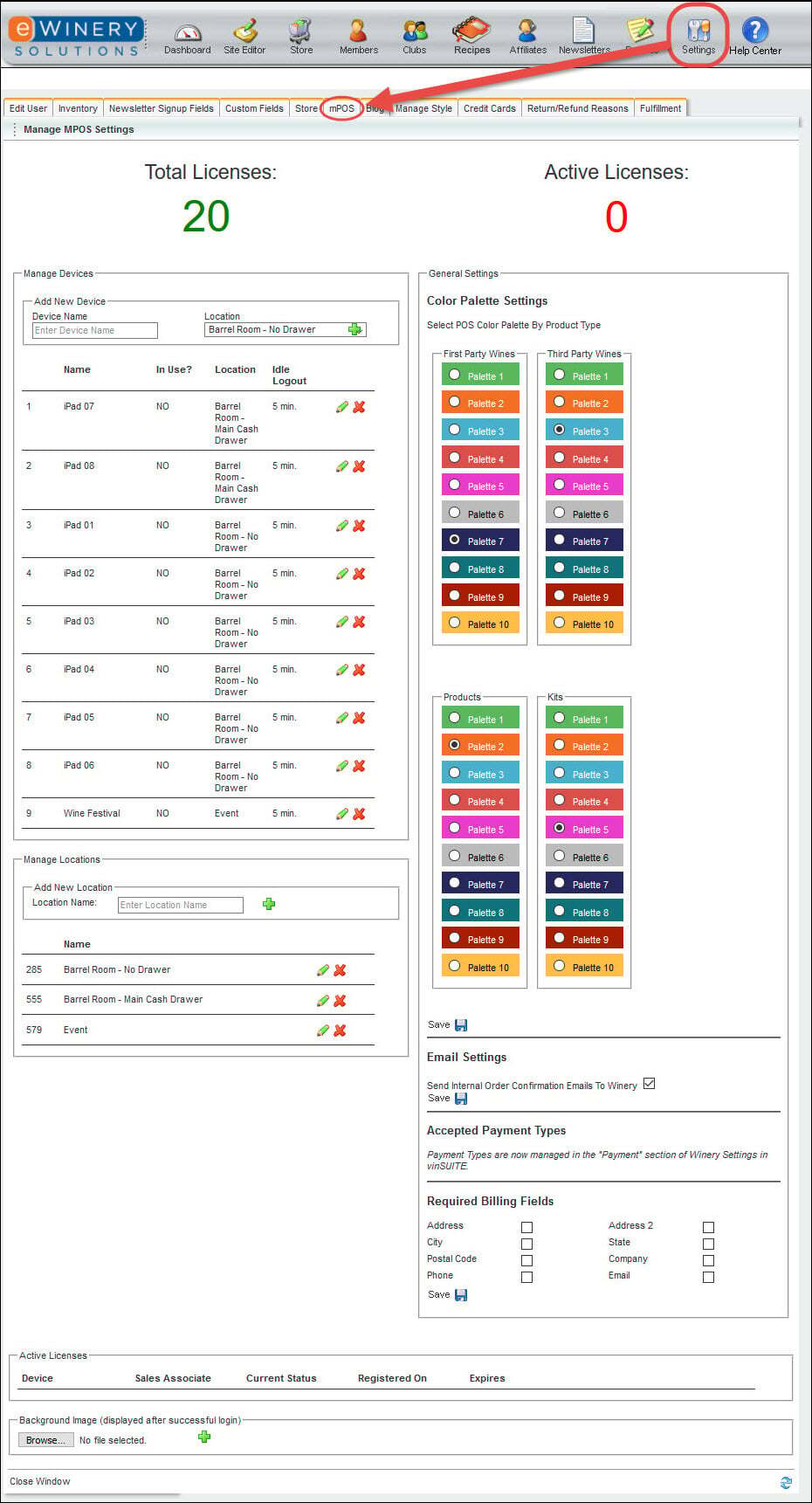
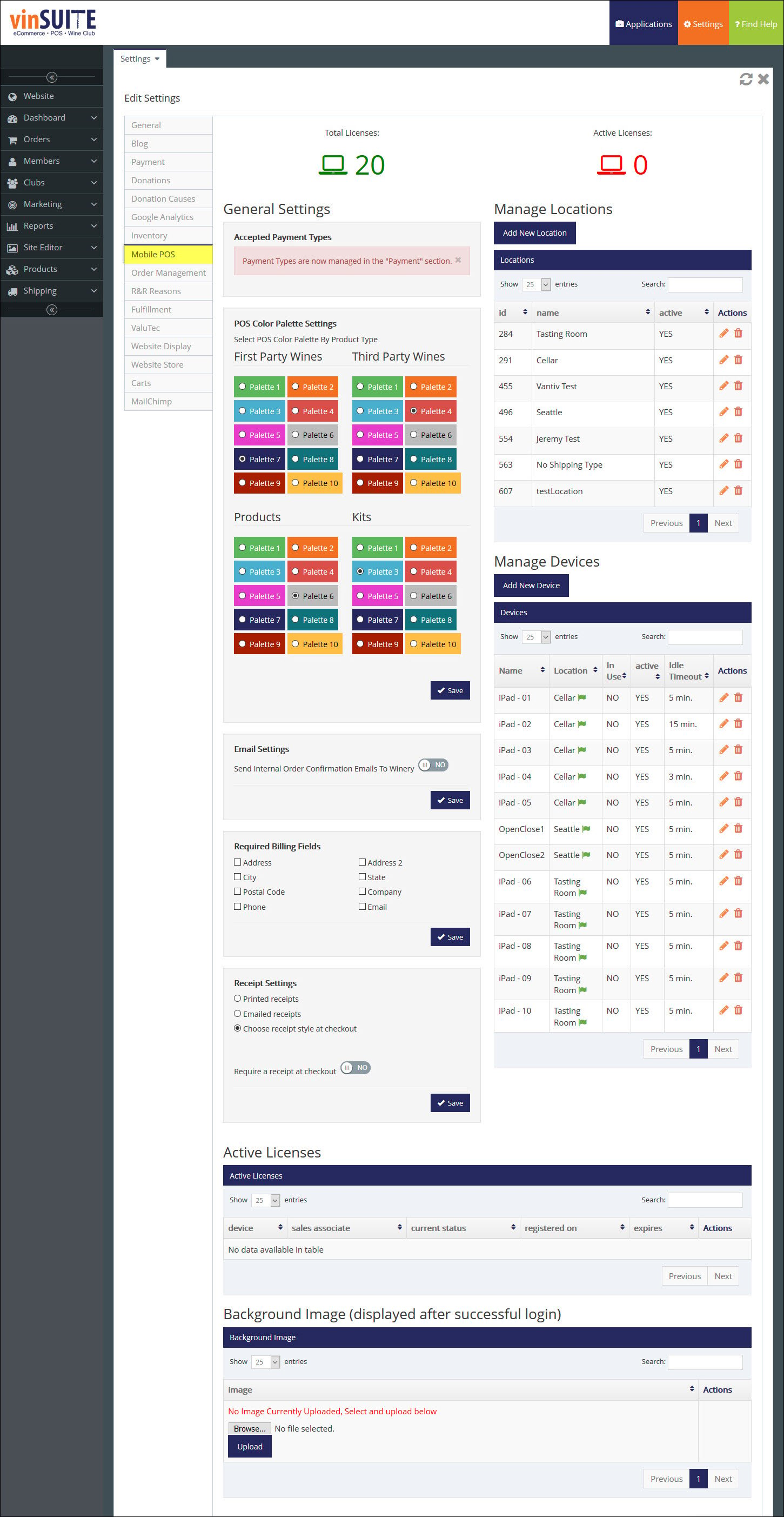
4) View License Usage
5) Manage Active Licenses
6) Manage Locations
7) Manage Devices
8) Upload background images
Note: We recommended a Background Image size of 1029x768 pixels
Set up a Sales Associate
Note: Only the Account Owner or Users with 'User Management' permissions may add or edit Sales Associates.
Each Sales Associate will need a PIN number so they can sign in to the TabletPOS app.
1) In the vinSUITE admin panel, click the orange ?Settings? button in the top right of your screen. From the drop-down that appears, choose ?User Management?.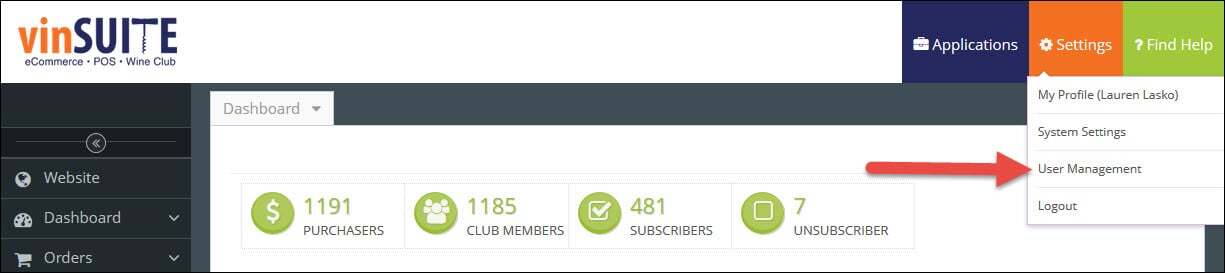
Note: In the eWinery admin panel, Sales Associates can be found by clicking on the Store icon and opening the Orders sub-menu. 
2) User Management will default to the ?Admin Users? search screen. Navigate to the Sales Associate tab.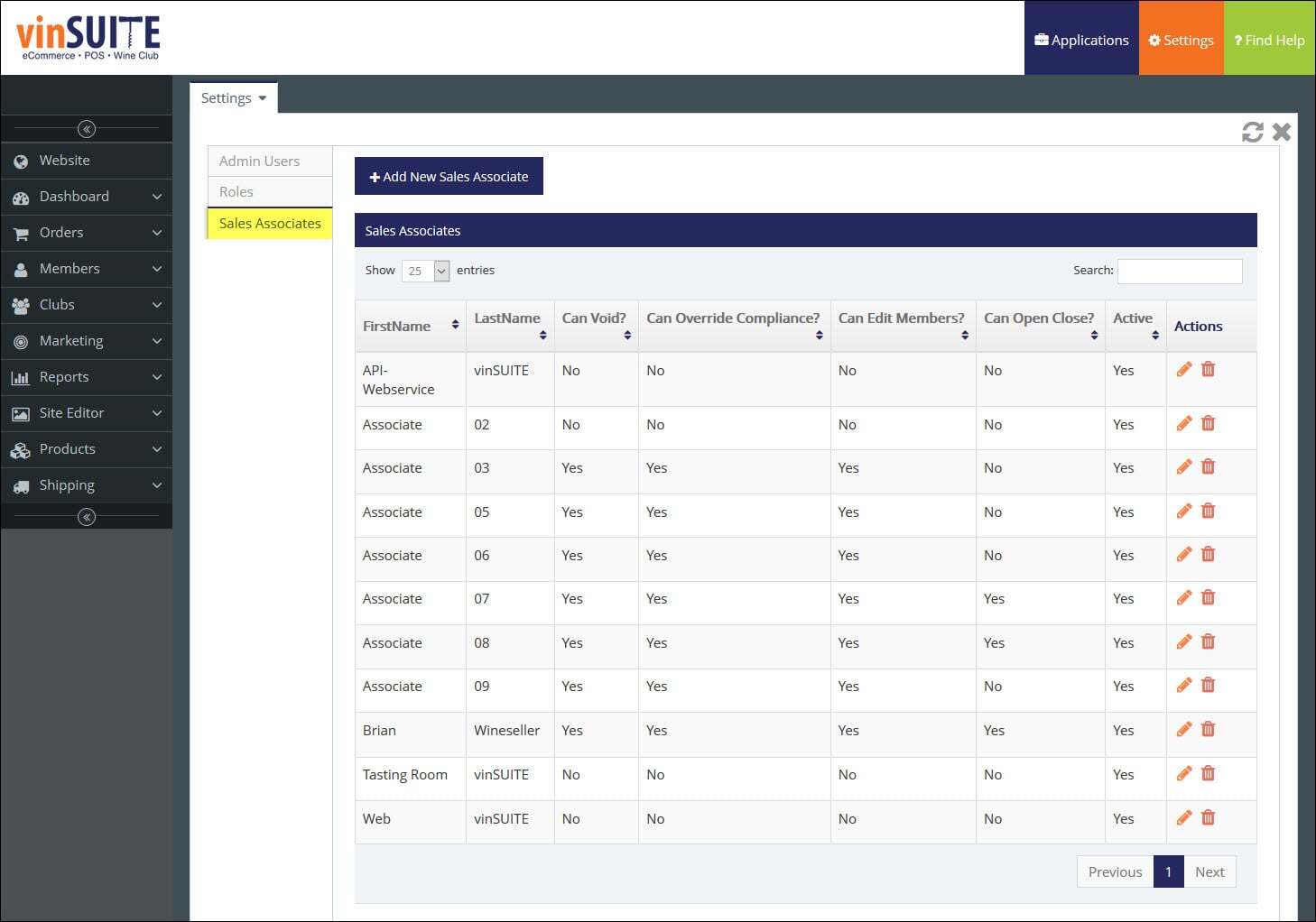
3) Click ?Add Sales Associate? in the top left of the work space.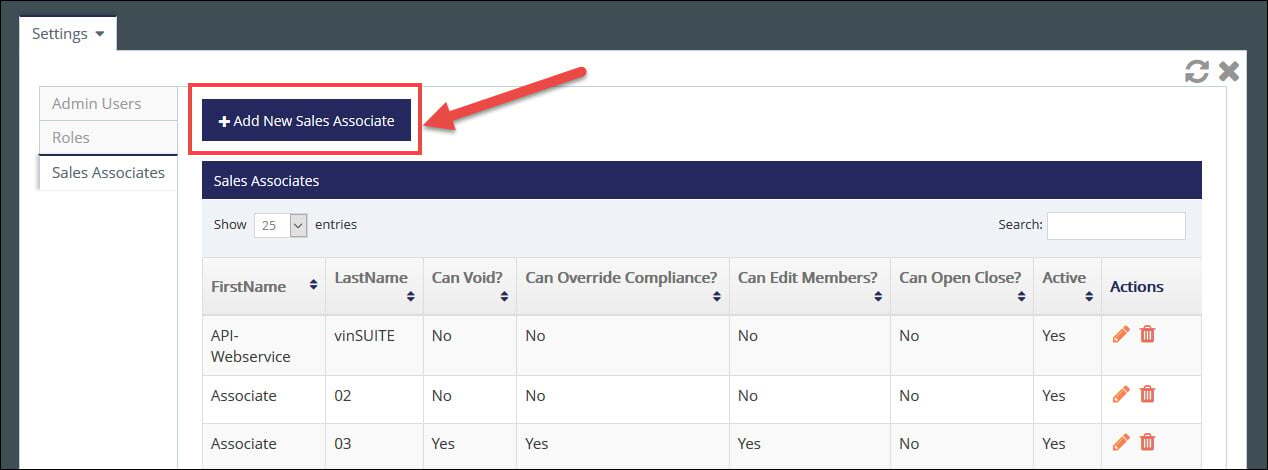
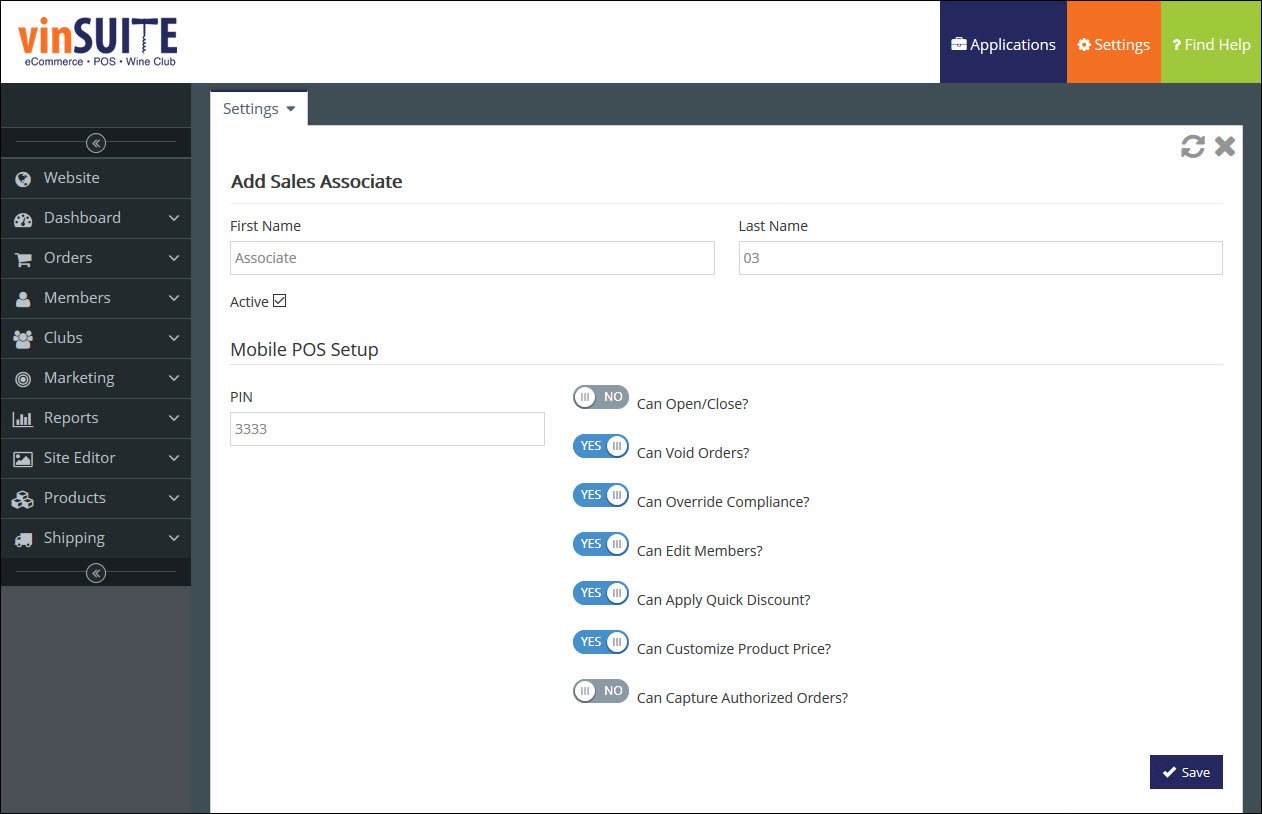
4) Enter the Sales Associate's name, and check the Active checkbox.
Name | Enter the new user's first and last name in the appropriate fields.
- Active status
Verify that the user's active status is checked so they can sign in to their account.
5) In the Mobile POS Setup section, enter a PIN number and set any TabletPOS permissions for the Sales Associate.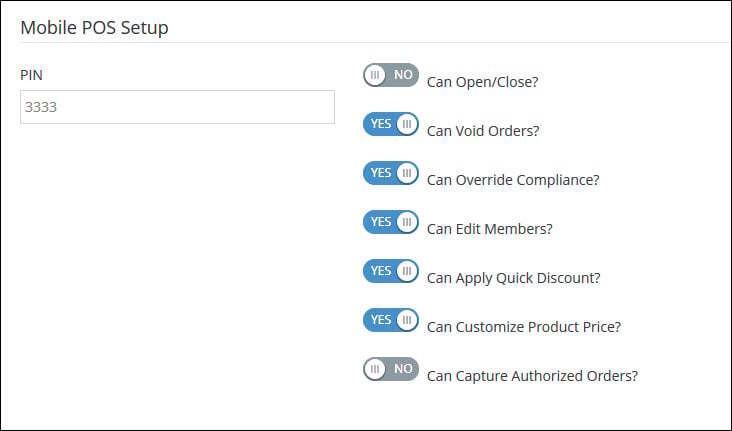
PIN | Enter a PIN number the Sales Associate will use to sign in to the TabletPOS app. All Sales Associate PIN numbers must be unique. Note: Sales Associates do not have a login to the Admin Panel and are only able to access MoJoe if you set them up within the Admin Panel first.
- Can Open/Close?
- Switch this permission toggle to "YES" to allow your Sales Associate to complete daily cash reconciliation for TabletPOS Devices.
To learn more about Open/Close, please visit the TabletPOS Opening And Closing Procedures page.
- Can Void Orders?
- Switch this permission toggle to "YES" to allow your Sales Associate to void out sales.
This can be a useful tool for correcting mistakes made on a transaction after it has been processed.
- Can Override Compliance?
- Switch this permission toggle to "YES" to allow your Sales Associate to bypass a compliance response and process a sale.
This might be useful to get the customer on their way, and correct the compliance response later when your tasting room gets a lull in service.
- Can Edit Members?
- Switch this permission toggle to "YES" to allow your Sales Associate to make changes to an EXISTING member record.
This permission does NOT impact their ability to add new members to the system.
- Can Apply Quick Discount?
- Switch this permission toggle to "YES" to permit your Sales Associate to use our Quick Discount features in the TabletPOS system, allowing for a quick blanket discounts to be applied on the fly.
- Can Customize Product Price?
- Switch this permission toggle to "YES" to allow your Sales Associate to change the price of a line item on the order.
- Can Capture Authorized Orders?
- Switch this permission toggle to "YES" to allow your Sales Associate to capture and complete Authorized Orders.
To learn more about Authorized Orders, please visit the TabletPOS Authorized Order Management page.
6) Click ?Save? in the bottom right of the work space.
Amend Product Settings for MoJoe
- Setup Product ?Short Names?
On the General Tab of any Product you want to sell on MoJoe enter or edit the ?short name.?
- Setup POS STORE Product Categories
- A new Product Category has been created named ?POS STORE? for you.
- Under that Category, you may want to further categorize your products by creating other categories such as Featured, Reds, Whites, or other specific categories depending on the products you want to sell.
- Add the appropriate categories to ?POS STORE?
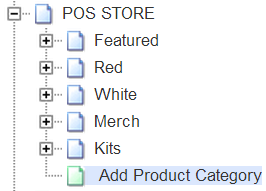
NOTE: Products will automatically be included in the other Filters within MoJoe for Varietal and Vintage (assuming these are set up on each Product).
- Assign Products to the new POS STORE Categories
- Open a Product and click the Categories tab.
- Check the box next to each POS STORE category you would like that product to appear in.
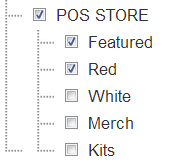
NOTE: For any Product Category below POS STORE to be displayed in MoJoe, at least 1 of the products assigned to it also must be assigned to the POS STORE product category.