
Member Maintenance
Located under the Members section of the Admin Panel, this function provides the ability to merge two or more customers that have matching information based on a particular set of criteria.
 This is an additional feature that can be added to the Admin Panel. To have this feature enabled, please contact the Client Services Team at support@vinsuite.com.
Using the Member Maintenance Tool
The following information is merged into the ?Primary? record: | - Addresses (if different than addresses already on file) - Credit Cards (the primary account will keep the primary card. Others will go into the Wallet). - Member Types - Club Memberships - Order History - Allocation Information - Notes
- The following information is NOT merged (the Primary Member?s information is maintained):
- - Preferences
- In the Admin Panel, go to Members then choose Member Maintenance from the submenu.
-
To search for a list of Duplicates, click any of the search criteria located in the left-hand navigation:
Email Address ? Identifies multiple users in a single winery with the same Email Address Name & Address ? Identifies multiple users in a single winery with the same First Name, Last Name, and Address Line 1. Name & Phone ? Identifies multiple users in a single winery with the same First Name, Last Name, and Phone Number. Name - Identifies multiple users in a single winery with the same Billing First Name and Last Name.
NOTE: The process that identifies duplicates run?s on a nightly basis. Any new members or member records that have been updated will not pull into the suggested duplicates until the following day.
-
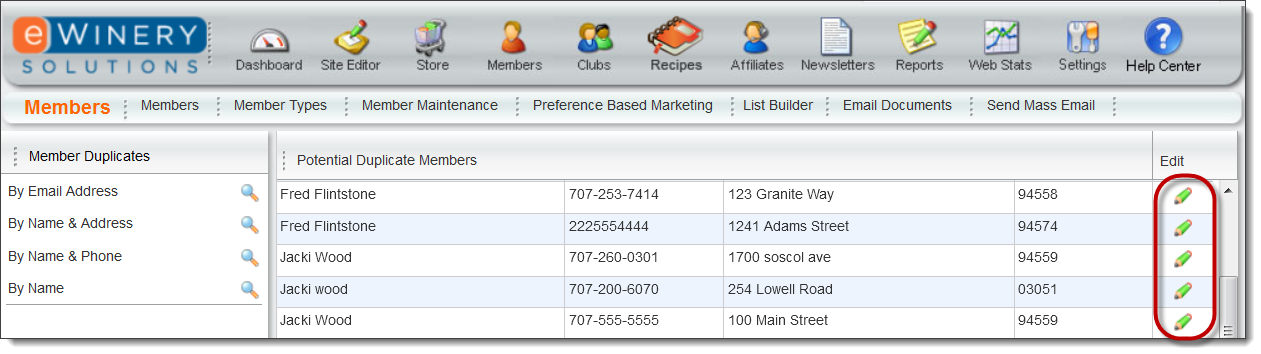
Upon clicking one of the search options, you will be shown all of the applicable member records in the list on the right.
-
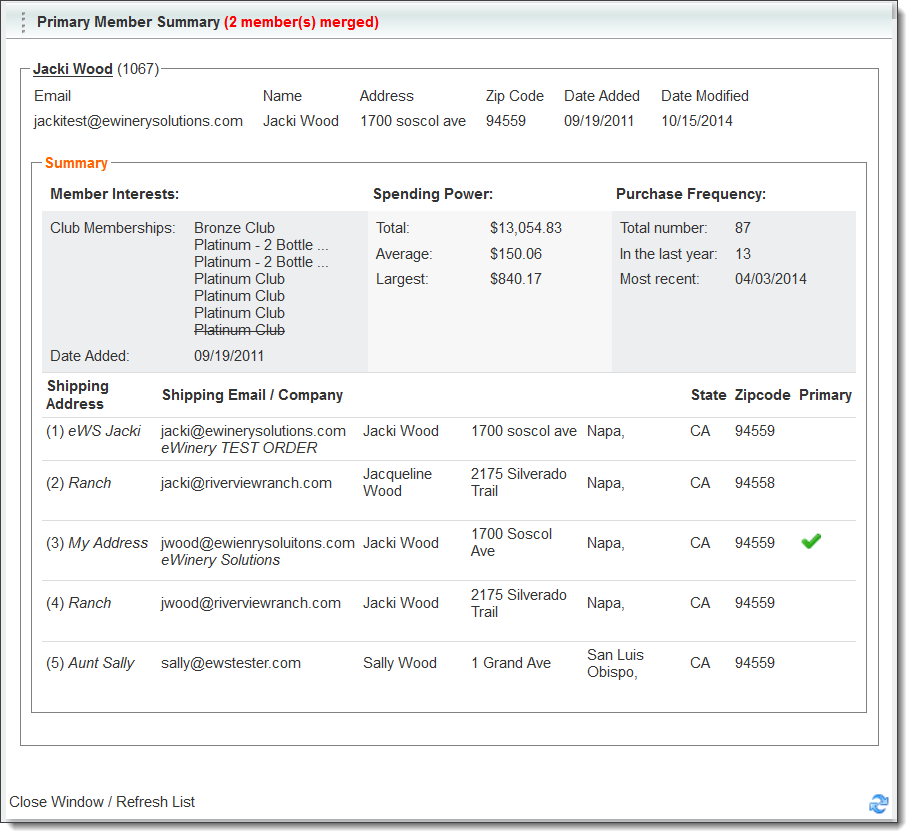
When a merge is performed, all of the important information about the merged members is maintained.
Merging Records
- Click the pencil to the right of any record to display the Merge window.
- Member Records appear in the order they were added to the system (Date Added). By default the oldest or first Member Record shown is automatically selected as the Primary Member Record.
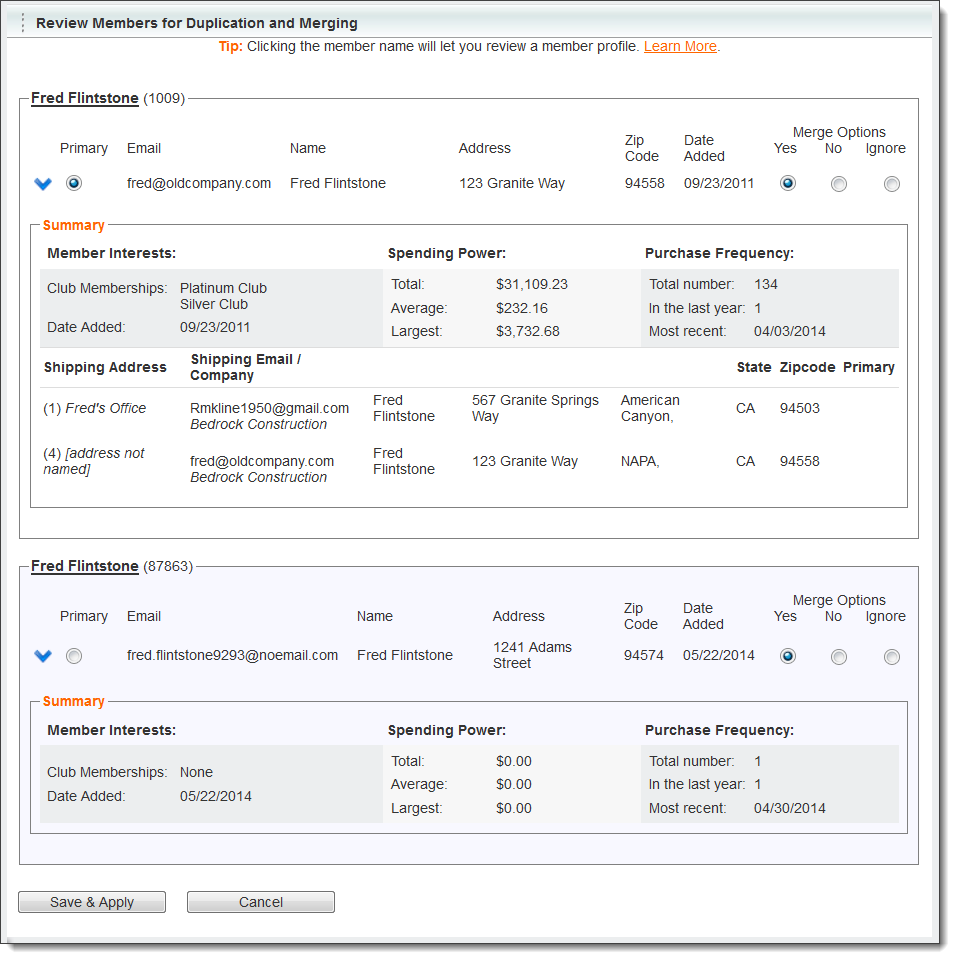 Merge Options
YES: Select this option if you would like to include this Member Record as one of the duplicate records to be Merged. This option is selected for all members by default.
NO: Select this option if you DO NOT want to include a specific Member record to be Merged
IGNORE: Select this option if you DO NOT want to include a specific Member record to be Merged AND if you would like to EXCLUDE this Member Record from all future searches. You would select this option if you know that, regardless of some duplicate information, the Member?s intention is to have this be a separate Member Record.
-
Once you have selected the Member Records you want to merge, click on the "Save & Apply" button at the bottom right to consolidate the data from each Member Record selected into the new Primary Member's Record. You will be asked to Confirm your selection before the merge is performed. Here, you can select "Cancel" and your changes will be disregarded.
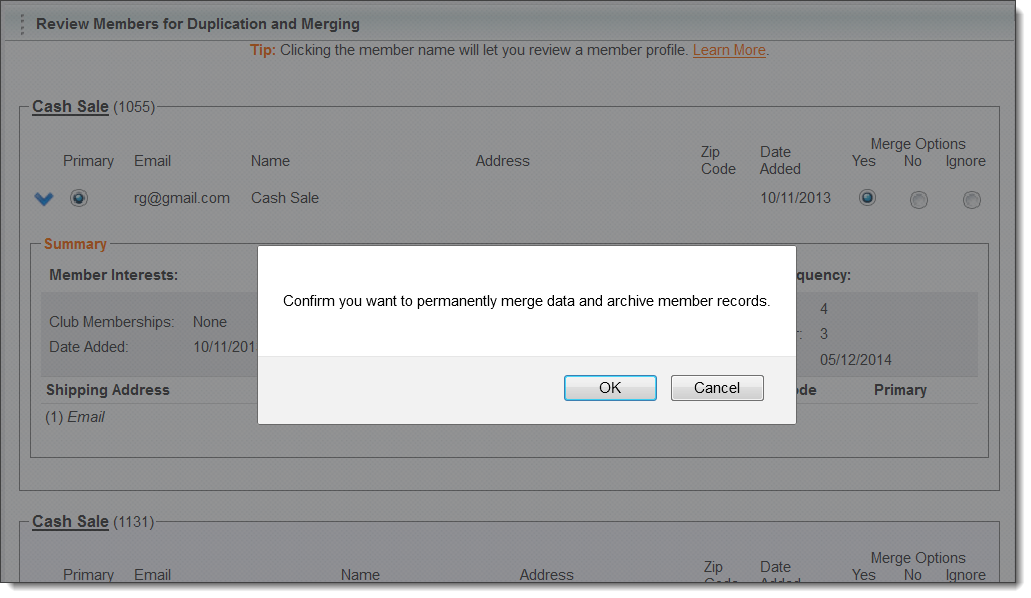
NOTE: This is your last chance to cancel the selections on the previous page. If you are not sure that the merge should be performed, please click Cancel and confirm the selections you have made on the previous page. If you are sure the selections are correct, please click OK to confirm. - After you Confirm, the records will be Merged, the old records will deleted and you will be shown the results of your merge
-
When you return to the search results window, the newly merged records will have disappeared from the list of duplicates IF you merged all applicable duplicates.