
What Are Report Filters?
Report Filters are used in the Report Builder to restrict report results so you only get the specific information you want (like date ranges or statuses). Filters can be applied to any field that you have included in your report (added back in step 2), but the type of filter you can apply will vary depending on the type of data you are trying to filter.
Think of filters as questions you are asking the report to help narrow down the results. Do you only want to know about completed orders? Use a OrderDateCompleted filter. Interested in your big spenders this month? Use the TotalPurchases filter.
Check out some real world examples that can clarify the best ways to use filters.
Add a New Filter
The accuracy of the reports that you write in Report Builder rely on filters to narrow your report results.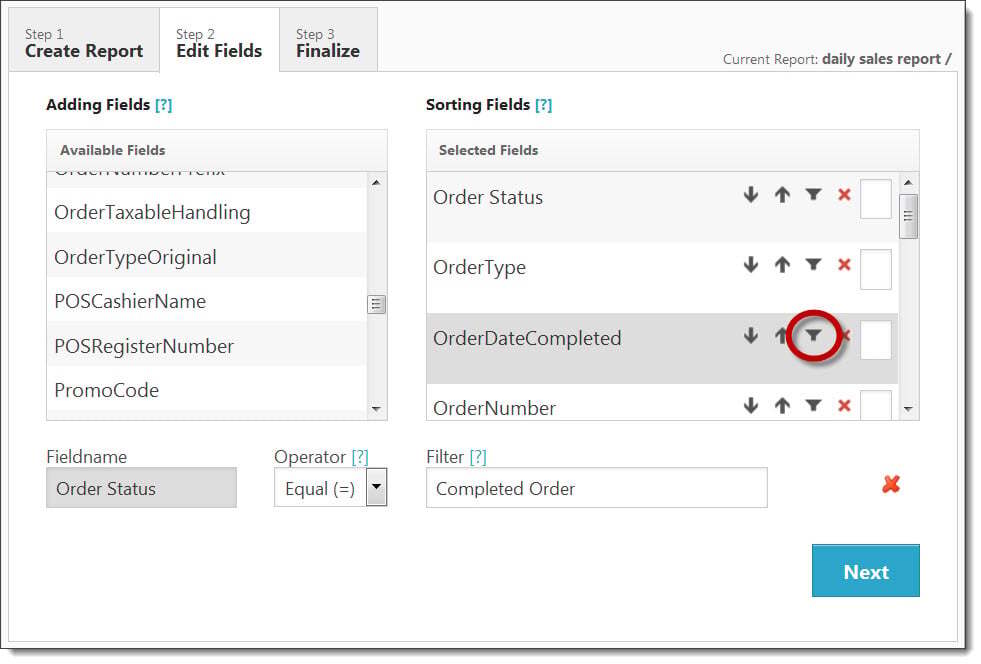
1) Once you have fields populated in the Sorting Fields for the Report Builder, click the filter icon to the right of the selected field you would like to filter. The fieldname will appear at the bottom of the screen.
Types of Fieldname Filters
Numerical Data:
These type of filters will restrict report results by numerical data like product prices, taxes, shipping costs, subtotal or total information, as well as any dates included.
Yes/No or True/False Data:
These type of filters will restrict report results by data that answers a question with a positive (yes/true) or negative (no/false) result. Most of these filters will end with a question mark.
Text Data:
All remaining filters are considered ?text data? and can be alphanumeric. These are filters like Name, Address, Club Level, Member Type, Product Name, Product SKU, etc.
2) Once your fieldname is loaded at the bottom of the screen, select an operator.
What is an Operator?
An operator in Report Builder is like an operator in a math equation. Based on your chosen filter, the operator helps narrow down the general information specified in the fieldname.
Explanations of All Operators
For Numerical Data Filters | For Yes/No Data Filters | For Text Data Filters | Symbol/Operator | Definition | Meaning
- X
- X
- X
- Equals (=)
- Equal to
- Will display results that are on the date or exactly equal to the given status/amount
- X
- X
- X
- Not Equal
- Not equal to
- Will display results for everything EXCEPT the date or that are not equal to the given status/amount
- X
- Greater Than (>)
- Greater than
- Will display results after the given date or exceed the given amount
- X
- Less Than (<)
- Less than
- Will display results before the given date or are less than the given amount
- X
- Greater Than or Equal To (>=)
- Greater than or equal to
Will display results that start on that date and continue after.
Will display results that equal or exceed the given amount.
- X
- Less Than or Equal To (<=)
- Less than or equal to
- Will display results that end on that date, but include the dates before.
Will display results that equal or less than the given amount
- X
- X
- IN
- TRUE if equal to one of the expressions of a list.
- Will display results that include the expression on a list and allow you to include multiple answer values.
If multiple expressions are included, the result can have EITHER OR listed expressions. Results do not need to contain all expressions.
Note: All expressions should be separated by a comma without any spaces.
- X
- X
- NOT IN
- Reverses the value of Boolean operator IN
- Will display results that DO NOT include the expressions on a list.
Note: All expressions should be separated by a comma without any spaces.
- X
- X
- LIKE
- Searches the contents of a field for anything that matches the answer values
- Will display results that include a term anywhere in that field.
- X
- X
- NOT LIKE
- Searches the contents of a field for anything that does not match the answer values
- Will display results that DOES NOT include the term anywhere in that field.
3) Select an filter that specifies the results .
What is a Filter?
A filter is the final piece of your question. While the fieldname narrows your results to include some general information (like the Order Status), your filter explains exactly what kind of information the Report Builder should be looking for (like only completed orders).
Examples of Filters
If your Fieldname is... | Your Valid Fields
- PaymentType
- Credit Card, Check, Money Order, Call in Credit Card, Invoice, Other
- Order Status
- Completed Order, Hold Order, Quarantined Order, Saved Order, Accepted Order, Pending Order, Pending Club Order, Pending Allocations Order, Cancelled Order, Incomplete Order
- Order Type
- Store,Store - Group, Admin, Admin - Group, Allocation,Club, Voided, Reservation, POS, Mobile, Facebook, Telesales, MobilePOS, SC MarketPlace
- Ship Compliant Fulfillment Status
- Accepted, Exception, None
- Ship Compliant Shipment Status
- Delivered, Payment Accepted, Sent to Fulfillment, Shipped
- All Fields with a "?"
(ex. Club Member Active?, Gift Message?, Is 21?, etc.) - Yes, True, No, False
4) Once you have added all of your filters, you can click the "Next" button to move to step 3.
Real World Examples
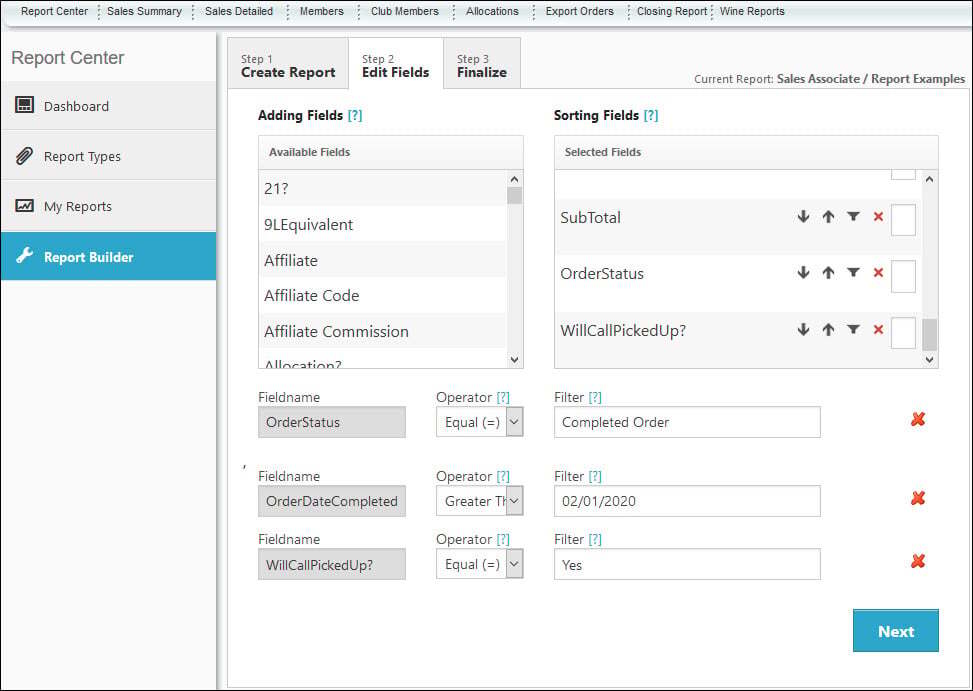
Filter | Operator | Answer Value | What does this mean?
- OrderDateCompleted
- Greater Than or Equal To (>=)
- Date: 02/01/2020
- The current report will filter results to only display orders that were completed on or after 02/01/2020.
- Order Status
- Equals (=)
- Completed Order
- The current report will filter results to only display orders are in a Completed order status.
- WillCallPickedUp?
- Equals (=)
- YES
- The current report will filter results to only display orders that were picked up via will call.
Best Practice: For most reports, it is best to include a date range in your report to avoid long processing times and massive unnecessary amounts of data. You can create a date range by adding two filters for the date field.
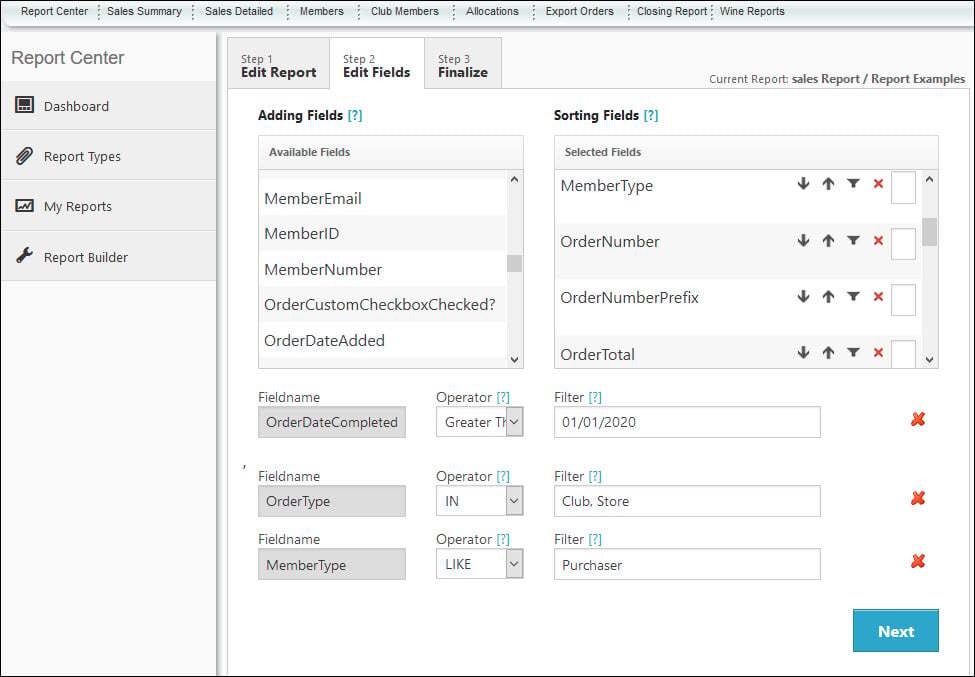
Filter | Operator | Answer Value | What does this mean?
- OrderDateCompleted
- Greater Than or Equal To (>=)
- Date: 01/01/2020
- The current report will filter results to only display orders that were completed on or after 01/01/2020.
- OrderType
- IN
- Club,Store
- The current report will filter results to display orders from either clubs OR the web store.
- MemberType
- LIKE
- Purchaser
- The current report will include any results that have "Purchaser" in the Member Type field.
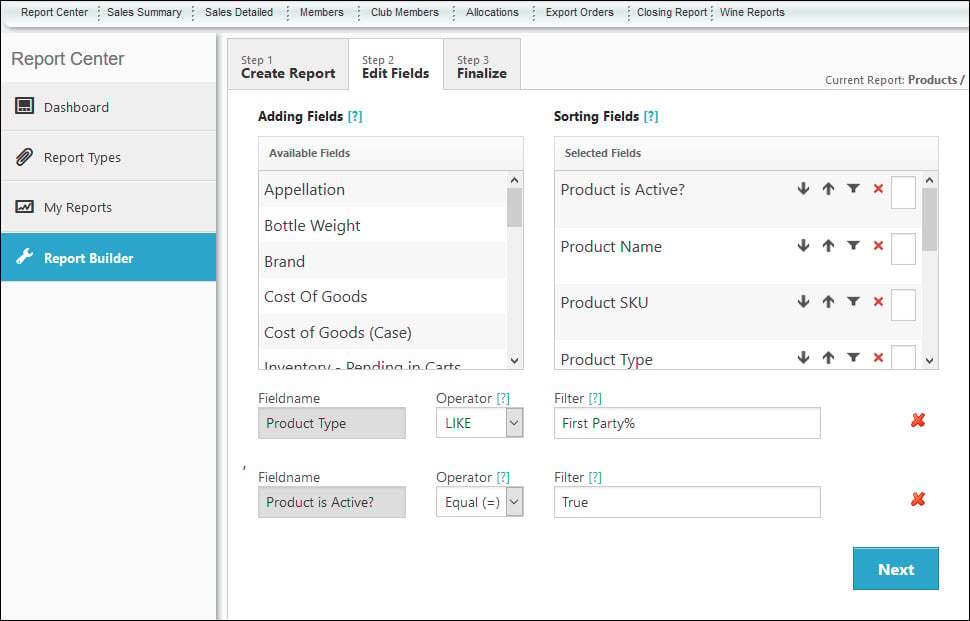
Filter | Operator | Answer Value | What does this mean?
- Product is Active?
- Equal (=)
- True
- The current report will filter results to only display products that have an active status.
- Product Type
- LIKE
- First Party
- The current report will include any results that have "First Party" in the Product Type field.