
Before you can use the UPS Fulfillment feature in vinSUITE, you must go through the process of creating our UPS API App. It is a fairly simple process, but we will do our best to help you through it!
Below are the general steps that a winery would need to follow, to get the new creds they'll need for our new UPS integration. [Note: Some screens/icons may have changed a little]
-
- Go to developer.ups.com and log in (same account as www.ups.com).
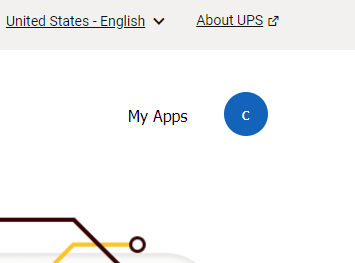
- Select "My Apps" next to your account icon.
3. On the "My Apps" screen, click "Add App" under the table of apps (which will be an empty table at this point), and select the following in the popup that comes up: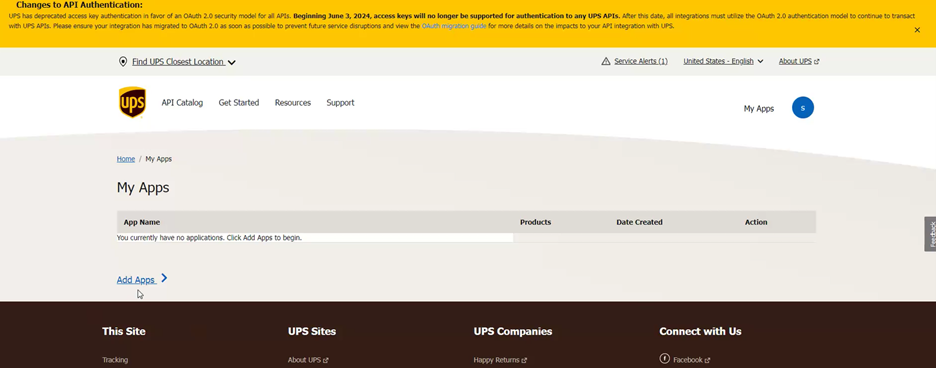
-
-
- For "I need an access key because", ensure "I want to integrate UPS shipping capabilities to my business" is selected (it should be the default option).
- For "Choose an account...", select OR create the appropriate account number (I think most wineries would already have exactly one account number which they would want to select here). They should also jot down (i.e. copy & paste somewhere) the account number if they don't have it already.
-
4.
On the next screen:
-
- wait for the page to unfreeze, if necessary.
- the winery can enter whatever contact info (doesn't matter much at a technical level). The winery might want to add vinSuite contact in for the "API Integration Owner" section (but again, this does not matter much).
5. On the next screen:
-
- "App Name" can be whatever (maybe you'll want to include "vinSuite" in the name, just for clarity).
- "Callback URL" Leave blank.
- "Description" can be whatever, or blank.
- From the "Add Products" section, you'll need to include at least the following: Authorization (OAuth), Shipping, and Tracking.
6. Click "Save" and it should take you to a summary screen for the app, with a masked "Client ID" and "Client Secret" that you can view/copy.
These are the values (along with the UPS account number you used) to copy & paste into vinSuite's UPS integration settings. Remove all of your old credentials and enter Only Account number, Client ID, and Secret are needed now.
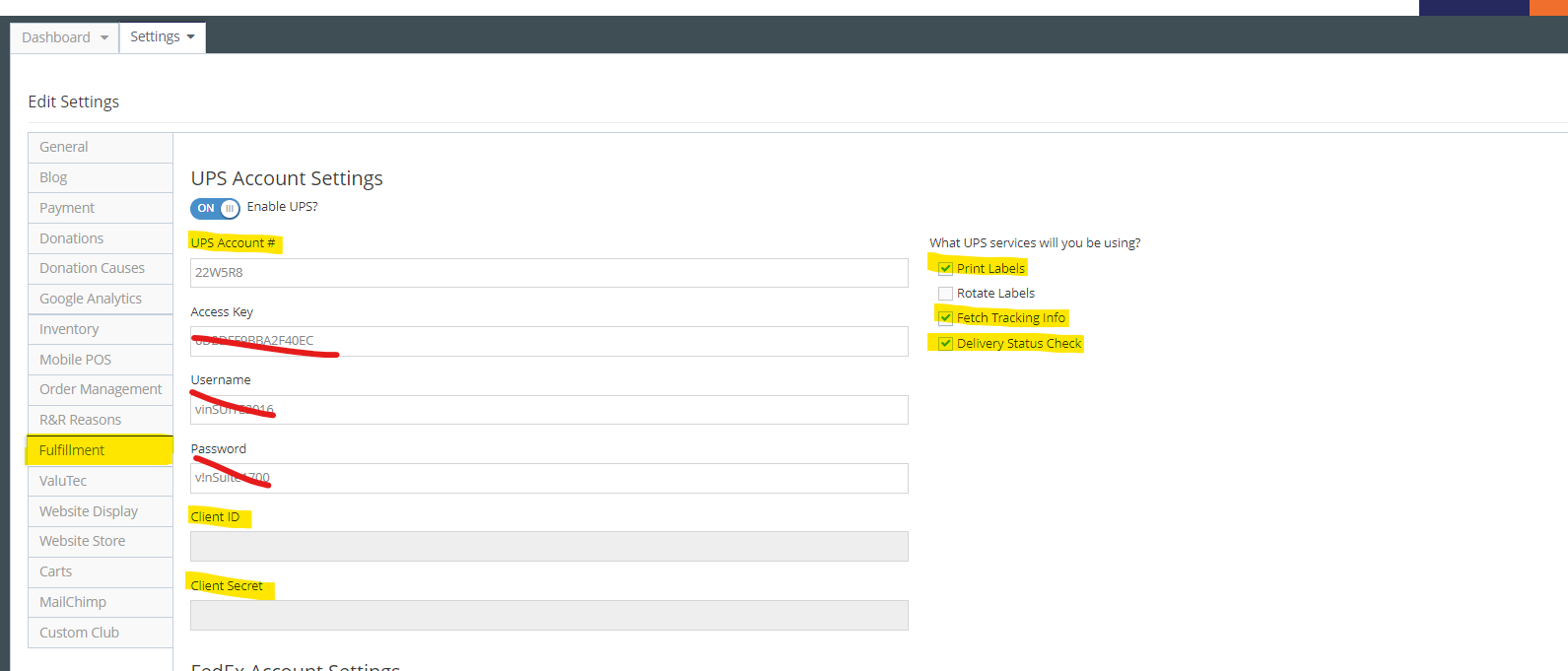
7. Do a test order and print a label to confirm working then void your test order.
Thank you,