
Steps
1. Open the Report Generator
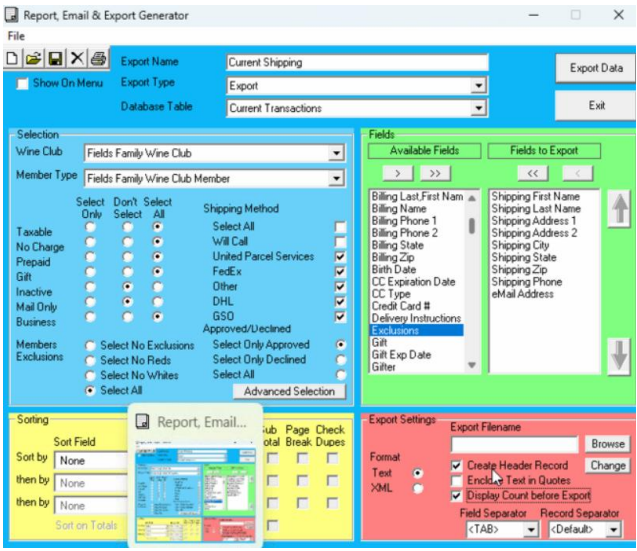
- On the SmartClub main page, click the Report Generator button. The Report, Email & Export Generator window opens.
2. Load the “Current Shipping” saved report
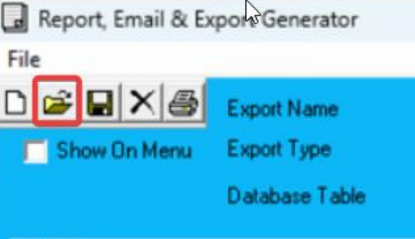
- Click the folder icon in the top-left toolbar to open the list of saved reports.
- Select Current Shipping.
This populates all the correct settings and columns for the export.
3. Verify the settings
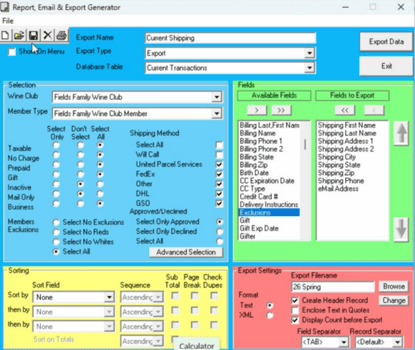
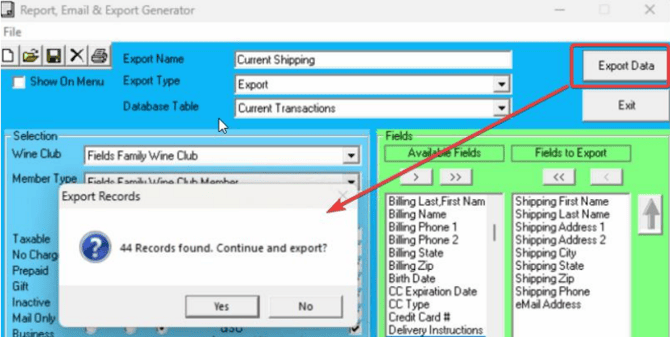
As a quick check, confirm your screen matches the settings in the screenshot below, including:
- Export Name: Current Shipping
- Export Type: Export
- Database Table: Current Transactions
- Fields to Export: Shipping First Name, Shipping Last Name, Shipping Address 1, Shipping Address 2, Shipping City, Shipping State, Shipping Zip, Shipping Phone, eMail Address
4. Name your export file
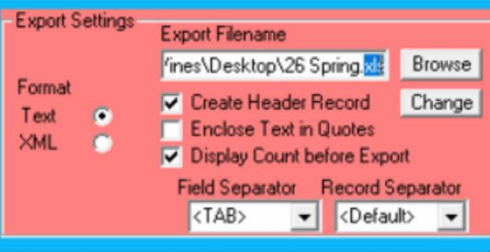
- In the Export Settings section (lower right), enter your current report name in the Export Filename field. For example:
26 Spring. - Click Browse and navigate to your Desktop, where you’ll save the report.
- Move your cursor to the end of the file path and change the file extension from .txt to .xls.
Important: Changing the extension to .xls is what saves the report as an Excel file. Don’t skip this step.
5. Export the data
- Click Export Data in the top-right corner of the window.
- A pop-up shows how many records will be exported (for example, “44 Records found. Continue and export?”). Click Yes.
6. Open the report
- Find the file on your desktop and double-click it.
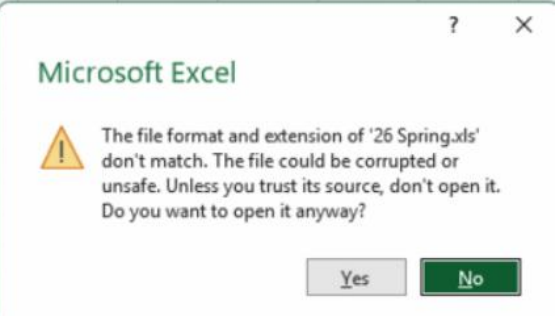
- Excel will display a warning that the file format and extension don’t match. Click Yes to open the file anyway.
Note: This warning is expected. SmartClub exports a tab-delimited text file, which Excel flags when it’s saved with an .xls extension. Since the file comes directly from SmartClub, it’s safe to open.
Troubleshooting
- The file won’t open in Excel: Confirm the extension is .xls and not .txt.
- The record count looks wrong: Re-open the Current Shipping saved report and recheck the selection settings (shipping methods, approved/declined status, and member exclusions).