
Welcome to Propelr Pay. This guide walks you through setting up your Clover Flex card reader and connecting it to your vinSUITE account. The whole process takes just a few minutes.
Before you start — the vinSUITE team will need your VAR sheet. This contains the merchant account details Propelr provides when they set up your account. If you haven't sent it over, please share it with your vinSUITE contact before completing these steps. This allows the vinSUITE team to prepare the system use with Propelr.
Part 1 — Set Up the Device
- Power on the reader
- Connect to WiFi
- Open your device settings in vinSUITE
Press and hold the power button on your Clover Flex until the screen lights up. Please give the device a moment to fully start up.
When prompted, select your winery's WiFi network and enter the password. The reader needs an internet connection to process payments. Once connected, you're ready to link it to vinSUITE.
Part 2 — Connect the Reader to vinSUITE
Your card reader has a unique HSN (hardware serial number) that links it to your vinSUITE account. You'll find it printed inside the paper cabinet on the back of the device. Here's how to enter it:
Log in to your vinSUITE Admin Panel and go to Settings → System Settings → MobilePOS. Find your device in the list and click the pencil (edit) icon in the Actions column.
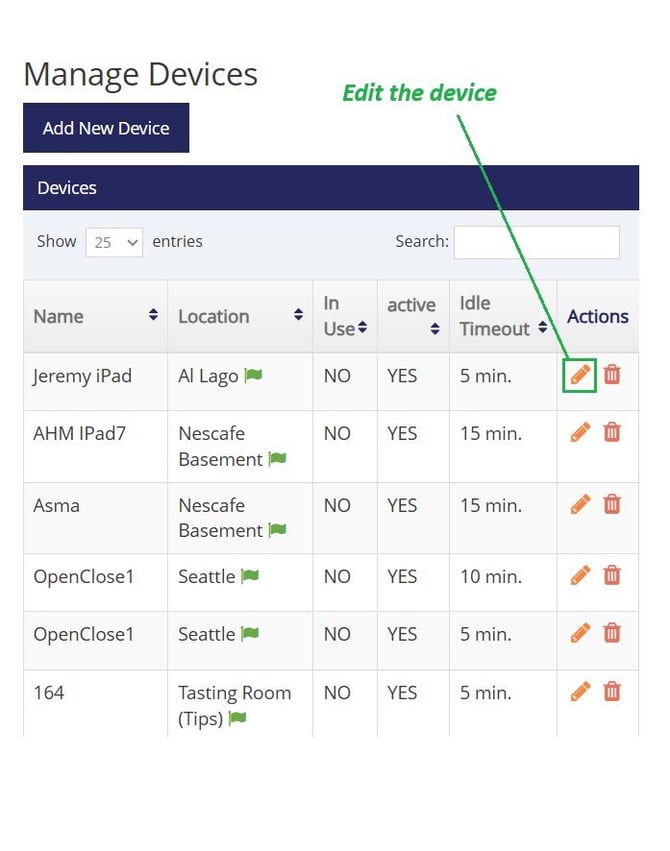
Click the edit icon next to your device
- Enter your HSN
In the Edit Device window, type the HSN from the back of your reader into the Propelr HSN field, then click Save Device. That's it — your reader is now linked to vinSUITE.
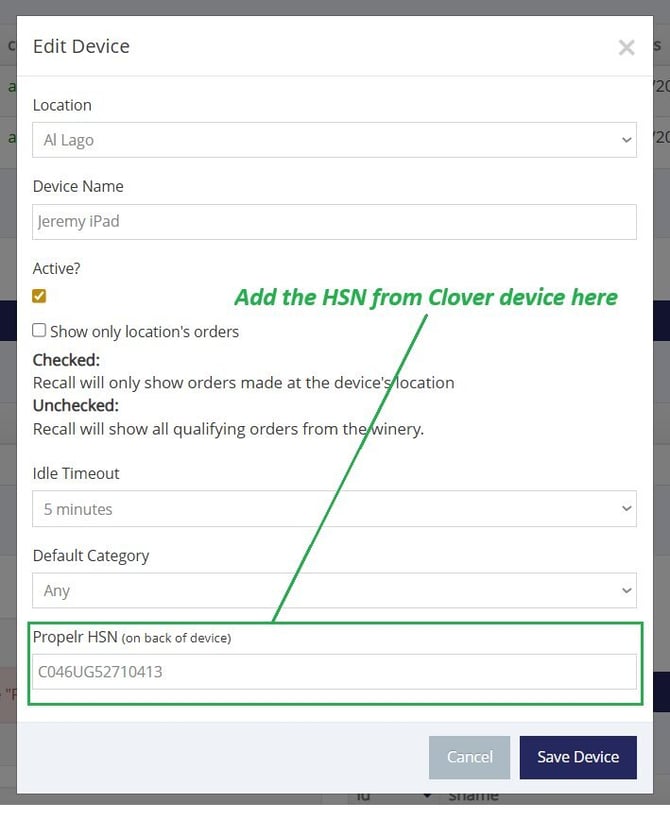
Enter the HSN from the back of the device, then Save
Part 3 — What You'll See on the Reader
Once your reader is connected, here's the sequence to get it ready to take payments.
- Start at the Reader’s Admin Panel
Your reader opens to a Welcome screen with an Admin Panel below. You should see Status: Connected and your device's HSN — confirmation that it's talking to vinSUITE. Tap the green Launch Customer Mode button to begin.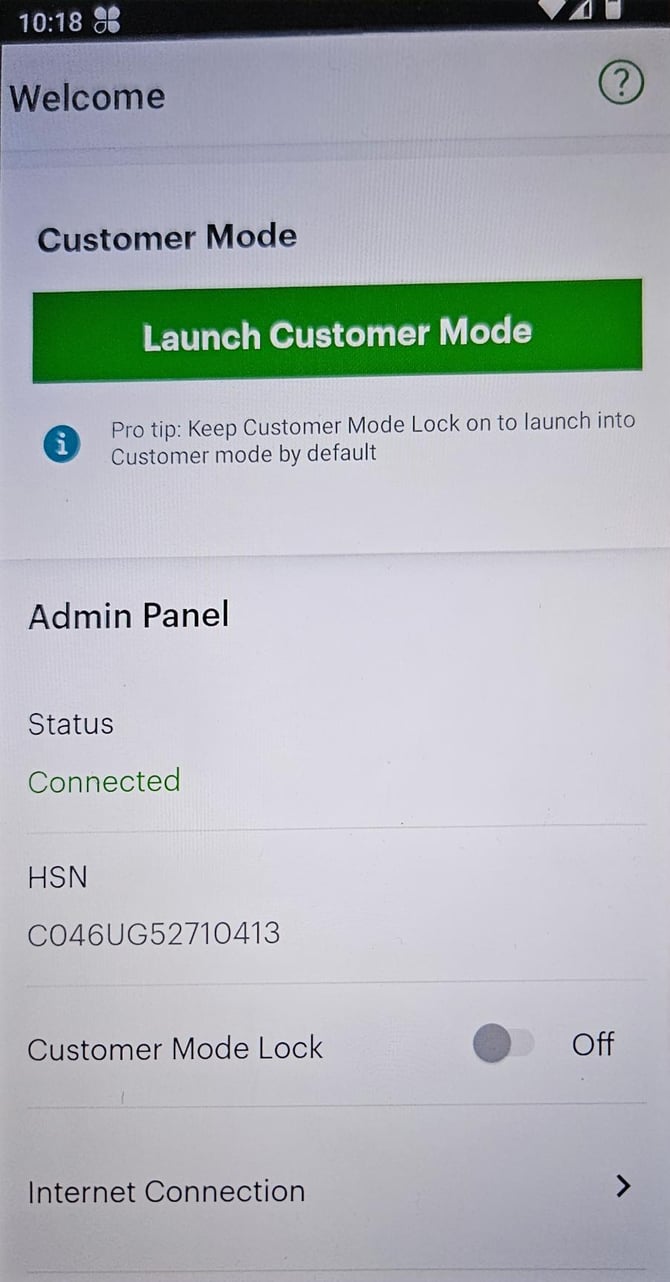
Tap "Launch Customer Mode" to start
Helpful tip: turn on Customer Mode Lock so your reader starts up in Customer Mode automatically every time. That way your staff can begin taking payments right away without manually launching it.
- Note to remember reader’s exit instructions
The reader shows a quick instruction screen: to leave Customer Mode later, touch all four corners of the screen at the same time. This is how you and your staff get back to the reader’s Admin Panel whenever needed. Tap OKAY to continue.
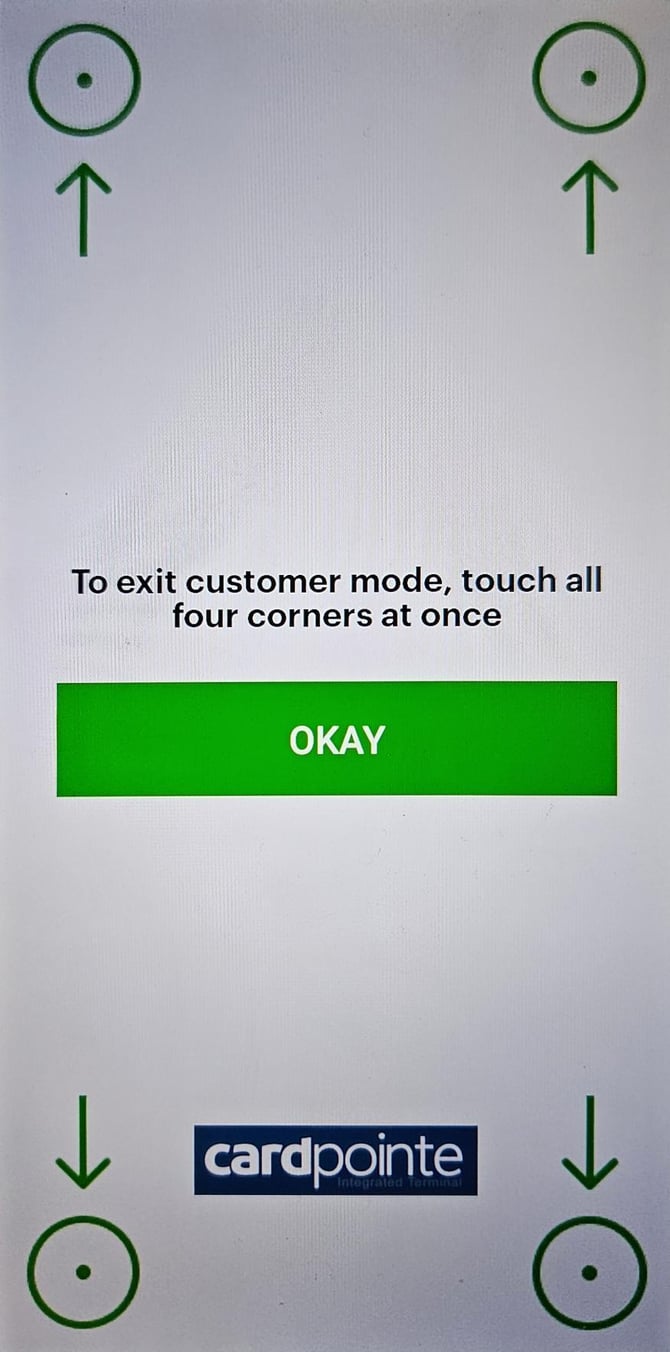
Remember this gesture to exit Customer Mode later
- You're ready to take payments
When you see the CardPointe screen, your reader is in Customer Mode and ready to go. It waits here between sales; when you send a transaction from your point of sale, the reader will prompt your customer to pay. You're all set!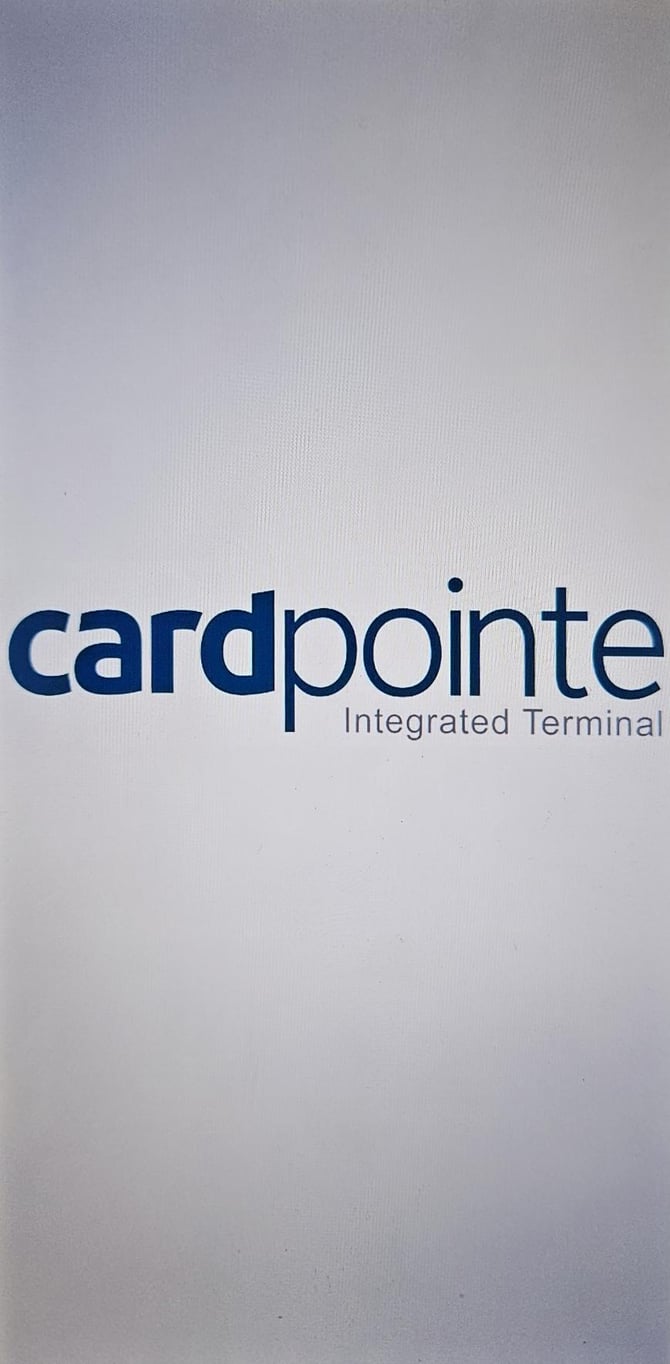
The CardPointe screen means you're ready to collect payments
Troubleshooting
If you run into a message on the reader that you don't recognize, this table covers what it means and what to do. We'll add to it over time.
| What you see | What it means | What to do |
|---|---|---|
| "Reader sign-in required — Please re-enter your operator credentials and try again." Appears on your TabletPOS iPad screen during a sale (not on the card reader). |
Your reader's payment credentials aren't fully linked to your merchant account on Propelr's side yet. This is a setup item, not something wrong with your login. | Contact your vinSUITE Customer Success contact. Our team resolves this with Propelr — re-entering credentials on the reader won't fix it. |
Helpful tip: Don’t forget to keep your card reader charged at the end of each day.
Need a Hand?
If anything doesn't look right during setup, reach out to your vinSUITE Customer Success contact and we'll help you get sorted out.