
Before you can use the FedEx Fulfillment feature in vinSUITE, you must go through the process of FedEx label certification. It is a lengthy process, but we will help you through it!
Instructions:
1. Log in to your fedex.com account
3. Click ?Get your Test Key?
4. Complete the form and accept the agreement. Screenshot or print the page with your test account key! You cannot retrieve it later. Look in your inbox for an email from FedEx with your test account password info. INTERNAL NOTE: you may have to get their login info and recreate their creds for them if they did not save them!
5. Contact support@vinsuite.com and ask them to enable the Fulfillment module. Please provide the team with your test account, test meter number, test web key (from screenshot), and test web password or forward the email from FedEx. Let the team know which shipping methods you plan to use (Ground, 2 Day, etc.) The team will plug these credentials into our test environment and provide you with labels to submit to FedEx for certification.
- INTERNAL NOTE:
- In the UAT environment >> _DATA - Encore (b3 Data) >> rename this test winery to the client winery >> add the address to the primary address fields
- Create an order in the OMS >> pay by invoice or check so that order completes without payment gateway creds
- In Shipping tab >> generate labels for each of the shipping methods that client uses
- Download labels and send to client >> client will submit to FedEx for certification
- Remove client winery info from _DATA - Encore (b3 Data)
6. Download and complete the label cover sheet on page 11 of this pdf: https://www.fedex.com/en-us/developer/web-services/process.html#certification . Submit Labels for certification to label@fedex.com
? Label image type: ZPL if you are using a Zebra thermal printer
? Example printer model: ZPLII for Zebra printers
? Label image type: PNG for desktop printer
7. Go to https://www.fedex.com/en-us/developer/web-services/process.html#production
8. Click the ?Move to production? link
9. Click ?Get Production Key?
10. Complete form and accept the agreement. Print the page with your Production account keys.
? Do you intend to resell your software? Answer: NO
? Please check the box: FedEx Web Services for Shipping
? Please indicate whether you are Developer / Consultant. Answer: Corporate Developer
11. Screenshot or print the page with your production account key! You cannot retrieve it later. Check your email for the Production Account Password. Note: FedEx Support Help: 1-877-339-2774 and select webservices.
12. Log in to admin.vinsuite.com >> System Settings (orange box in upper right) >> Fulfillment >> Enter your FedEx account number, meter number, (Production) Web Key and (Production) Web Password and Save. Set up Package Configurations. 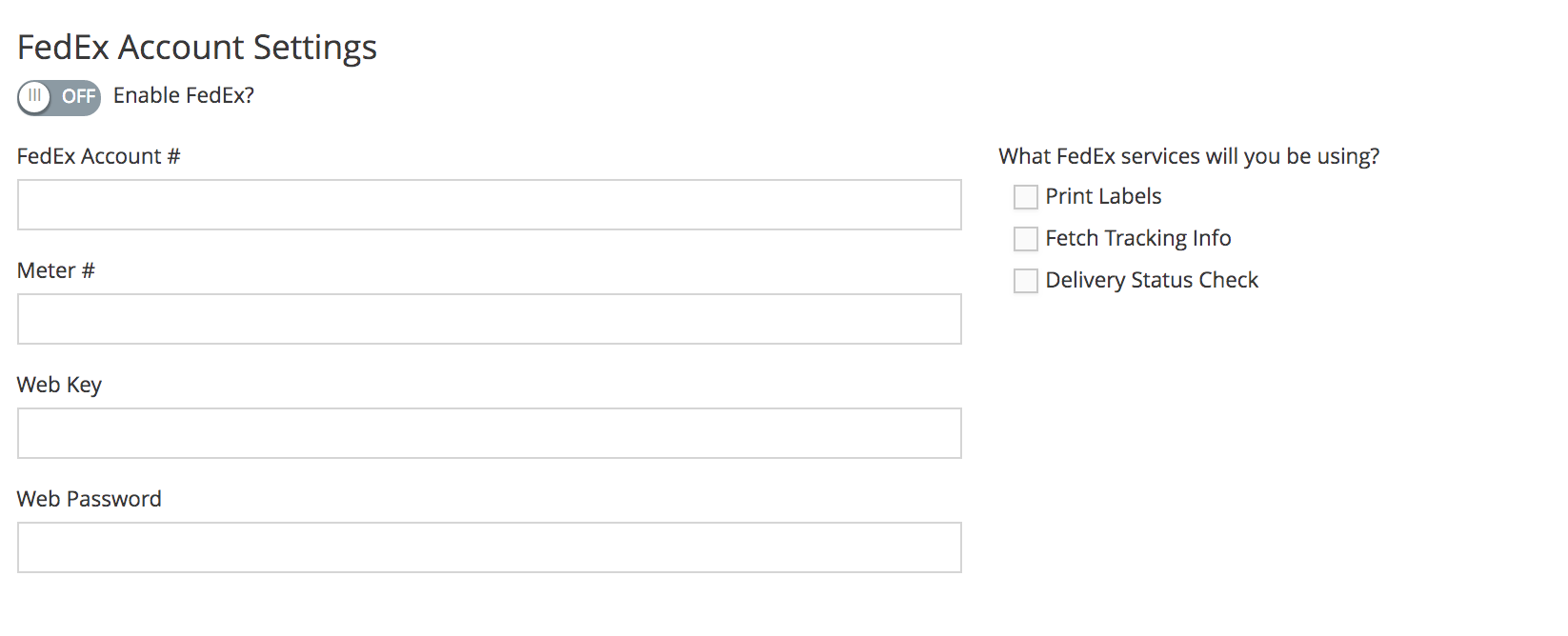
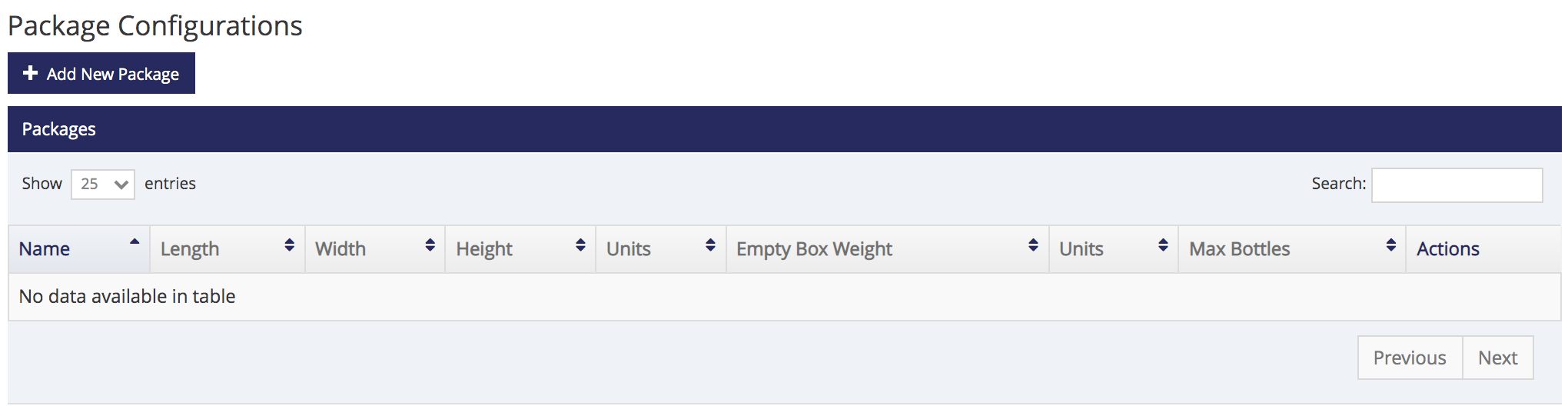
13. Alternately, log into admin.ewinerysolutions.com >> Settings icon >> Fulfillment > Enter your FedEx account number, meter number, (Production) Web Key and (Production) Web Password and Save. Set up Package Configurations. 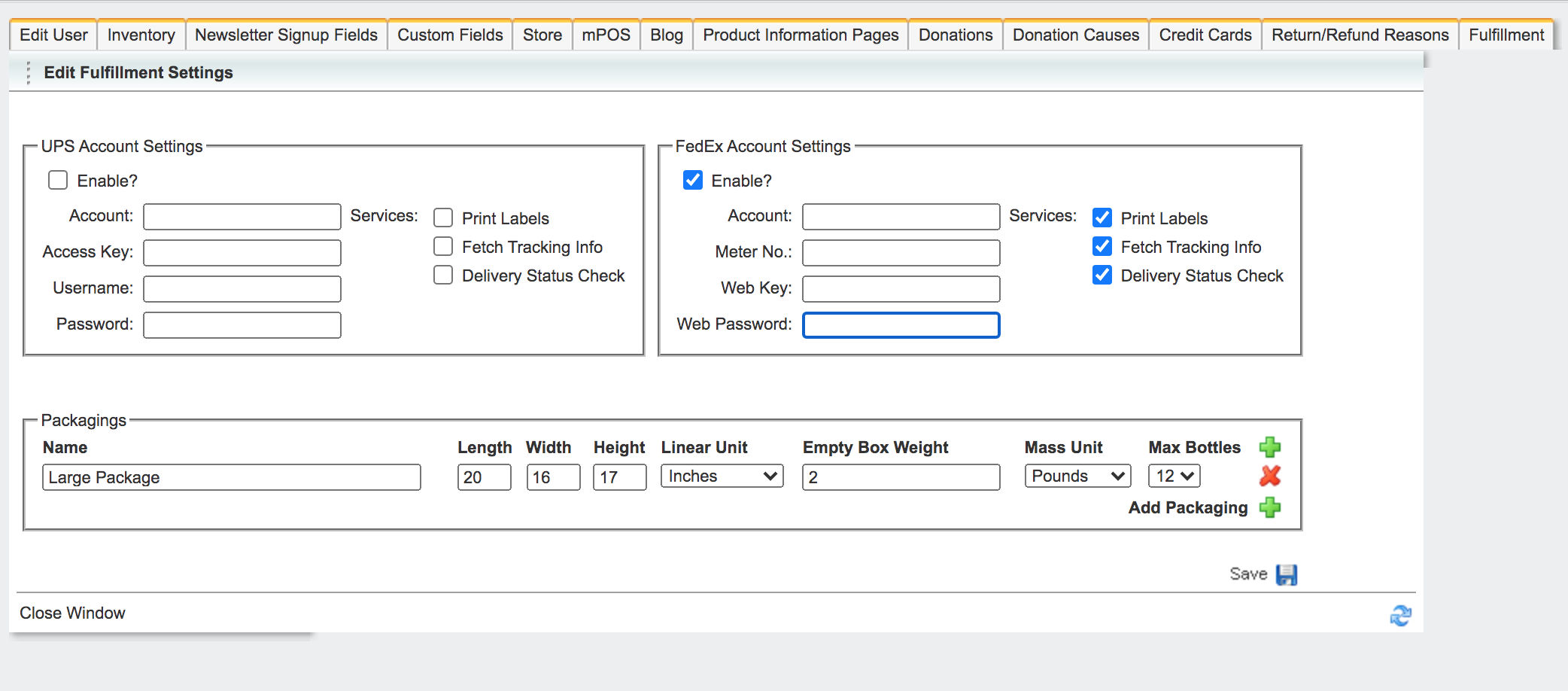
14. When FedEx contacts you that your labels are approved, you are ready to create labels for your Completed orders!