
What are Discounts? The vinSUITE admin panel allows you to create volume-based discounts and promotional codes that can help drive traffic to your website, incentivize your best customers, and boost your bottom line. There are countless ways you can utilize discounts and promotions to influence your customer's spending habits in your web store.
You have more control over your promotions and can create discounts that:
Bonus: Check out our best practices to set up your promotions.
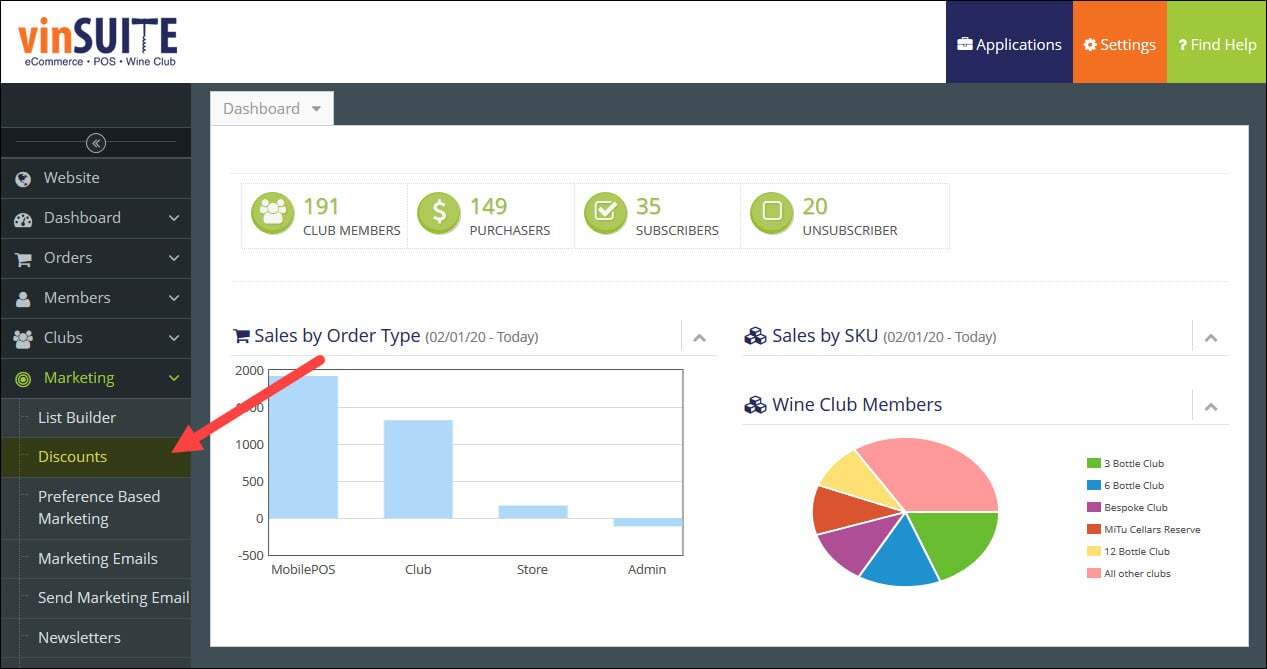
Add a New Discount/Promotion 1) In the vinSUITE admin panel, navigate to the Marketing module and then select 'Discounts'. The Discounts page will open in the workspace.
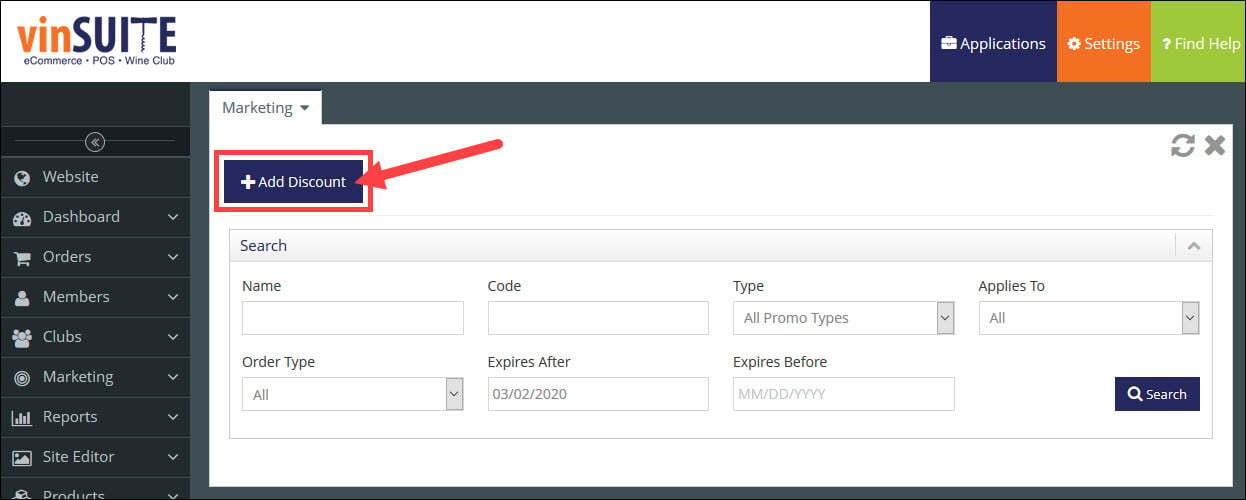
2) Click the 'Add Discount' button. A new Promotion window will pop up.
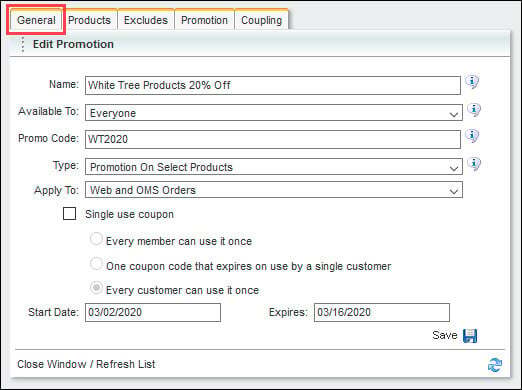
1) Name the promotion. The promotion should be named something that is customer friendly, as customers will see the discount during checkout.
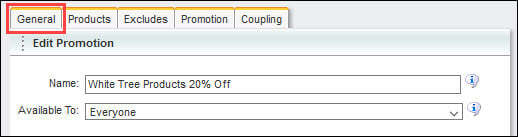
2) Select who is eligible for this promotion.
3) It is optional to add a promo code for this discount.

Web Example:
4) Select the Promotion Type.
5) Select where you?d like the discount applied. You can choose to apply this discount to Web and OMS Orders or Club Orders.
6) If a Promo Code is being used, it is optional to check the Single Use Coupon checkbox.
Note: Single use coupons use cookies in web carts, so customers must finish their first transaction to take advantage of a single use coupon. If a customer walks away, exits, or does not complete their first transaction, they will need to contact the winery to obtain the discount.
7) Select a Start Date and an Expiration date for the discount.

8) Click the 'Save' button.
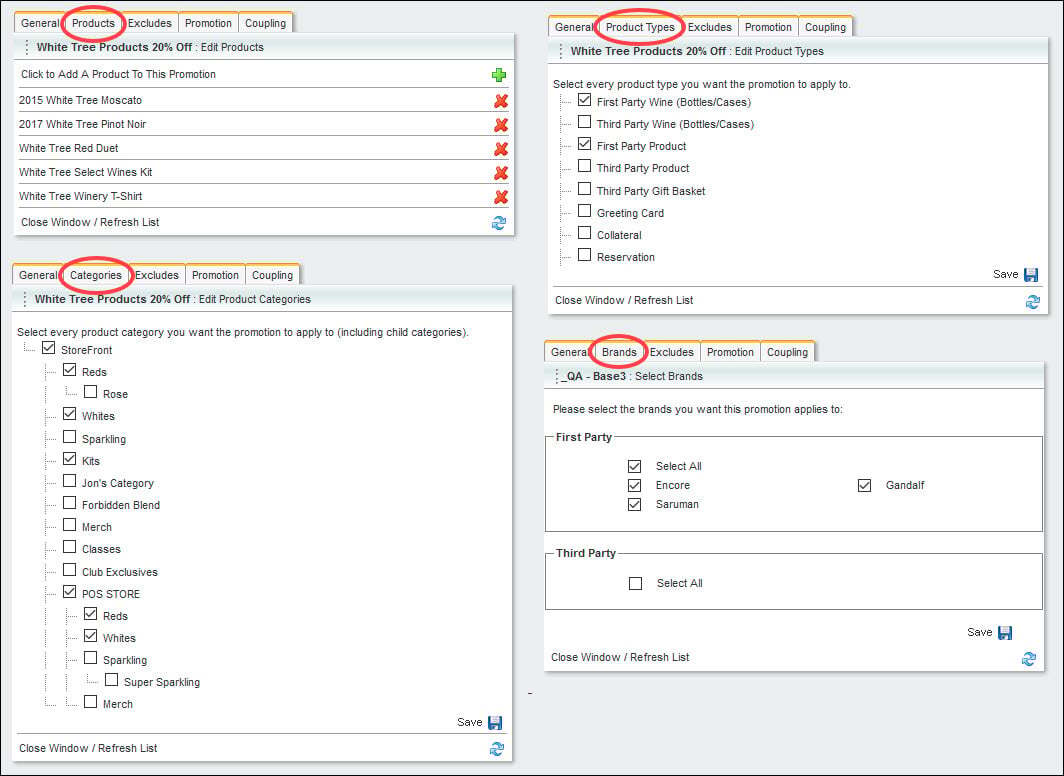
1) Complete any of the applicable Promotion Types tabs that may have opened for selected products.
Note: While most Product Types tabs have list of checkboxes you can select, you must click the green plus sign and choose a particular product from the drop-down menu before it is applicable for discounts on the Products tab.
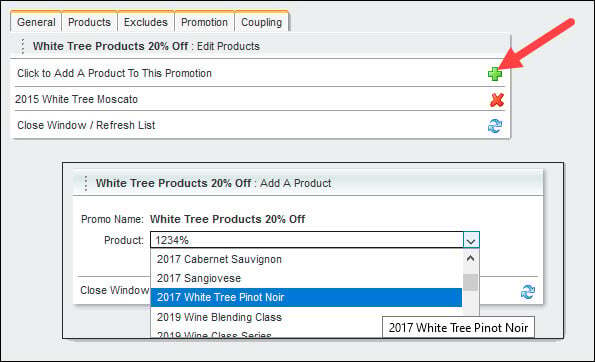
2) Click the 'Save' button.
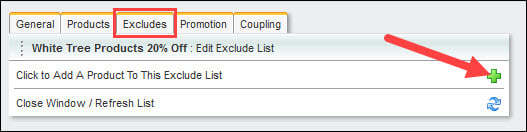
2) Select the product you want to exclude from this promotion.
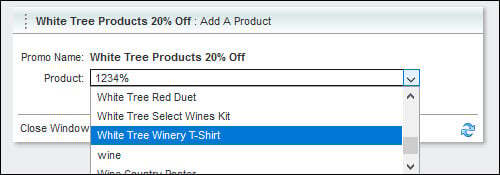
3) Click the "Save" button.
4) The excluded product will be displayed.
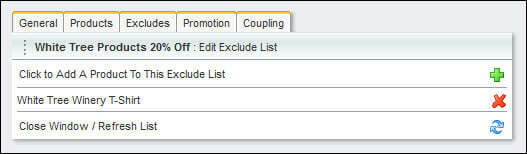
Tip: The Excludes tab is more beneficial for promotions that apply to broad product categories, product types, or the entire store. Perhaps a winery wants to exclude its library wines from a promotion that applies to the entire web store.
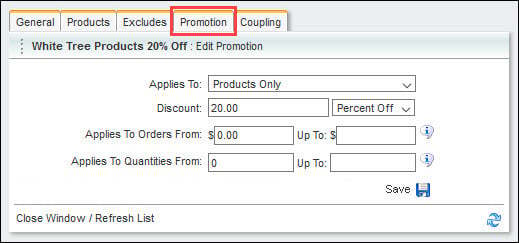
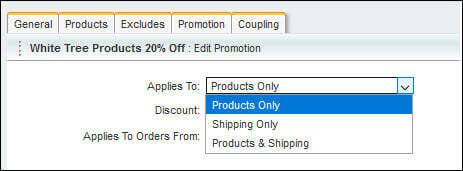
1) Select where you would like the discount to be applied.
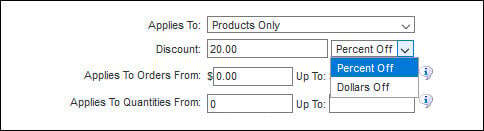
2. Set the discount amount.
Example: You can set a flat rate for shipping using a Fixed Dollar amount.
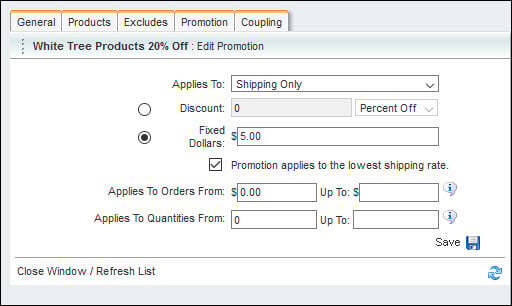
Note: If you have selected a 'Shipping Only' discount, you will also notice a checkbox for "Promotion applies to the lowest shipping rate." If you check this checkbox, then your shipping discount will only apply to the Shipping Type designated as the Lowest Cost Shipping Type.
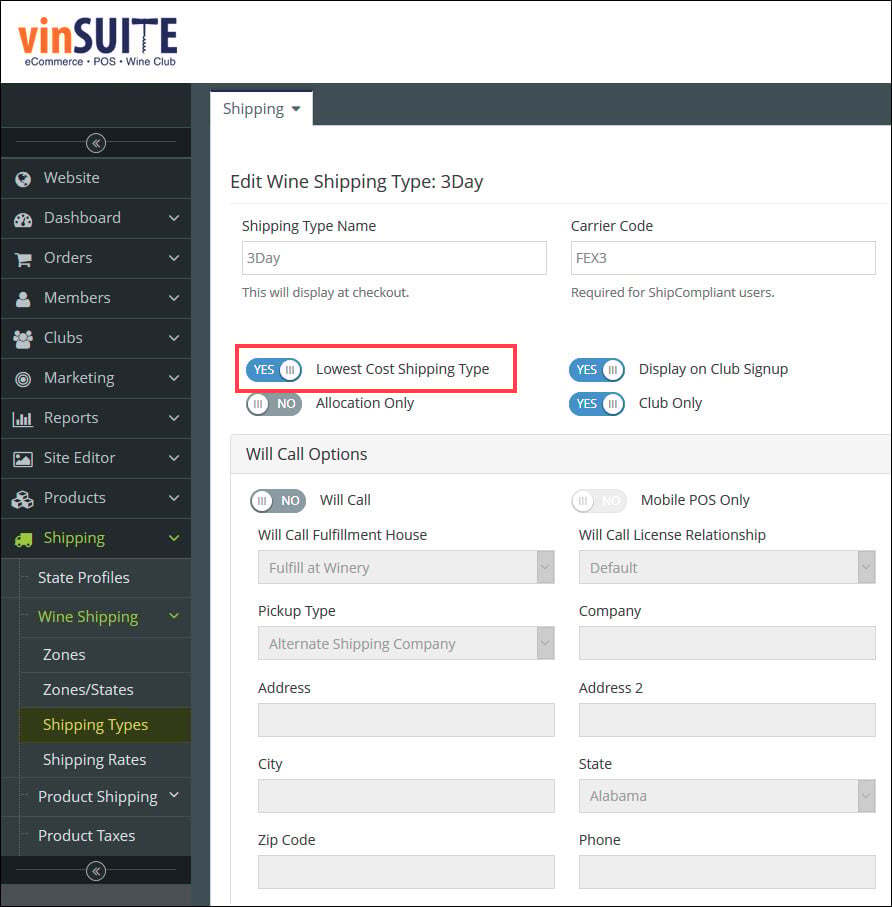
The Lowest Cost Shipping Type can be set in the Shipping Types section. When the 'Lowest Cost Shipping Type' toggle is turned "ON," this Shipping Type will be marked as the most inexpensive shipping option on your website. When this toggle is switched "ON", this shipping type becomes available for use with other promotions that are restricted to the 'Lowest Cost Shipping Type'.
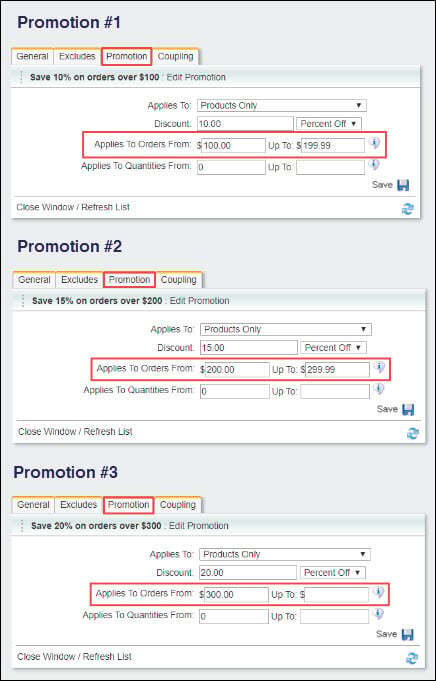
3) It is optional to set a specified range for order totals or order quantities. Only orders that fall within this range will be eligible for this discount.

Admin Panel Example: If you add multiple discounts, you can set order totals or order quantities to create tiered discounts.
Note: The 'Display this discount as a promotional price?' let us know so we can turn setting off may be found when using "Products Only" promotions, but is not currently functional. If you notice the 'Display this discount as a promotional price?' drop-down in your Promotions, please contact the Client Services team so we can remove it.
4) Click the 'Save' button.
2. Click the 'Save" button.
Best Practices
If you have any questions about these features or applying discounts, please reach out to our Client Services Team at support@vinsuite.com .
You have more control over your promotions and can create discounts that:
- Have a beginning and end date you can schedule in advance
- Deduct a percentage or a fixed dollar amount
- Apply to products, shipping, or both
- Only affect individual products, product types, product categories, or your entire online store
- Only affect members based on member type, club level, or member record
- Only apply to OMS or Club Batch orders
Bonus: Check out our best practices to set up your promotions.
Add a New Discount/Promotion 1) In the vinSUITE admin panel, navigate to the Marketing module and then select 'Discounts'. The Discounts page will open in the workspace.
2) Click the 'Add Discount' button. A new Promotion window will pop up.
General Tab
1) Name the promotion. The promotion should be named something that is customer friendly, as customers will see the discount during checkout.
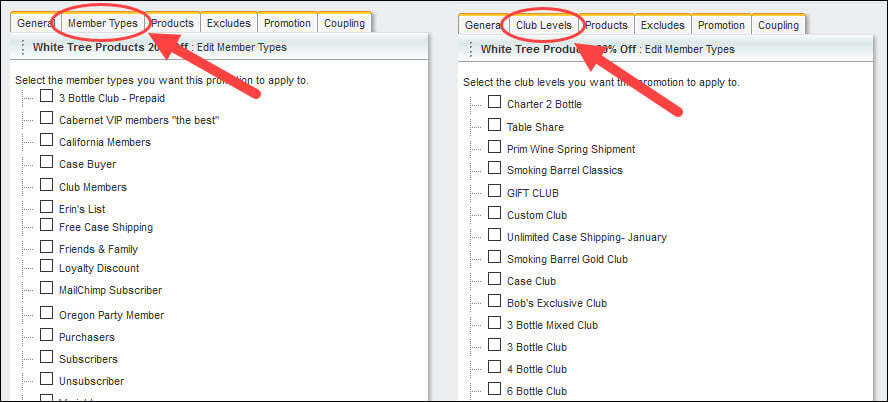
2) Select who is eligible for this promotion.
Available To:
- Everyone
- Everyone across all channels (admin OMS, clubs, TabletPOS, store,etc.) is eligible for this promotion.
- Specific Member Types
- Only customers with the chosen Member Types will be eligible for this promotion.
An additional tab will open, and allow you to select any member types that are eligible for this promotion.
Note: The Member Types tab will only appear once you click the 'Save' button.
To learn more about adding member types, please visit the vinSUITE Member Types page.
- Specific Club Levels
- Only members with an active Club Membership in the chosen Club Levels will be eligible for this promotion.
An additional tab will open, and allow you to select any club levels that are eligible for this promotion.
Note: The Club Levels tab will only appear once you click the 'Save' button.
To learn more about adding club levels, please visit the vinSUITE Club Levels page.
3) It is optional to add a promo code for this discount.
If you do not enter a promo code... | This discount will automatically apply to all orders that meet the requirements you set.
- If you enter a promo code...
- Customers will need to enter the promo code in the special offers section during checkout to obtain this discount.
Note: Even when the promo code is entered, orders will need to meet the requirements you set to obtain the discount.
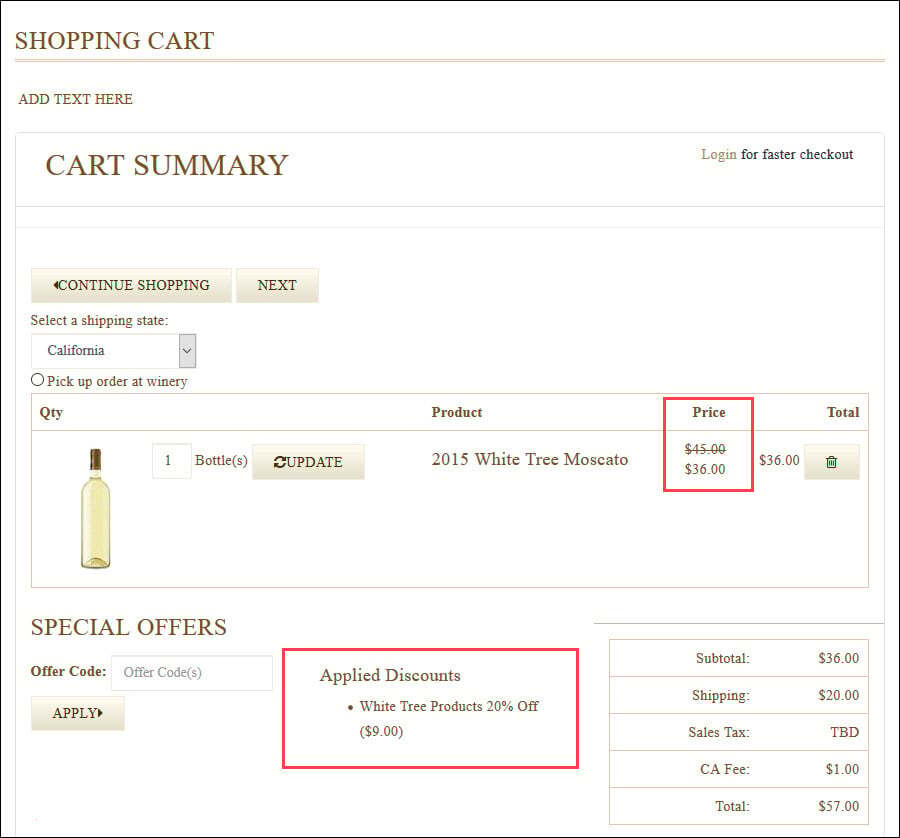
Once the promo code has been applied, the promotion will appear under Applied Discounts.
Web Example:
4) Select the Promotion Type.
Promotion Type | The discount will apply to:
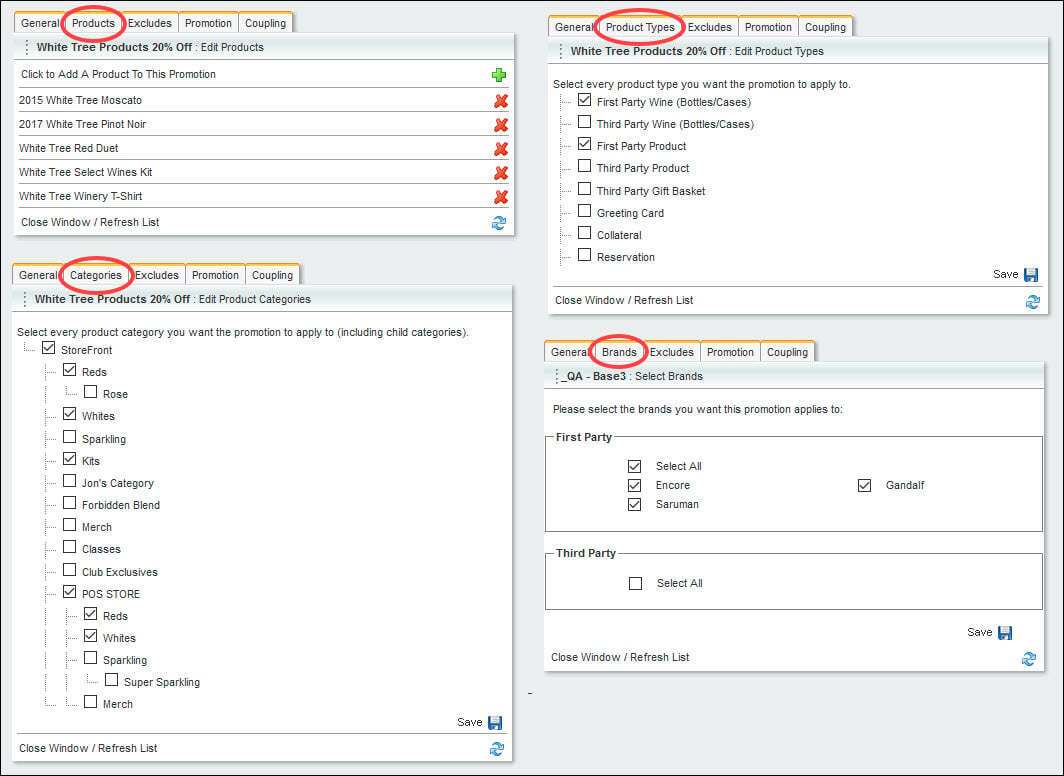
- Promotion on Select Products
- Products you individually choose.
A Products tab will open, and allow you to add the products that are eligible for this promotion.
Note: The Products tab will only appear once you click the 'Save' button.
- Promotion on Select Product Categories
- Products added to a cart online from a chosen category.
A Categories tab will open, and allow you to select product categories that are eligible for this promotion. The Products Categories tab will only appear once you click the 'Save' button.
Note: It is not recommended to use Products Categories for promotions because Products Category discounts will only apply to orders that are created on your website, not in the admin panel. This is due to the fact that the admin panel OMS does not recognize differentiated product categories.
It is also important to make sure that if a product is in multiple categories, all those categories are selected.
- Promotion on Select Product Types
- All active products of the chosen Product Types.
A Product Types tab will open, and allow you to select product types that are eligible for this promotion.
Note: The Product Types tab will only appear once you click the 'Save' button.
- Promotion on Entire Store
- All of the active products you have available in your online store.
Note: No new tab will open if you select Promotion on Entire Store.
- Promotion on Select Brands
- All active products of the chosen Brand.
A Brands tab will open, and allow you to select brands that are eligible for this promotion.
Note: The Brands tab will only appear once you click the 'Save' button.
5) Select where you?d like the discount applied. You can choose to apply this discount to Web and OMS Orders or Club Orders.
6) If a Promo Code is being used, it is optional to check the Single Use Coupon checkbox.
Note: Single use coupons use cookies in web carts, so customers must finish their first transaction to take advantage of a single use coupon. If a customer walks away, exits, or does not complete their first transaction, they will need to contact the winery to obtain the discount.
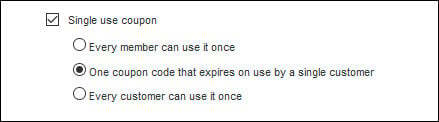
Single Use Coupon
- Every member can use it once
- The member must sign in before the promo code applies to their order. The system will then ensure each member only uses the promo code for one order.
- One coupon code that expires on use by a single customer
- Basically a first come - first serve option. Only the first customer to enter the promo code will get it applied to their order.
- Every customer can use it once
- Any customer, member or not, can use the promo code and apply it to their order. The system will then ensure each customer only uses the promo code for one order.
7) Select a Start Date and an Expiration date for the discount.
8) Click the 'Save' button.
Promotion Types Tab
1) Complete any of the applicable Promotion Types tabs that may have opened for selected products.
Products | Click the green plus sign to add specific products eligible for this promotion. Note: To learn more about adding new products to this list, please visit the Add a New Product page.
- Product Categories
- Select the product categories that are eligible for this promotion.
Note: It is not recommended to use Products Categories for promotions because Products Category discounts will only apply to orders that are created on your website, not in the admin panel. This is due to the fact that the admin panel OMS does not recognize differentiated product categories.
It is also important to make sure that if a product is in multiple categories, all those categories are selected.
To learn more about adding new product categories, please visit the Product Categories page.
- Product Types
- Select the product types that are eligible for this promotion.
- Brands
- Select the brands that are eligible for this promotion.
Note: To add new brands, please visit the Product > Product Attributes > Brands page.
Note: While most Product Types tabs have list of checkboxes you can select, you must click the green plus sign and choose a particular product from the drop-down menu before it is applicable for discounts on the Products tab.
2) Click the 'Save' button.
Excludes Tab
1) Click the green plus sign to exclude products from this promotion. 2) Select the product you want to exclude from this promotion.
3) Click the "Save" button.
4) The excluded product will be displayed.
Tip: The Excludes tab is more beneficial for promotions that apply to broad product categories, product types, or the entire store. Perhaps a winery wants to exclude its library wines from a promotion that applies to the entire web store.
Promotion Tab
1) Select where you would like the discount to be applied.
Products Only | Discount is only applied to Product subtotals.
- Shipping Only
- Discount is only applied to Shipping costs.
Note: Fixed Dollar amount promotions are only available for shipping costs.
- Products & Shipping
- Discount is applied to both product and shipping costs.
2. Set the discount amount.
Discount | If you choose Percent Off , a percentage will be subtracted from the individual bottle , shipping price, or order total, depending on your previous selection. If you choose Dollars Off , a set dollar amount will be subtracted from the order or shipping total (not each individual bottle) .
- Fixed Dollars
- This fixed dollar amount will replace any shipping charges on the order.
Note: This option is only available if you select "Shipping Only" at the top of the Promotions tab.
Example: You can set a flat rate for shipping using a Fixed Dollar amount.
Note: If you have selected a 'Shipping Only' discount, you will also notice a checkbox for "Promotion applies to the lowest shipping rate." If you check this checkbox, then your shipping discount will only apply to the Shipping Type designated as the Lowest Cost Shipping Type.
The Lowest Cost Shipping Type can be set in the Shipping Types section. When the 'Lowest Cost Shipping Type' toggle is turned "ON," this Shipping Type will be marked as the most inexpensive shipping option on your website. When this toggle is switched "ON", this shipping type becomes available for use with other promotions that are restricted to the 'Lowest Cost Shipping Type'.
3) It is optional to set a specified range for order totals or order quantities. Only orders that fall within this range will be eligible for this discount.
Admin Panel Example: If you add multiple discounts, you can set order totals or order quantities to create tiered discounts.
Note: The 'Display this discount as a promotional price?' let us know so we can turn setting off may be found when using "Products Only" promotions, but is not currently functional. If you notice the 'Display this discount as a promotional price?' drop-down in your Promotions, please contact the Client Services team so we can remove it.
4) Click the 'Save' button.
Coupling Tab
Coupling allows multiple discounts to be applied to a single order.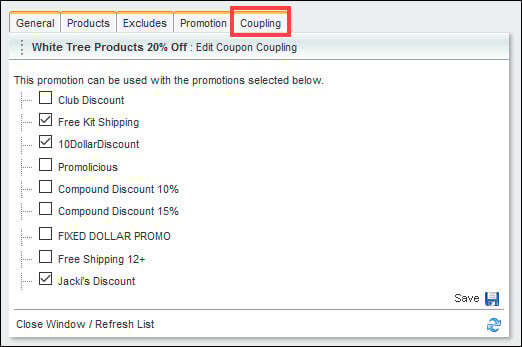
1. Select any discounts to couple with the new promotion.
If an order is eligible for multiple discounts that are not coupled ... | Only the largest discount will be applied. Example: If an order is eligible for a 20% Off discount and 15% Off discount, only the 20% Off discount will apply.
- If an order is eligible for multiple discounts and the discounts are coupled...
- All discounts will be applied.
Example: If an order is eligible for a 20% Off discount and 15% Off discount, both discounts will apply for a total of 35% Off.
2. Click the 'Save" button.
Best Practices
Always test your discounts!
- Be sure to set up multiple members in your admin panel for testing
- Have a least one test member for each club level
- Log in on your website and place test orders to make sure discounts are applying correctly
What to do if your promotion isn't working
- Discounts will only be applied if an order meets all the requirements set up in the discount (and they can get pretty specific!)
- Review each setting in the admin panel for the discount to find out which requirement is not being met.
- Adjust the discount requirements if necessary
If you have any questions about these features or applying discounts, please reach out to our Client Services Team at support@vinsuite.com .