
It's a new year and a new decade - it's time to create some new email campaigns for your customers! By setting up the vinSUITE integration with MailChimp, sending email campaigns to your client-base is easier than ever.
Learn how to use vinSUITE's List Builder to create lists of customers that you can utilize in targeted marketing campaigns. Follow up by connecting to our MailChimp Integration to sync your lists and build email campaigns to connect with existing vinSUITE contacts.
List Builder With List Builder, you can create and refine lists of current vinSUITE members based on their birthdays, big spenders, or other criteria.
Birthday Lists
Birthday email campaigns will help build a personal connection with your clientele. A simple birthday wish from your team or a promotional discount to use on their birthday can entice customers to interact and create a specialized customer experience. A free gift or experience at your winery takes things a step further to increase engagement with your winery.To set up a Birthday list:
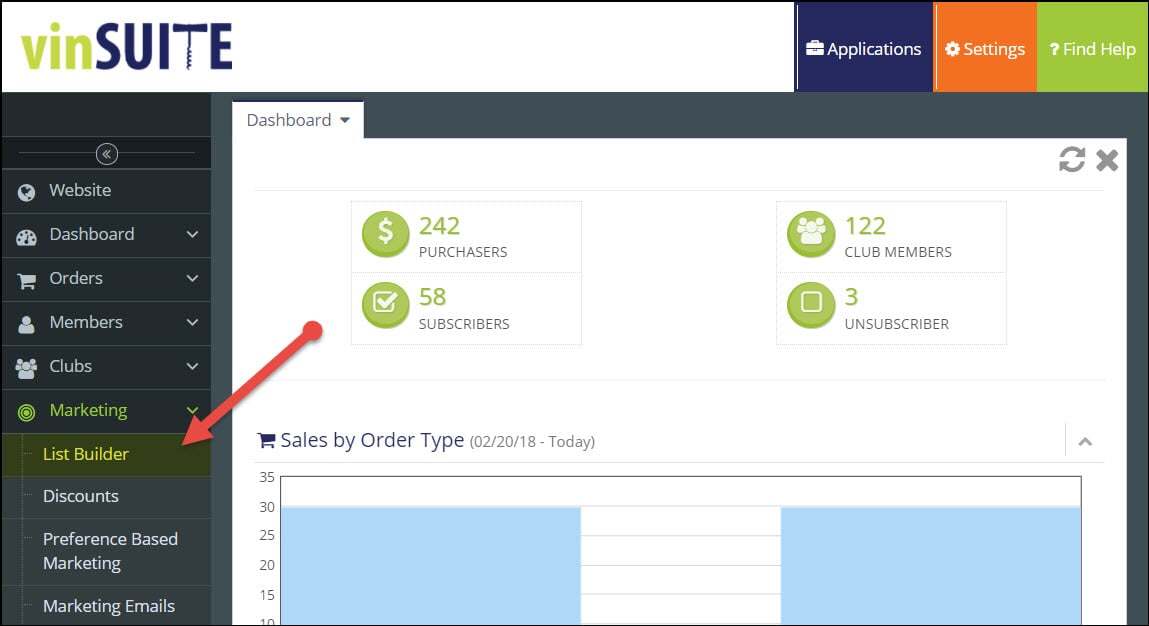
1) In the vinSUITE admin panel, expand the 'Marketing' section in the left hand navigation panel, and then select 'List Builder'.
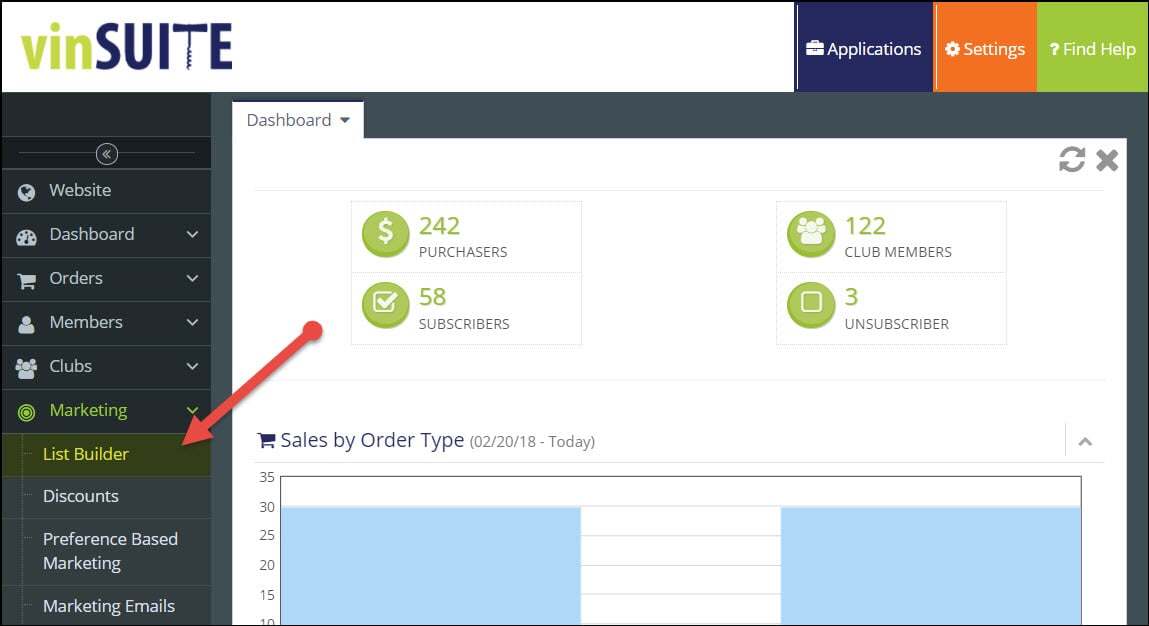
2) The List Builder will open in the work space. Click the '+ Add A List' button.
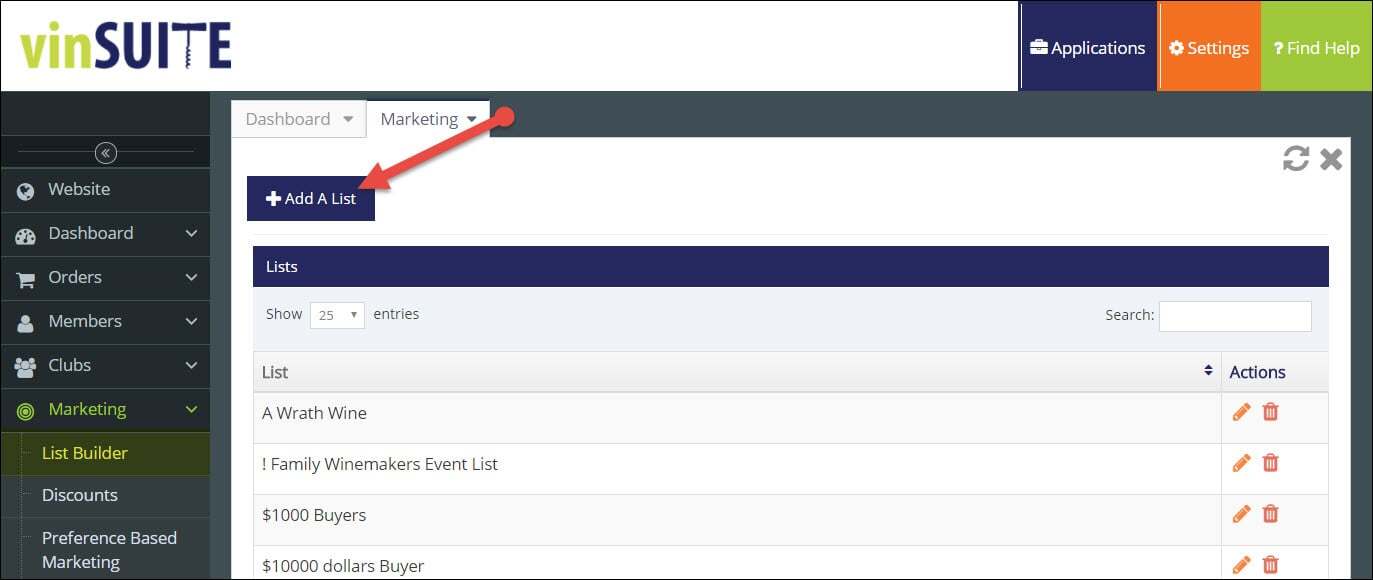
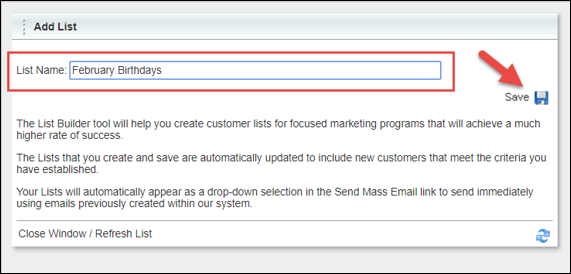
3) The Add List window will open. In the Add List dialog box, enter a name for the list (i.e. Chardonnay Buyers, ABC Club) in the List Name box and click the 'Save' button.
Best Practice: It the easiest to create a new list for each month.
4) The list will be saved. There are several tabs and fields you can enter information to refine your list.
Note: To learn more about all the available tabs, please visit the Add A List page.
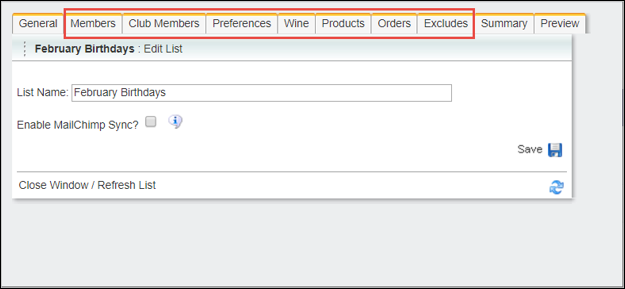
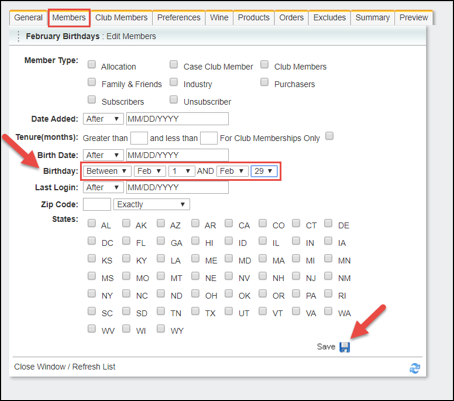
5) In the Members tab, select members whose birthdays fall between Feb. 1 and Feb. 29 and click the 'Save' button.
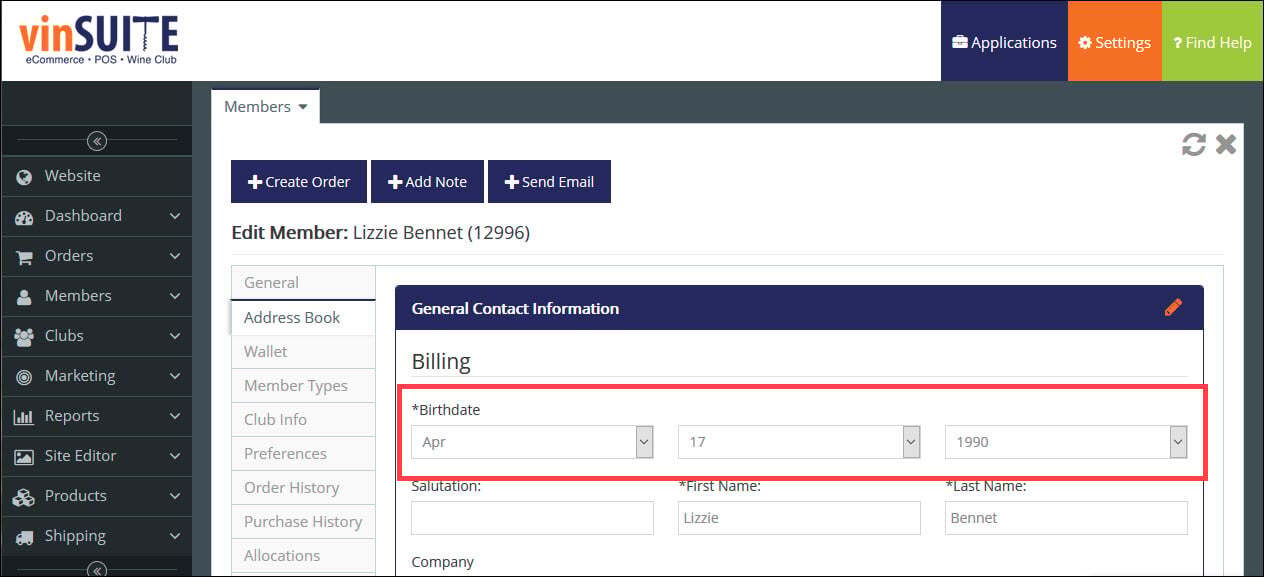
Note: You can update a member?s birth date within their Primary Billing Address in their Member Record.
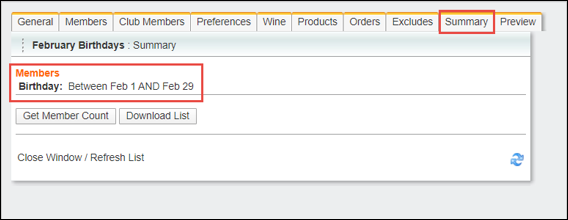
6) In the Summary tab, all chosen criteria will be displayed.
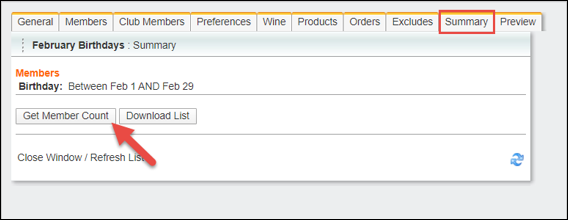
7) Click 'Get Member Count' to see how many members meet the criteria.
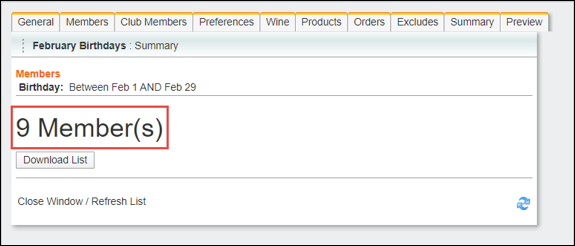
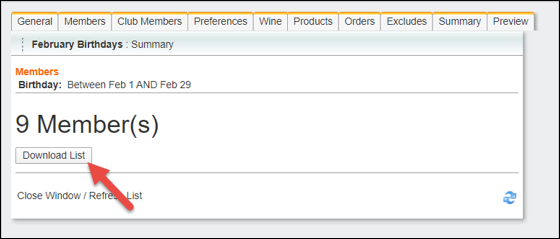
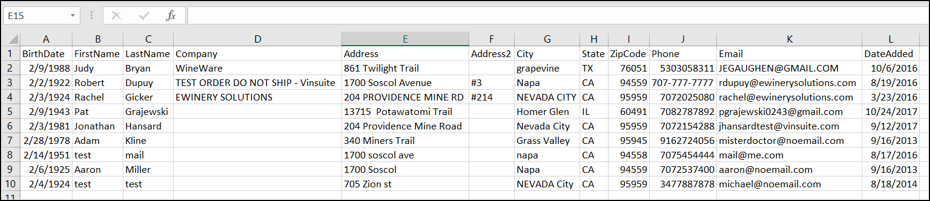
8) Click 'Download List' to generate an Excel spreadsheet containing these members? basic contact information. The spreadsheet will be generated in a .CSV format that is commonly used for uploading spreadsheets to Email Marketing programs like MailChimp or Constant Contact.
9) In the Preview tab, see which members are included in the list. You can click on the Pencil icon to view a member?s profile.
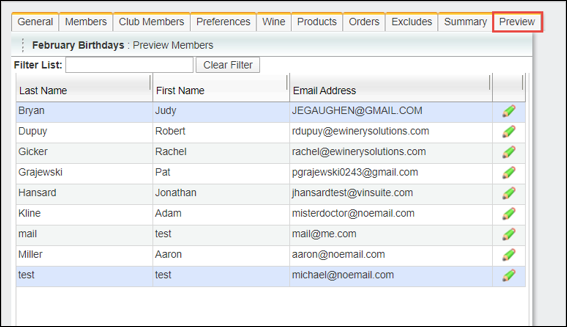
Note: Lists are automatically updated! If a new member with a February birthday is added to the vinSUITE Admin Panel, that member will automatically be added to this list.
Big Spenders Lists
Big spender email campaigns are a great way to reward loyal customers by sharing exclusive news and offers with them. Teaser emails for upcoming releases, events, and sales, as well as special notes or content from the winemakers are great ways to thank your best customers and tempt them to spend more!To build a Big Spenders list:
1) In the vinSUITE admin panel, expand the 'Marketing' section in the left hand navigation panel, and then select ?List Builder?.
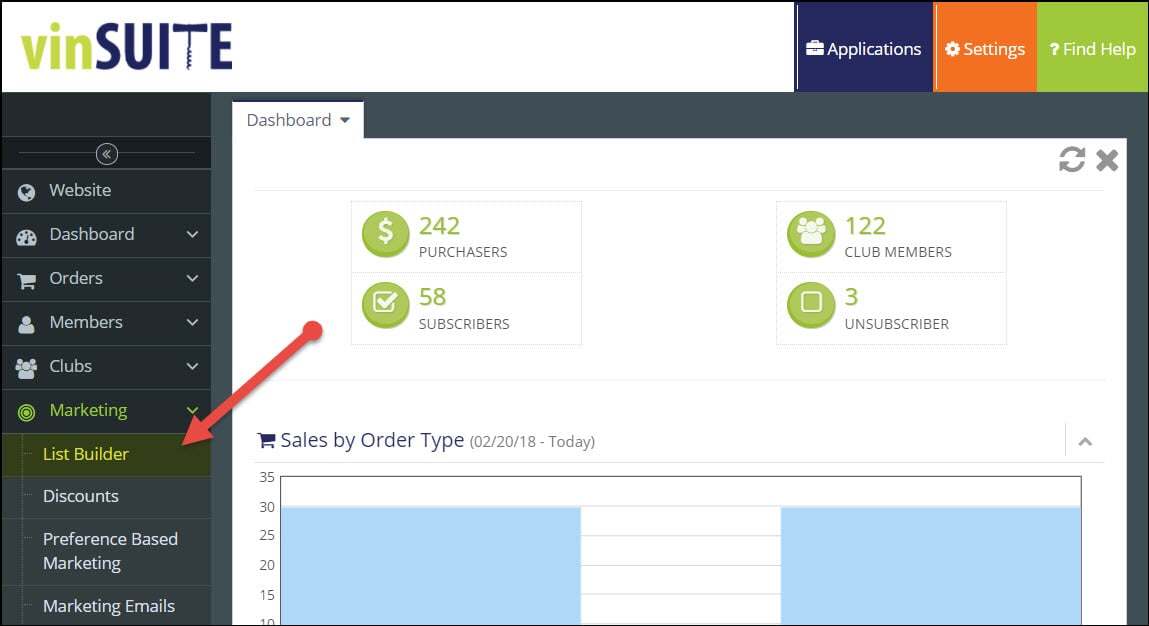
2) The List Builder will open in the work space. Click the '+ Add A List' button.
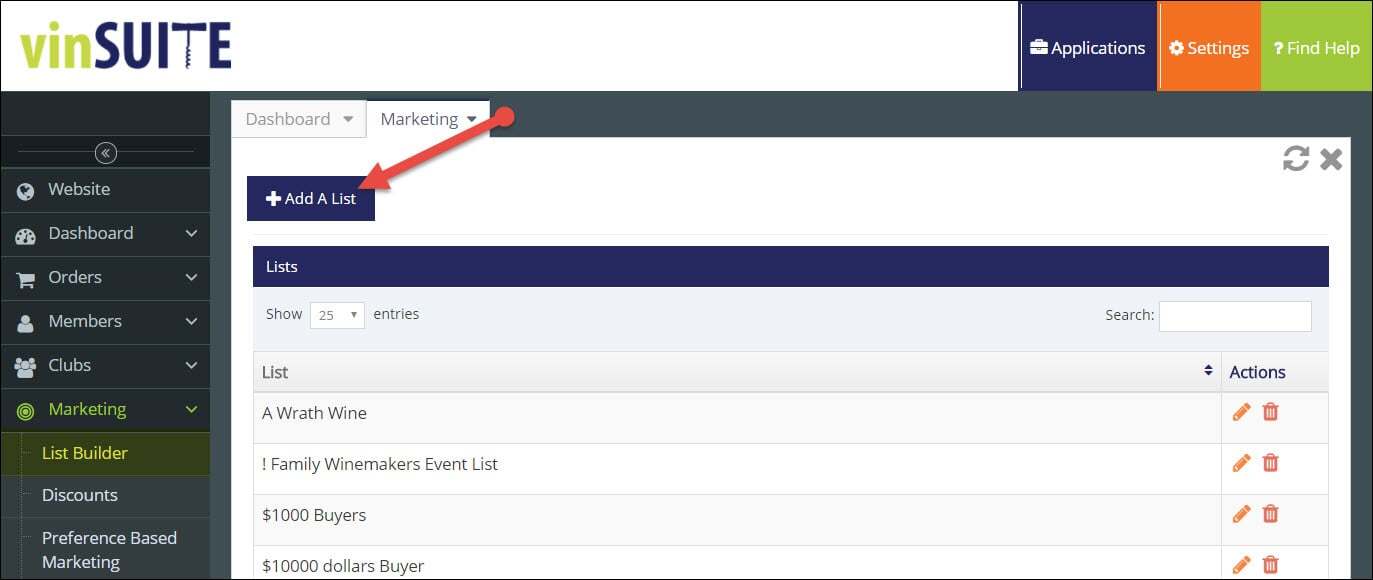
3) The Add List window will open. In the Add List dialog box, enter a distinctive name for the list in the List Name box and click the 'Save' button.
4) The list will be saved. There are several tabs and fields you can enter information to refine your list.
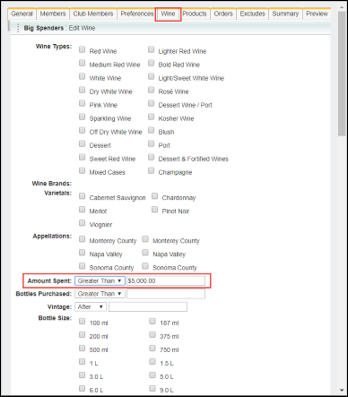
5) In the Wine tab, choose criteria based on a member?s lifetime purchase history.
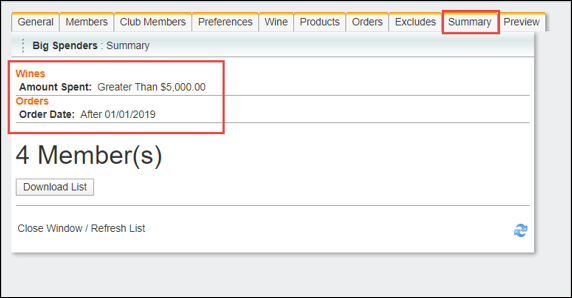
Example: Set the Amount Spent to Greater that $5000 to create a list of customers whose orders total more that $5000.
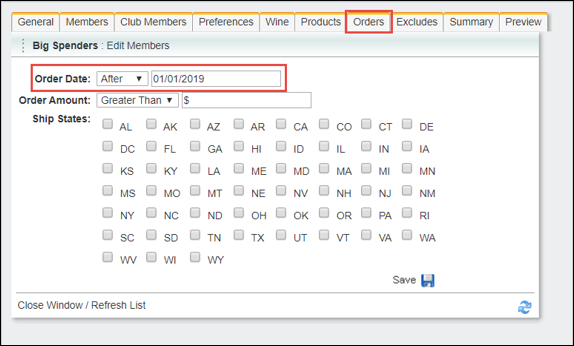
6) In the Orders tab, narrow down this list to only include members who have placed orders since the beginning of 2019.
7) In the Summary tab, all chosen criteria will be displayed.
Create and Send Marketing Emails
In vinSUITE
1) In the vinSUITE admin panel, expand the ?Marketing? section in the left hand navigation panel, and then select ?Marketing Emails?.2) A list of marketing emails will open in the work space. Click the '+ Add An Email Document' button.

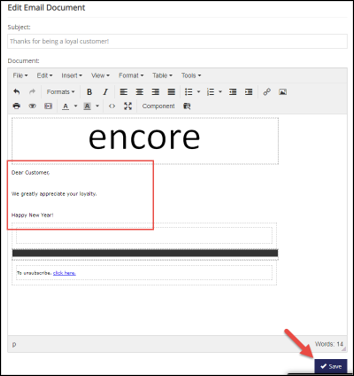
3) Customize the email before you click the 'Save' button.
4) Expand the 'Marketing' section in the left hand navigation panel, and then select 'Send Marketing Email'.
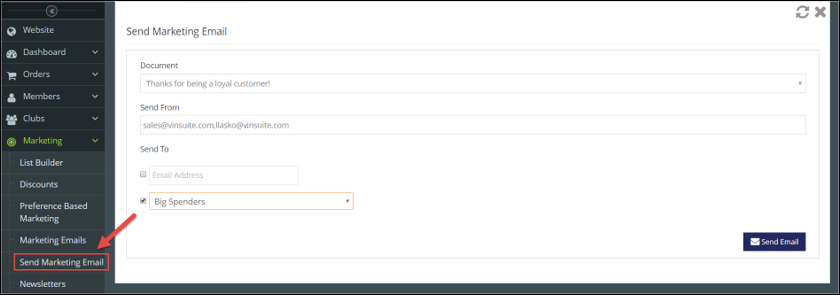
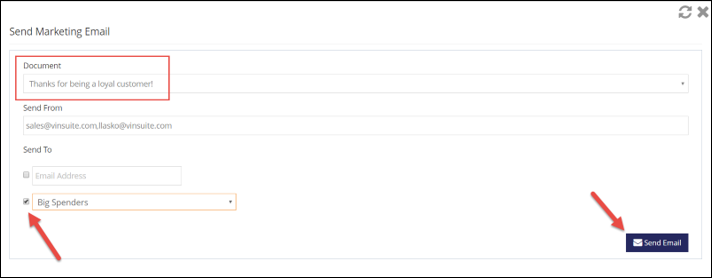
5) Choose the email you?d like to send from the Document drop-down menu.
6) Under the Send To field, choose the list to which you'd like to send the email. After clicking Send Email, all members on the chosen list will receive the email.
In MailChimp
Just got MailChimp and don't want to create a dozen new lists? You can sync customer contact information automatically from vinSUITE to your MailChimp Account via the List Builder. Easily add tags to customers in MailChimp by creating and syncing targeted lists in vinSUITE.Note: To use the MailChimp integration, you must have a MailChimp account. To enable vinSUITE's MailChimp integration, contact your vinSUITE Account Manager or sales@vinsuite.com. To learn more about the prerequisites to set up your MailChimp account, please visit the Enable MailChimp Settings page.
1) In the vinSUITE admin panel, expand the 'Marketing' section in the left hand navigation panel, and then select 'List Builder'.
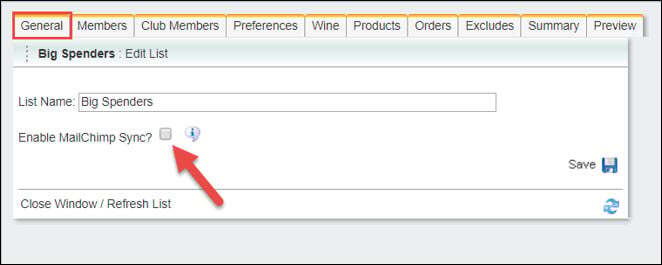
2) Once the MailChimp integration is enabled, each list will have the option to sync with MailChimp in the General tab.
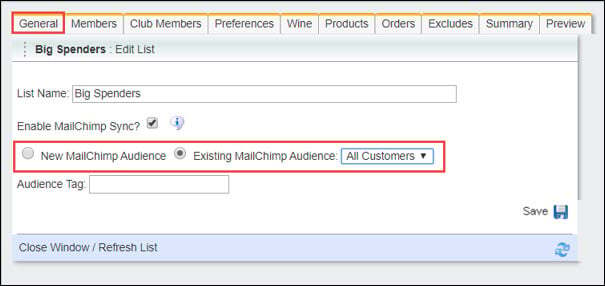
3) Select whether to create a New MailChimp Audience or sync the list with an Existing MailChimp Audience.
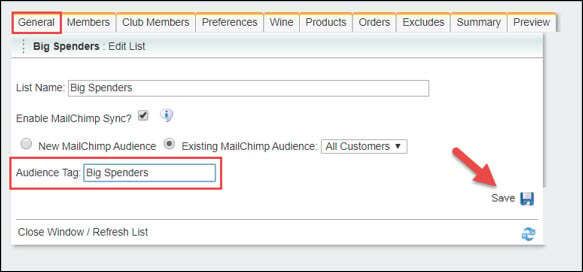
4) Enter an Audience Tag to add a tag to each customer on this list. Tags allow you to send targeted marketing emails from your MailChimp account.
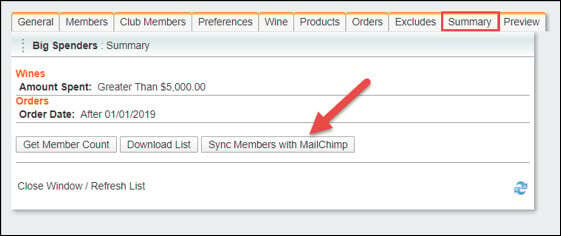
5) In the Summary tab, initiate the first sync by clicking the 'Sync Members with MailChimp' button.
Note: After the first sync, vinSUITE will automatically sync the list with MailChimp nightly.
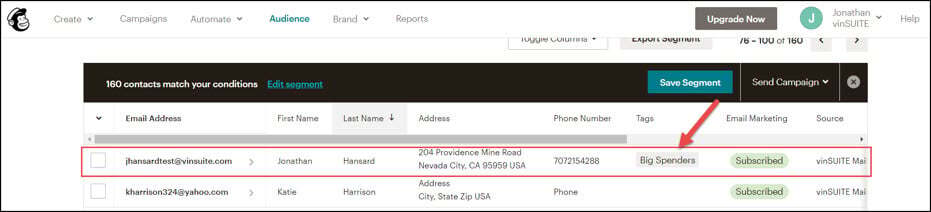
6) Members in the vinSUITE list will be added as a contact within the chosen MailChimp audience with the designated audience tag.
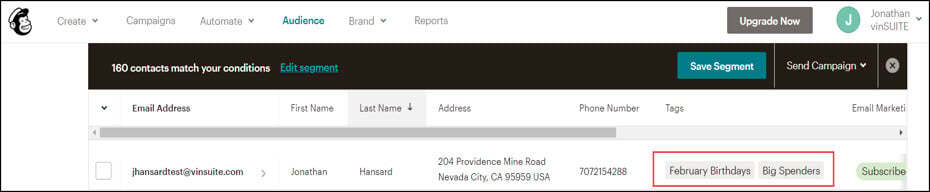
Note: More than one list can be synced to the same MailChimp audience. Initiate the first sync of the second list via the Summary tab. If a member appears on multiple synced lists, they will be given all associated tags.
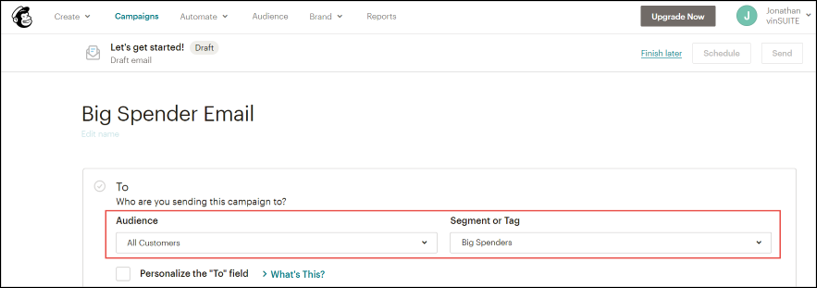
MailChimp emails can then be sent to all contacts with a chosen tag.
For more detailed instructions, please visit the MailChimp: Sync An Existing vinSUITE List page or MailChimp: Campaigns In vinSUITE page.