
OmniStock is a feature in vinSUITE that allows you to manage inventory across multiple locations. This document will guide you through the setup process for OmniStock, including adding inventory locations, assigning locations to shipping types, and setting up initial physical inventory.
NOTE: The OmniStock feature needs to be enabled by the vinSUITE team. If you would like to begin using multiple location inventory, please reach out to our support team: https://vinsuite.com/contact-us
NOTE: The OmniStock feature needs to be enabled by the vinSUITE team. If you would like to begin using multiple location inventory, please reach out to our support team: https://vinsuite.com/contact-us
Adding Inventory Locations
- Go to Products > Inventory Locations.
- Click on Add An Inventory Location.

- Set the name of the location and the applicable configurations:
- Is Bonded: This is an informative flag only to indicate the bonded status of an inventory location
- Is Default: This location will be used if a shipping type does not have an inventory location configured
- Default for Allocations: This location will be used for inventory associated with allocation clubs
- Is Active: Sets the in-use status of an inventory location
- Click Save to add the location.
Assigning Locations to Shipping Types
For Wines:
- Go to Shipping > Wine Shipping > Shipping Types.
- Click on the shipping type you want to assign a location to.
- In the Inventory Location dropdown, select the appropriate location.
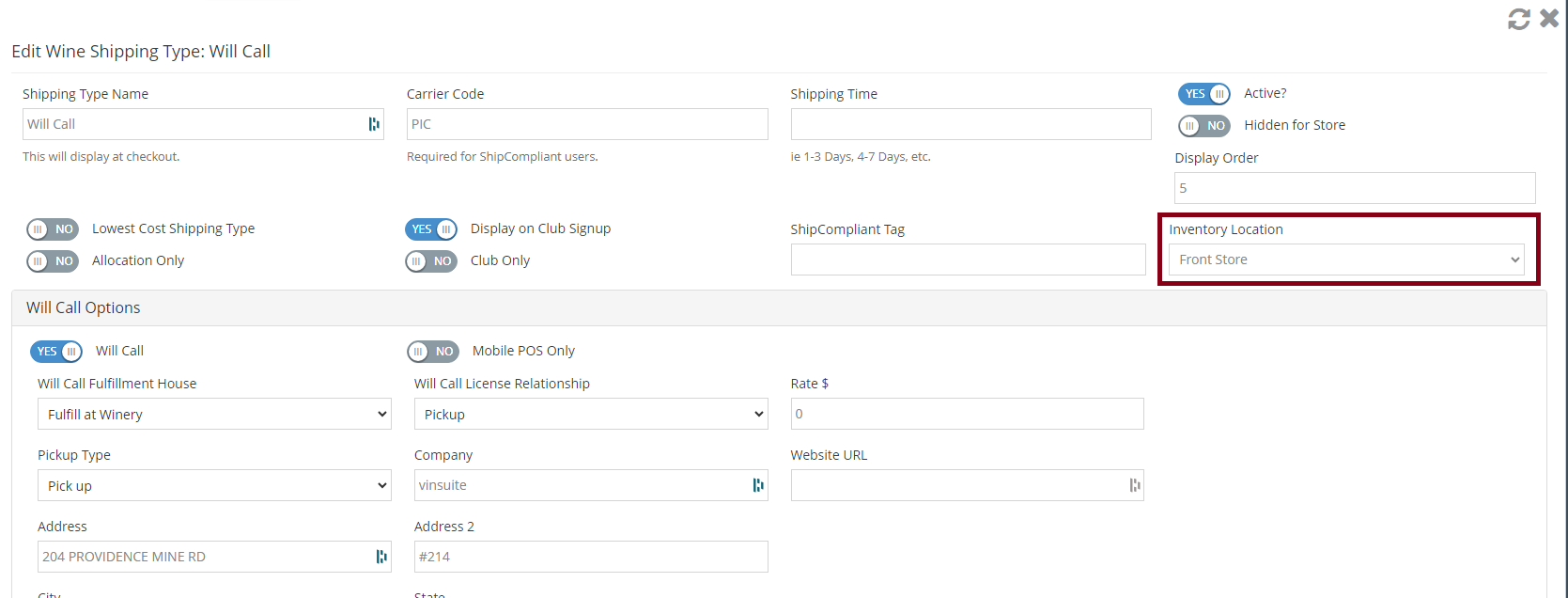
- Click Save to assign the location to the shipping type.
For Products:
- Go to Shipping > Product Shipping > Shipping Types.
- Click on the shipping type you want to assign a location to.
- In the Inventory Location dropdown, select the appropriate location.
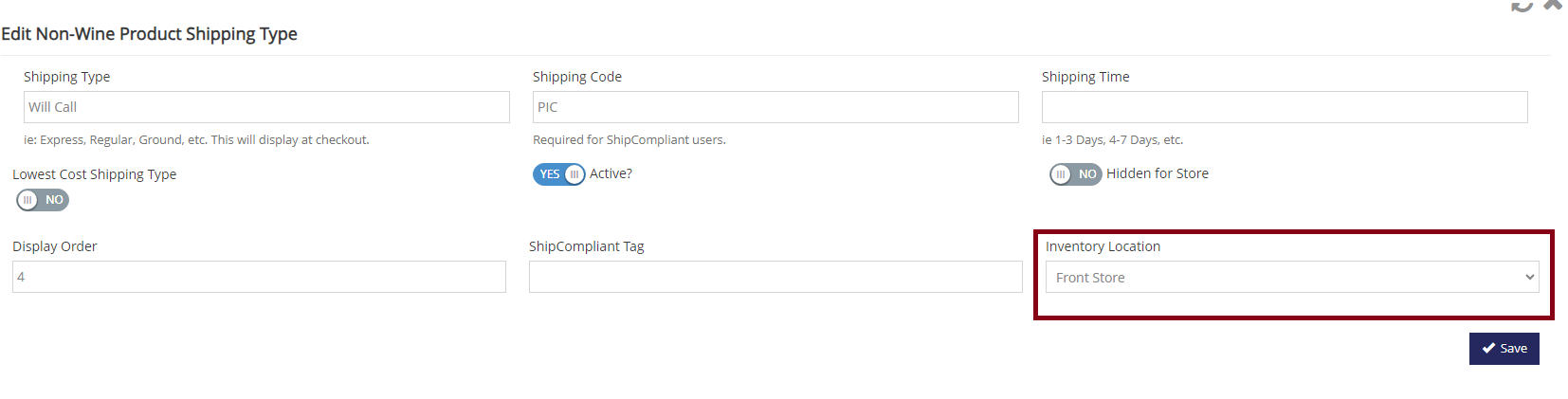
- Click Save to assign the location to the shipping type.
Setting Initial Physical Inventory
- Go to Products > Products.
- Select Physical Inventory from the dropdown menu.
- In the Location dropdown, select the inventory location you want to set up.
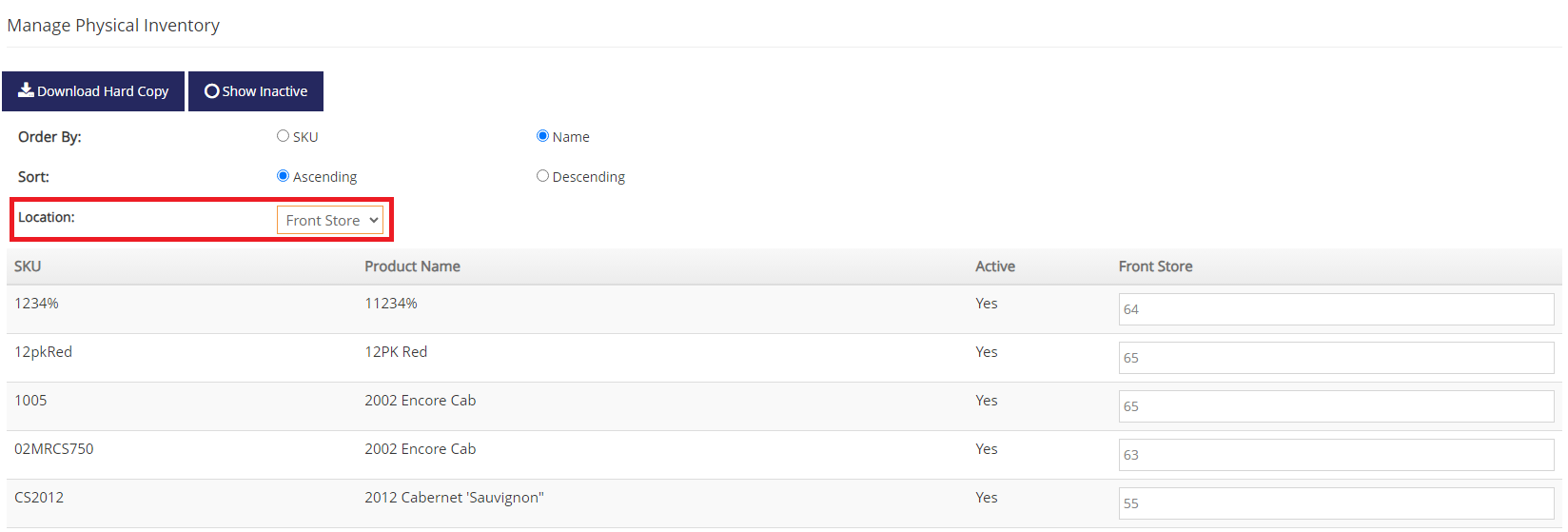
- Enter the quantities for each item.
- Click Save to set the initial physical inventory.
Processing Orders
With OmniStock set up, you are now ready to start processing orders. The system will automatically decrement inventory from the appropriate location based on the shipping type associated with each order.
OmniStock is a powerful feature that allows you to manage inventory across multiple locations. By following the steps outlined in this document, you can set up OmniStock and start processing orders with ease.