
About Quick Sale Members
The Quick Sale member is the generic member record used whenever
an order is not tied to an actual member record, for example, a
walk-in sale rung up on TabletPOS without a customer attached.
TPOS (TabletPOS) and vinSUITE share the same underlying database,
and vinSUITE serves as the back-of-house admin tool for your
TabletPOS system. This means that when a customer is checked out as
a “Quick Sale” on TabletPOS, that member record — and any contact
details tied to it — lives in vinSUITE and can be found, reviewed, and
updated from the admin panel.
Updating a Quick Sale member’s email address (or any other contact
info) is done through the standard Member Record workflow in
vinSUITE.
Search for the Member
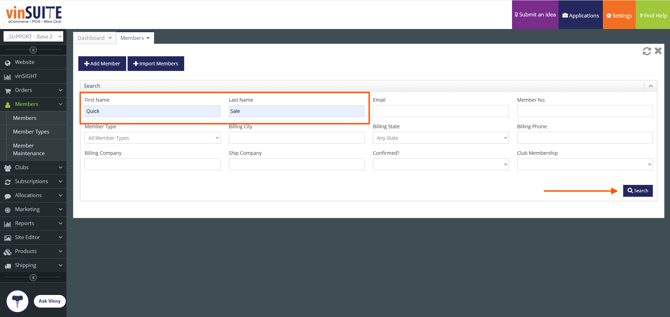
From the vinSUITE admin panel, use the Member search to locate the
Quick Sale customer record you need to update. Searching for a first
name = Quick and last name = Sale.
Edit the Member
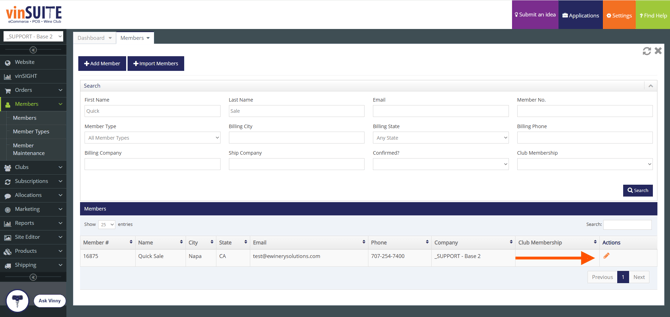
Once you’ve found the correct record, open it and click “Edit
Member” to access the editable fields on the Member Record.
Go to the Address Book
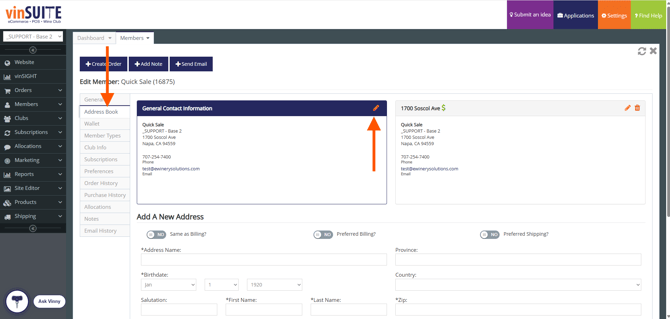
From the Member Record, click the “Address Book” tab. This is where
all addresses and general contact information on file for the member
are stored.
Edit the General Contact Info
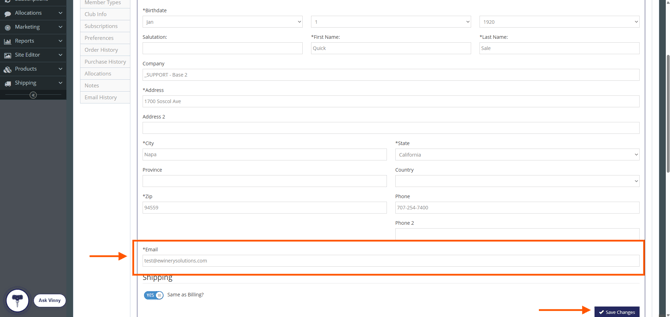
In the Address Book tab, locate the member’s General Contact entry
and click to edit it. Update the email address (or other contact fields)
as needed, then save your changes.
Once saved, the updated email address will be reflected across both
vinSUITE and TabletPOS, since the two systems share the same
member data.