
Adding New Users
You may notice that at this point, none of the fields in the window are active. In other words, you cannot click in any of the boxes. To add new users, simply press the  button and the cursor is placed at the first field, User Name.
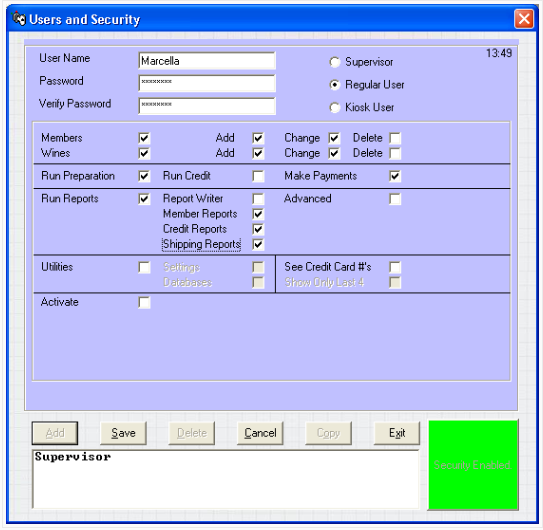
User Name
The User Name is the unique identifier or the key to each user. If you wish to set up security for each individual person, you could use each person's name. Alternatively, you could choose names for groups of people as can be seen above.
Password
Enter a password for this user. Passwords have to be strongl. This means you cannot enter passwords which are the same as the user's name, 111 or 99999 or similar "easy to remember" passwords. A strong password is one which contains at least 8 characters, contains at least one letter, one number and one special character such as @,#,$,%,&,* etc. It is not advised to use characters such as periods, comma's, brackets, parenthesis, carets, quotes, apostrophes, colons, semi-colons, slashes and/or backslashes.
Verify Password
Re-enter the password you enter in the previous field. This is to ensure you did not make a typo on the first one.
User Type
Select whether this user is a Supervisor, a Regular User or a Kiosk User. If you select Supervisor, you can see all the checkboxes will be checked and grayed out. A Supervisor has unrestricted access to all functions. If you select Regular User, you can select which features this user can and cannot access. A Kiosk User must be created if you make use of kiosks or guest books. See Kiosk Users later in this section.
Members
Check this box if you wish to grant this user access to Member Maintenance functions. When this box is checked, you can then allow access to the addition, changing and/or deletion of members separately.
Wines
Check this box if you wish to grant this user access to Wine Maintenance functions. When this box is checked, you can then allow access to the addition, changing and/or deletion of wines separately.
Run Preparation
Check this box if you wish to grant this user access to the Wine Preparation function.
Run Credit
Check this box if you wish to grant this user access to the Run Credit function. Additionally, any other functions as critical as this, such as shipping, is using this restriction.
Make Payments
Check this box if you wish to grant this user the ability to maintain payments and shipping information.
Run Reports
Check this box if you wish to grant access to reporting functions for this user. When this box is checked, you can then allow access to the Report Writer, Member Reports Menu, Credit Reports Menu and Shipping Reports Menu separately.
If you grant access to the Report Writer, you have the added ability to grant this user access to advanced features of the Report Writer.
Utilities
Check this box if you wish to grant access to the utility menu for this user. When this box is checked, you can then allow access to the Settings Menu and Database Menu separately.
See Credit Card #?s
Credit card numbers can no longer be printed or displayed on reports. If the Show Only Last 4 box is checked, all digits of the Credit Card Number will be replaced with X's except the last 4.