
Currently SmartClub interfaces with 3 shippers. DHL, FedEx and United Parcel Services. The Shipper Settings window can be accessed from the utilities menu,
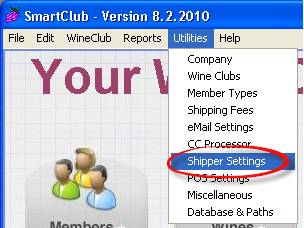
or by pressing the  button on the startup window and selecting Shipper Settings.
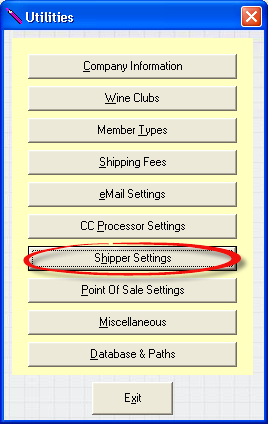
Click the appropriate link below for instructions on how to successfully set up the required information for each shipper.
FedEx Settings
UPS Settings
DHL Settings
GSO Settings
FedEx Settings
If you use FedEx to ship some or all of your wines, some information is needed to enable the program to seamlessly integrate with the FedEx servers.
From the Shipper Settings window, choose the FedEx tab and you are presented with the following window.
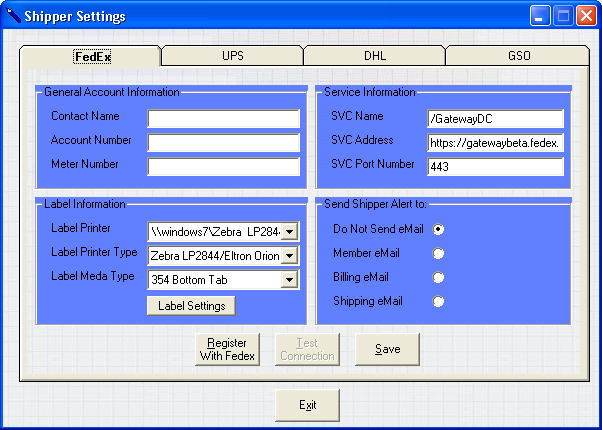
Contact Name
This is the name of the person FedEx will contact if there is a problem. This name is also submitted when you first register with FedEx.
Account Number
In this field, use your FedEx account number. This number must be of an account allowed to ship wines.
Meter Number
This meter number will be automatically assigned after a successful registration with FedEx. You can register with FedEx multiple times although they do not recommend this. Each time you register, a new meter number will be assigned.
SVC Name
This field contains the Service Name. The default is /GatewayDC but may change in the future. Only change this field if instructed to do so by a customer support representative.
SVC Address
This is the Service Address. This URL may change depending on the area you're in and will be assigned to you once it has been verified you have an account with FedEx set up for shipment. Please do not change unless instructed to do so by a customer support representative. The default is https://gatewaybeta.fedex.com
SVC Port Number
This is the Service Port Number. This Port Number may change in the future but do not change it unless instructed to do so by a customer support representative. The default for the port number is 443
Label Printer
If you have multiple printers, select the printer on which you wish to have the labels printed.
Label Printer Type
Labels may be printed on a laser printer on plain or label paper or they may be printed on a thermal printer. If a laser-type printer is chosen, the media type must be "Plain PNG". Additionally, you may select whether you wish to print one or two labels per page.
If you have a thermal label printer like the Zebra LP 2844, you cannot select "Plain PNG" as the label media type and you can only print one label per page.
Label Media Type
The choice for the label media type depends on the media the label is printed on and on what printer is used. Choose "Plain PNG" when printing labels on a laser type printer or you can choose from any of the other three types when printing on a thermal type label. For the latter, there is the option to print labels with a tab on the top, on the bottom or no tab at all.
By pressing the  another frame will be displayed in which the label margins may be modified. Additionally, the image may be resized somewhat. Please keep in mind that the image may lose quality when shrunk too much. FedEx scanners may not be able to scan images that are too small.
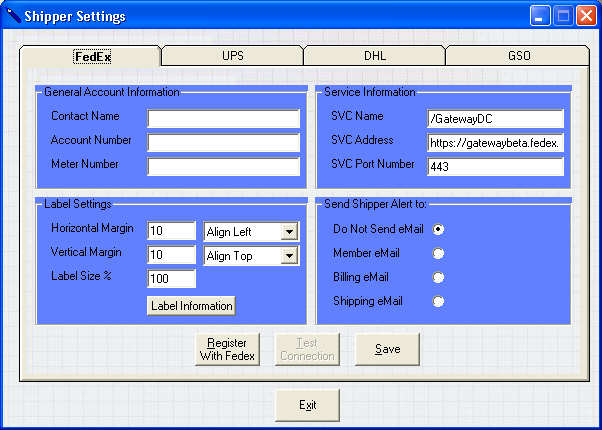
Horizontal and Vertical Margins
These fields will determine how far in pixels the image must be printed from the left and the top of the page. The defaults are 10
Horizontal and Vertical Alignment
You can decide to print the label in the middle of the page. The available options for Horizontal alignment are: Align Left, Align Center and Align Right. For Vertical Alignment the options are: Align Top, Align Center and Align Bottom. The defaults are Align Left and Align Top
Label Size %
This field will allow the printing of a smaller label. The defaults is 100%
Pressing the  button will back the label printer information frame.
This field only applies to labels printed on laser printers. On such printers the choice to print one or two labels per page can be made.
Note:
Please keep in mind that although labels can physically be printed on ink- and bubble jet printers, these types of printers aren't generally able to print the quality required by FedEx.
Send Shipper Alert To:
FedEx can automatically notify the recipient of your shipment by email that a shipment is on its way. Information in the email includes your Company Name, The Contact Name, Phone Number, the date shipped and the tracking number. If you prefer not to use this feature, choose the Do Not Send eMail option. Otherwise choose to send the email to the member-, billing- or shipping email address.
To save the information you have entered, press the  button and the Utilities Menu will be displayed again. If you close this window or press the
  button, any information you may have changed will be lost.
Registering with FedEx
In order to interface with the FedEx Servers and automatically process your shipment, you first have to obtain a meter number. Besides the Account Number, the meter number is used to track your shipments. Large companies may have several account numbers with several individual meter numbers. This program supports one meter number per account number. After all the information is entered, press the  button and an attempt will be made to connect the FedEx servers through the internet. If you have a dial-up connection please make sure you have an internet connection established. If everything is entered correctly, a message indicating success will be displayed:

If any of the fields is incorrectly entered, one of the following messages may be displayed:
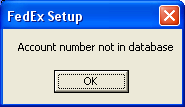
If you have entered an invalid account number:
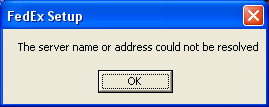
If the SVC Name or SVC address is invalid or there is no internet connection available:
If there is no internet connection available or the SVC Port Number is invalid:
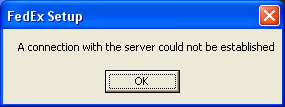
If a meter number has already been assigned, a message will be shown indicating this. This is only triggered if the Meter Number has a value in it. In other words, it will not check the FedEx Server to see if there is a meter number already assigned. When the following message comes up,
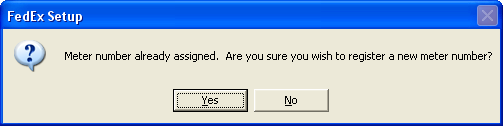
you have the option to assign a new meter number which will then be added to the FedEx Server. The old number will not be deleted automatically and there is no provision in this application to delete old or unused meter numbers. While in general, having a few meter numbers won't affect your shipping, a lot of meter numbers may delay the tracking of a package if there is an issue with it. Contact your local FedEx representative if this becomes an issue.
Once a meter number has been assigned, you may at any point test the connection to the FedEx Servers by pressing the  button. Any of the above error messages may be displayed if the connection failed. If the connection is successful, this message is shown:
Once you receive this message, your new meter number will be automatically saved.
UPS Settings
If you use UPS to ship some or all of your wines, some information is needed so integration with UPS Worldship works as intended.
From the Shipper Settings window, choose the UPS tab and you are presented with the following window.
Send Shipper Alert To:
UPS can automatically notify the recipient of your shipment by email that a shipment is on its way. Information in the email includes your Company Name, The Contact Name, Phone Number, the date shipped and the tracking number. If you prefer not to use this feature, choose the Do Not Send eMail option. Otherwise choose to send the email to the member-, billing- or shipping email address.
Note: If you are upgrading from a version older then version 6.0.1, in order for this feature to work correctly you have to add some additional fields to the import map in UPS World Ship. (see Interfacing with UPS)
To save the information you have entered, press the  button and the Utilities Menu will be displayed again. If you close this window or press the
  button, any information you may have changed will be lost.