
Custom Tip Amounts
We understand that the customer experience is paramount for a winery. While tipping has become more popular across the industry, we believe it is important to be able to adjust the default tip values on our TabletPOS system.Custom Tip Amounts are available in both vinSUITE and eWinery admin panels.
Enable Custom Tips in vinSUITE
1) In the vinSUITE admin panel, click the orange Settings button in the top right of your screen. From the drop-down menu, choose System Settings.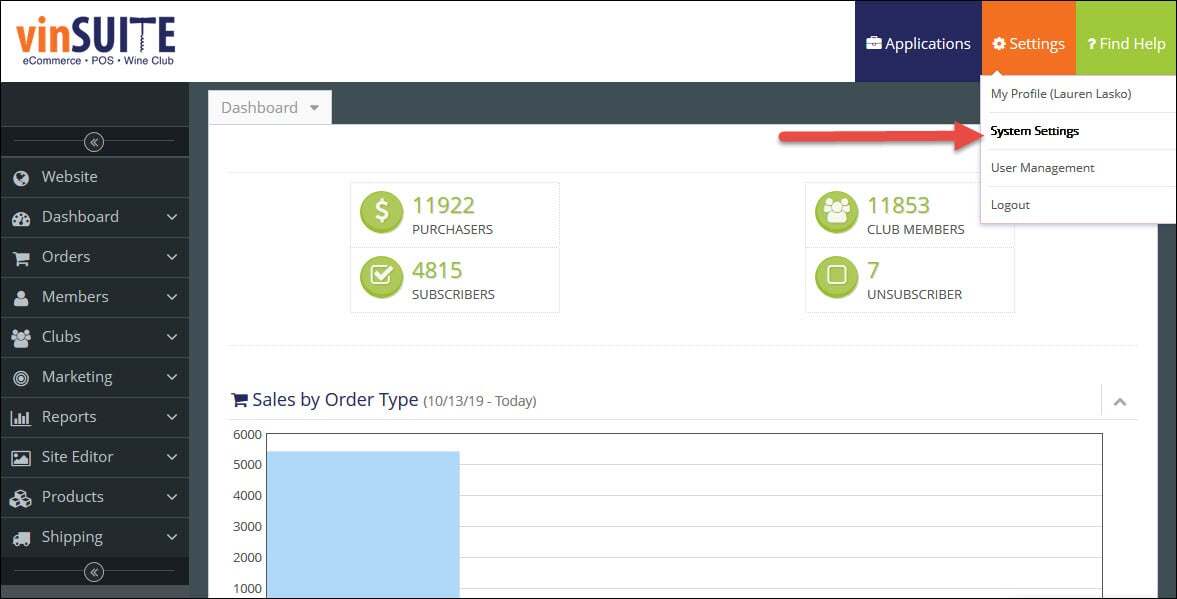
2) The System Settings will open in the work space. Click the Mobile POS tab from the Settings sub-menu.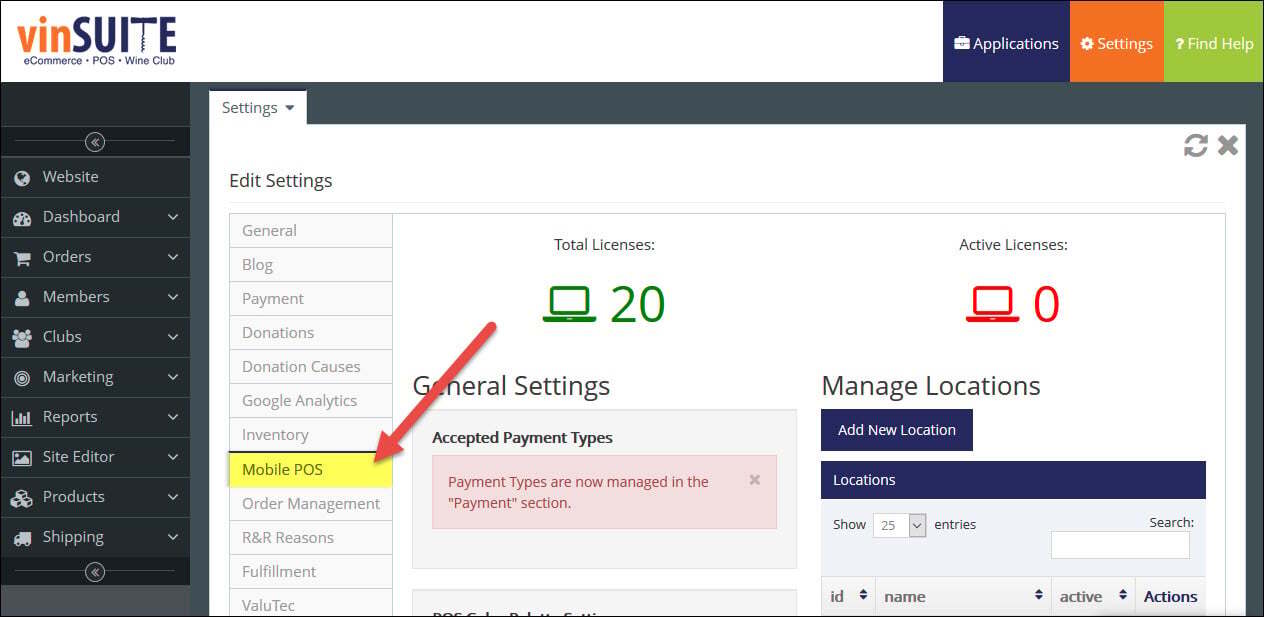
3) Click the 'Edit' icon from the Actions drop-down menu for the selected Location under the Mobile POS page > Manage Locations.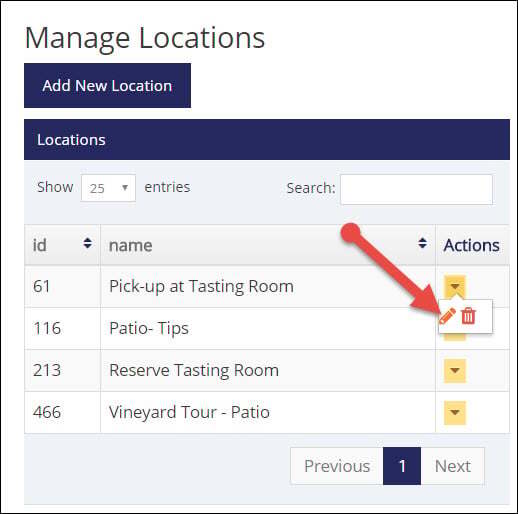
4) Check the box to Enable Custom Tip Amounts, and set your amount criteria by selecting a percentage or flat dollar amount for the tip options.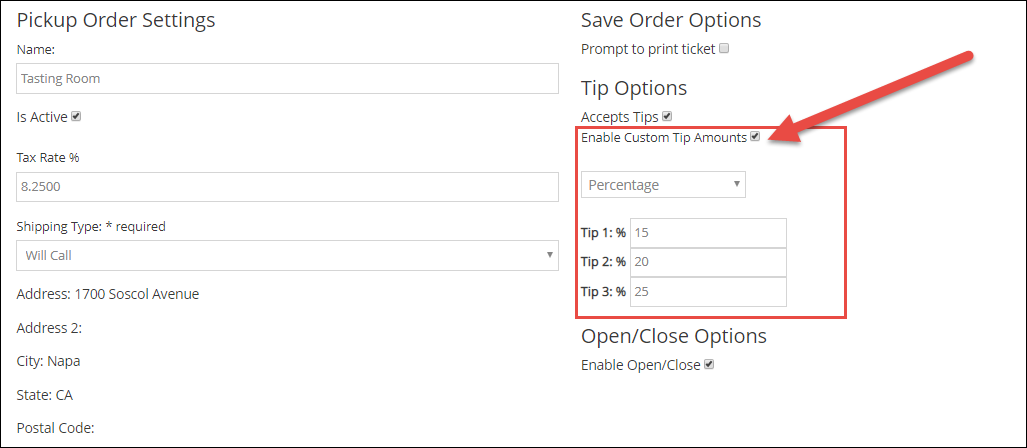
Note: Make sure the Accepts Tips box is checked to enable tipping at the selected location.
5) Click the 'Save' button to save your changes.Once you have made the adjustment, your changes will take effect the next time you log into the TabletPOS system. It's that simple!
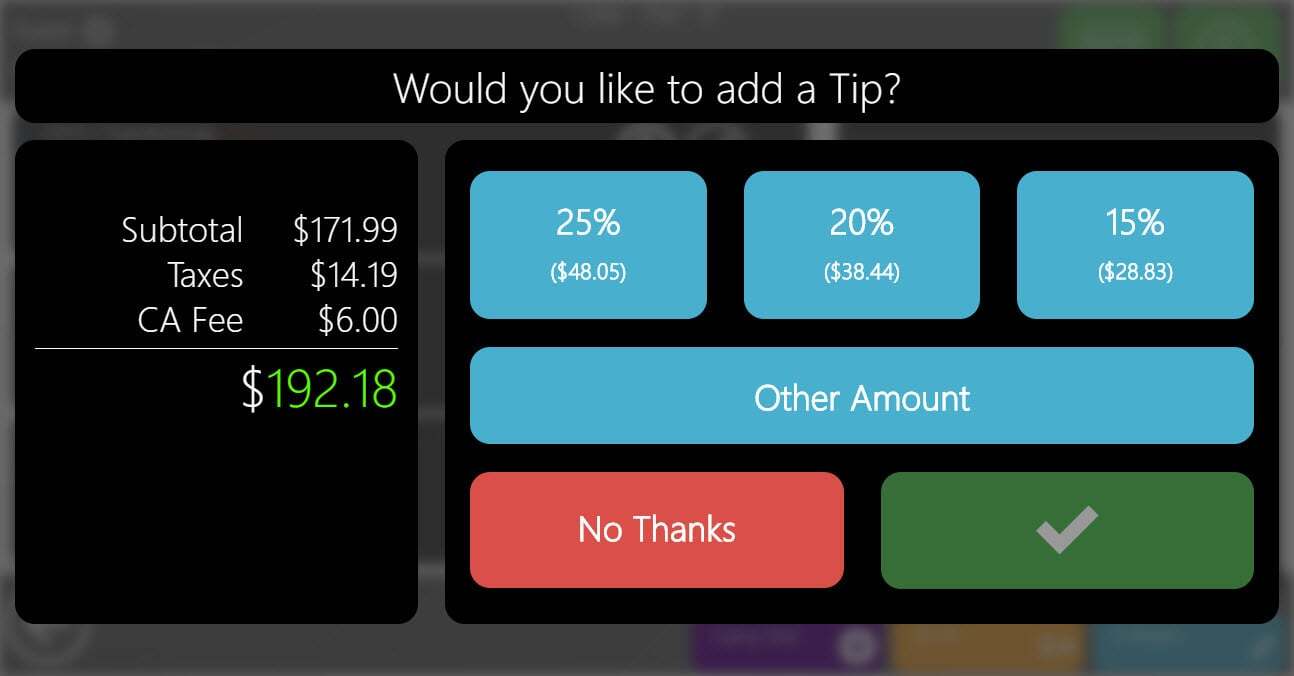
Note: The tip screen will only appear during credit card transactions in the TabletPOS app.
Enable Custom Tips in eWinery
1) In the eWinery admin panel, click on the Settings icon.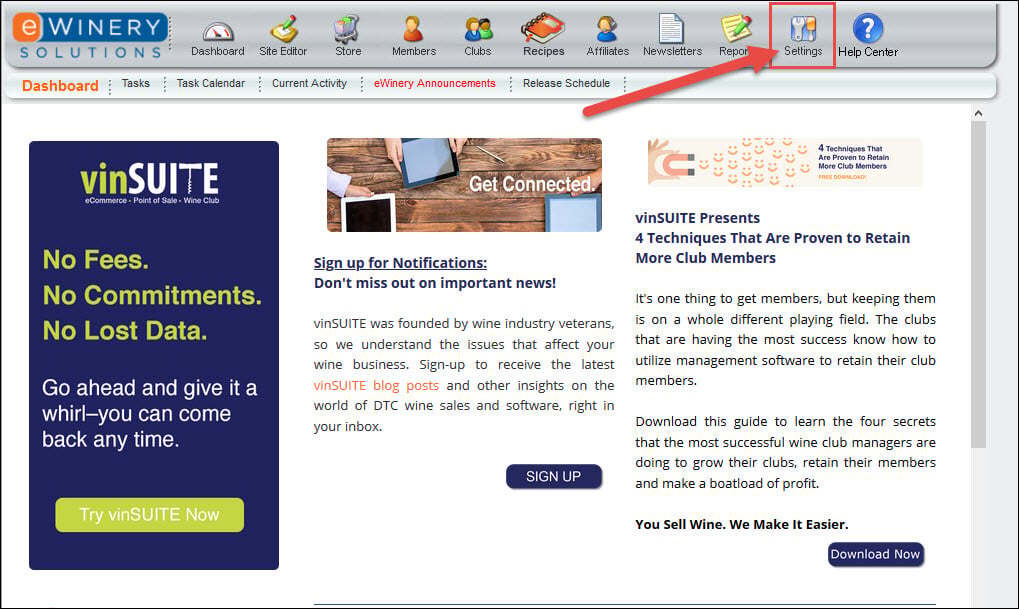
2) The Settings window will appear. Select the MPOS tab and scroll down to the Locations section.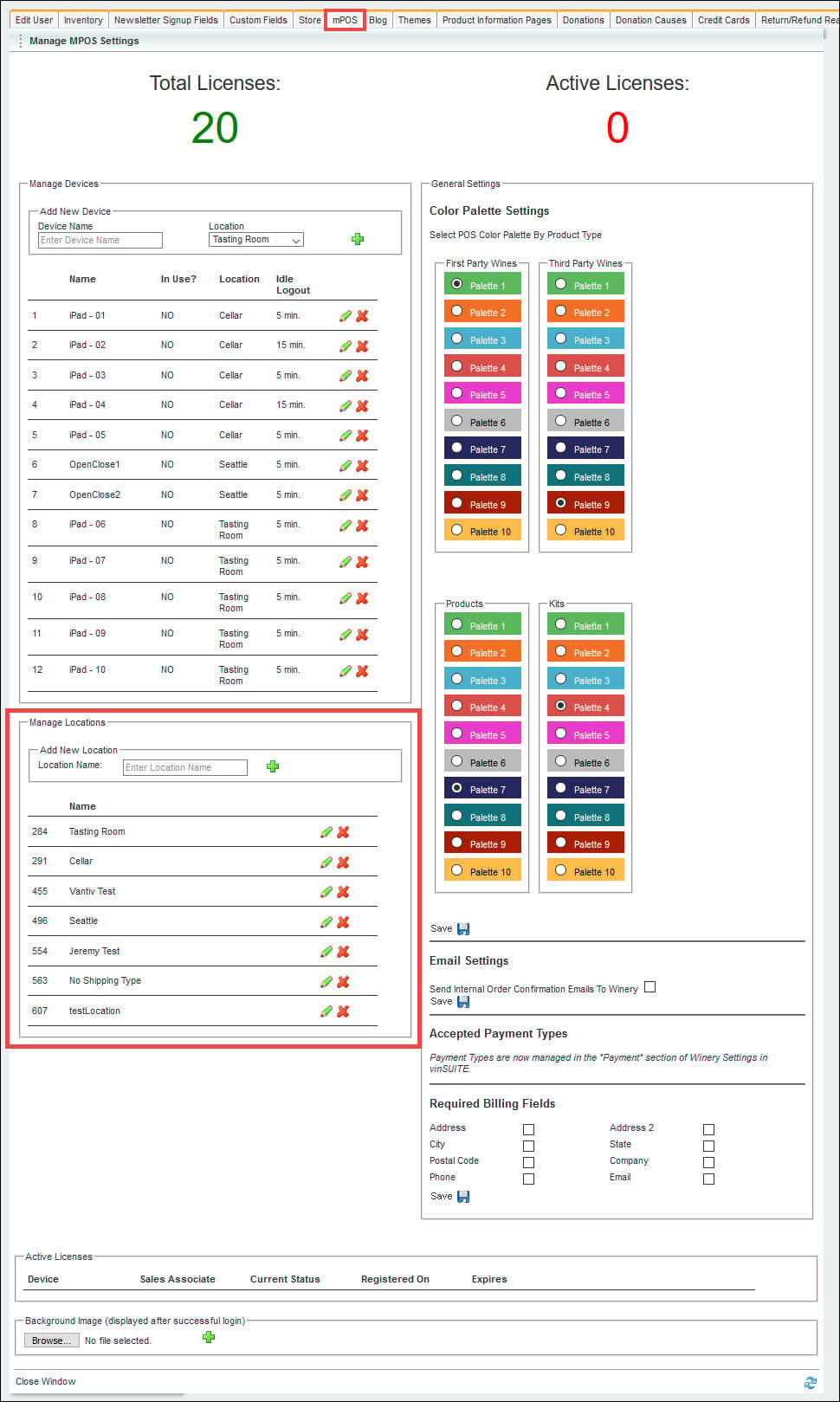
3) Click the 'Edit' icon for the selected Location under the Mobile POS page > Manage Locations.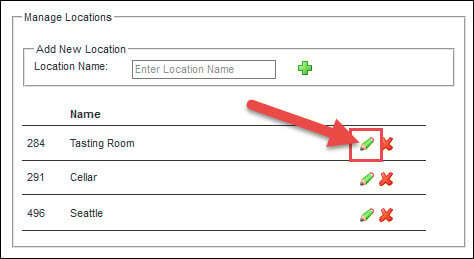
4) Check the box to Enable Custom Tip Amounts, and set your amount criteria by selecting a percentage or flat dollar amount for the tip options.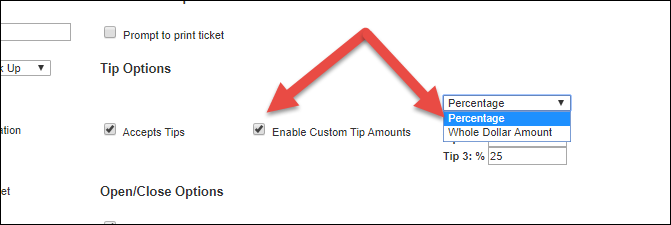
5) Click the 'Save' button to save your changes.Once you have made the adjustment, your changes will take effect the next time you log into the TabletPOS system. It's that simple!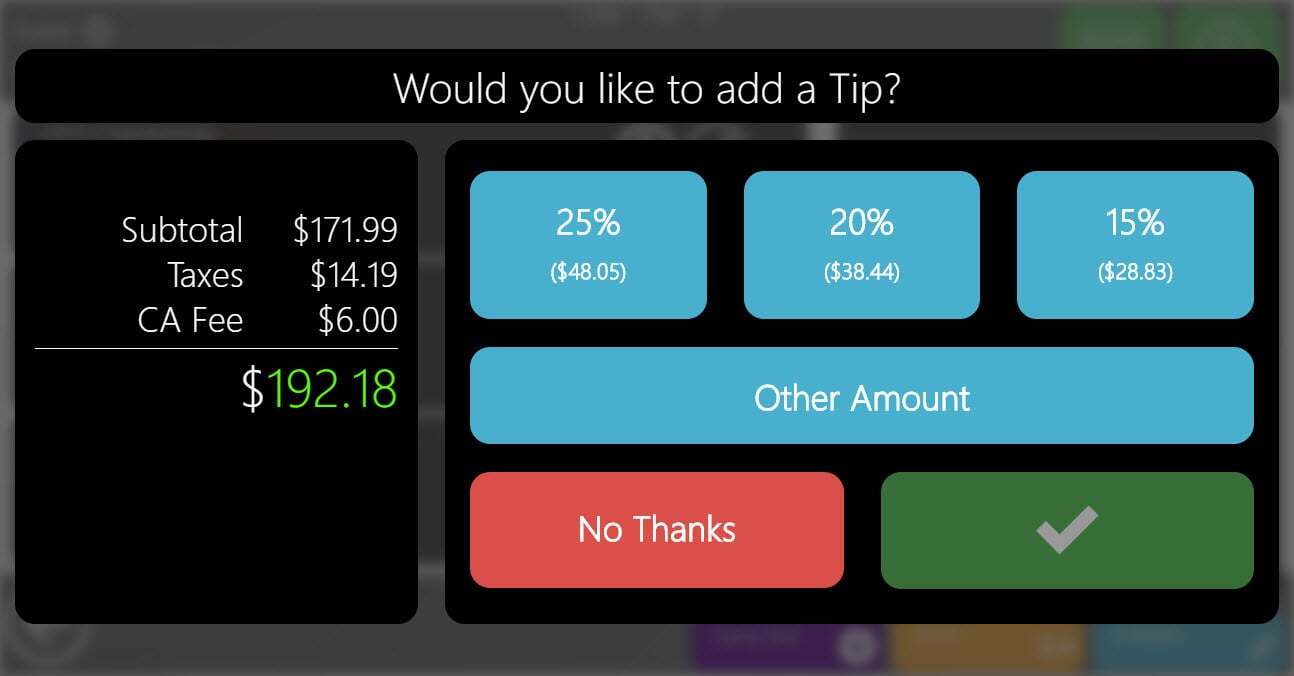
Note: The tip screen will only appear during credit card transactions in the TabletPOS app.