
EMV Hardware Setup in TabletPOS with OpenEdge
Prerequisite Account Information
Once you have completed the sign-up process with OpenEdge, their team will send the account credentials to our Client Services team so we can link your TabletPOS system with your EMV Global account.Once the credentials have been received, our team will reach out to you and coordinate a date for the switch.
Connect your EMV device
Admin Panel Setup
You will need to associate the WalkerBT hardware with the TabletPOS device that you would like to use.For this step, you will need the serial number of your WalkerBT device.
You can set up this hardware in both the eWinery admin panel or the vinSUITE admin panel. Once you have completed the admin panel setup, sign in and pair your WalkerBT hardware with a TabletPOS device.
Set up EMV device in eWinery
1) In the eWinery admin panel, click on the Settings icon.2) Navigate to the MPOS tab.
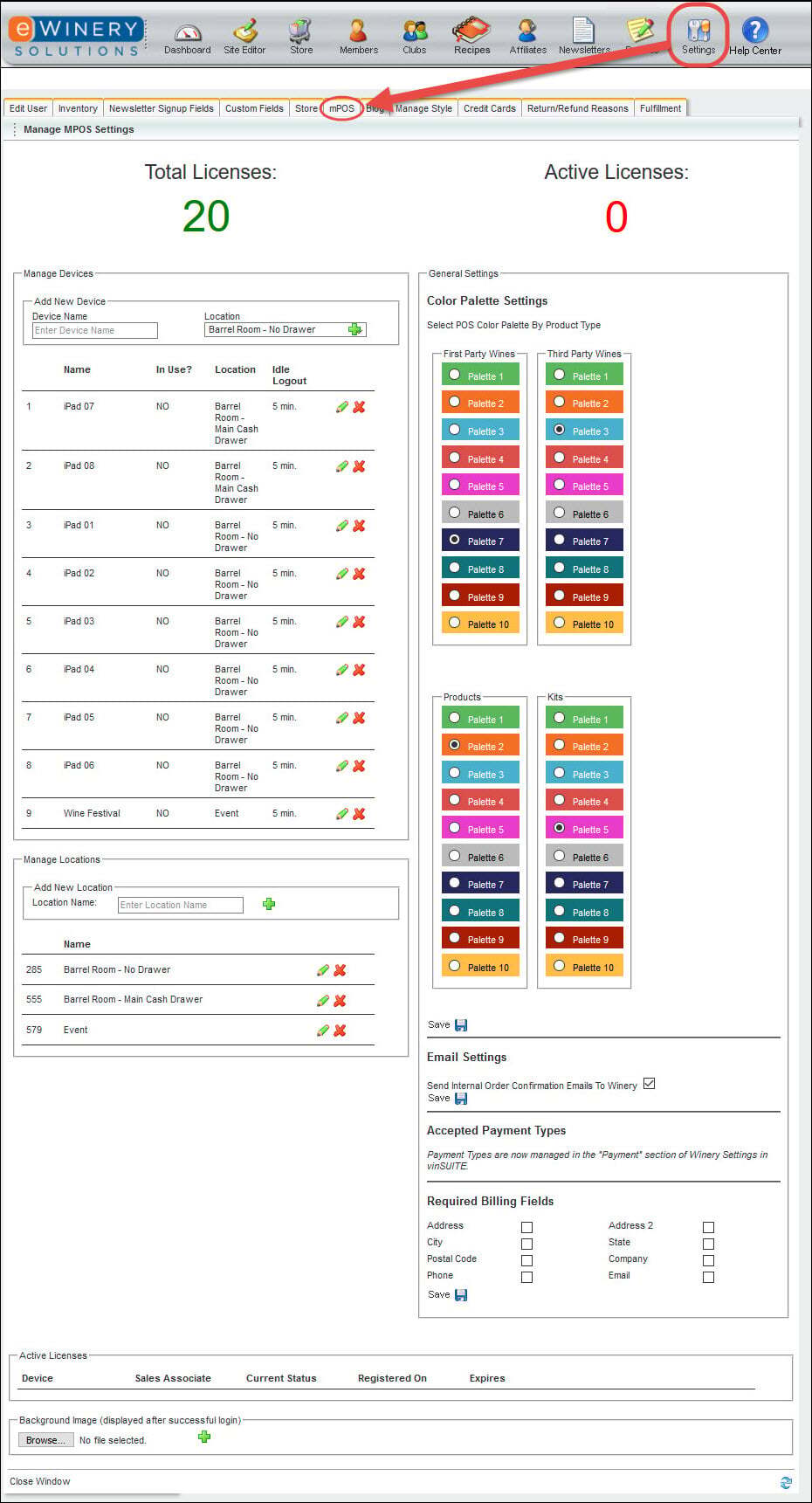
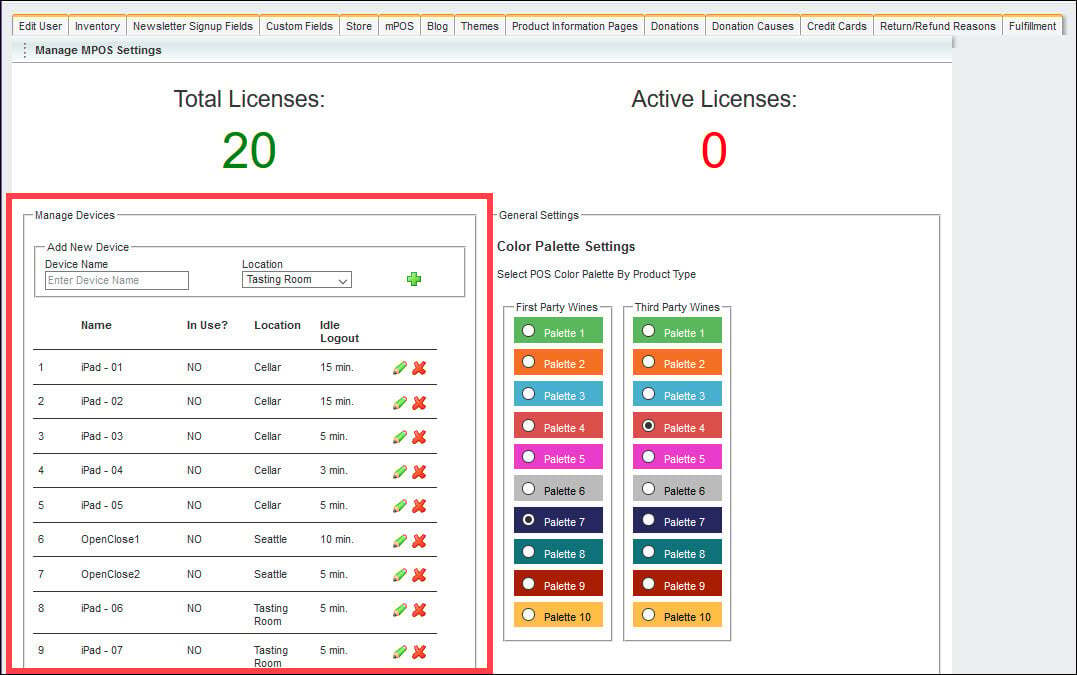
3) The Mobile POS tab will open. Navigate to the Manage Devices section.
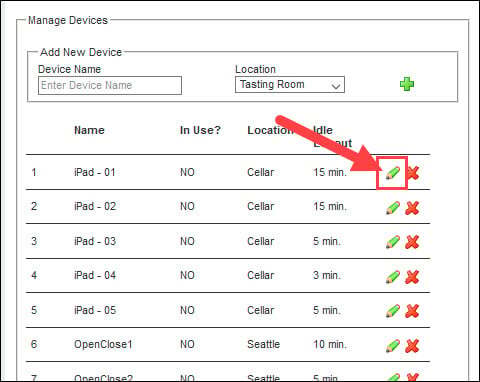
4) Under Manage Devices, click the Edit icon for your desired device.
5) Enter the serial number of your WalkerBT device into the WalkerBT Serial No. field.
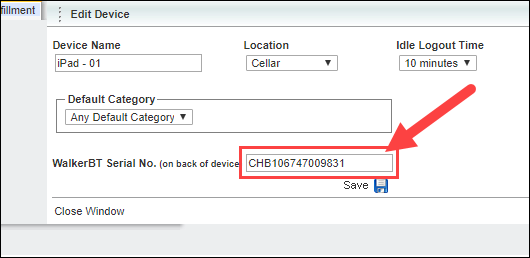
6) Click the 'Save Device' button.
Once you have completed this step, you are ready to use your iPad to finish the pairing process.
Set up EMV device in vinSUITE
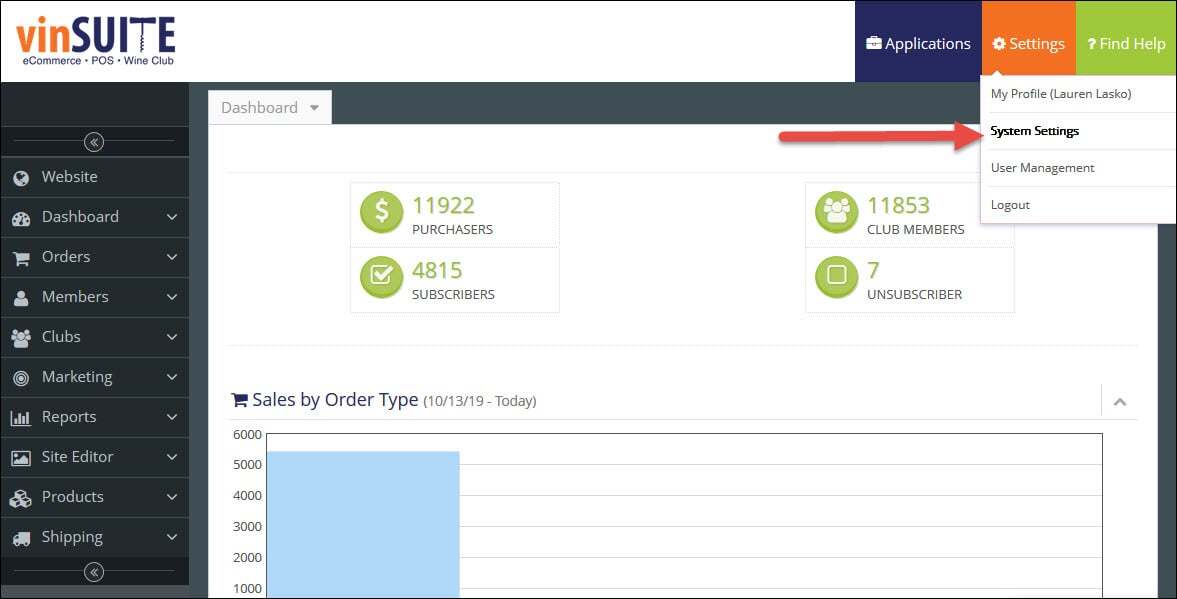
1) In the vinSUITE admin panel, click the orange 'Settings' button in the top right of your screen. From the drop-down menu, choose 'System Settings'.Note: Access to System Settings is controlled by the user roles and privileges.
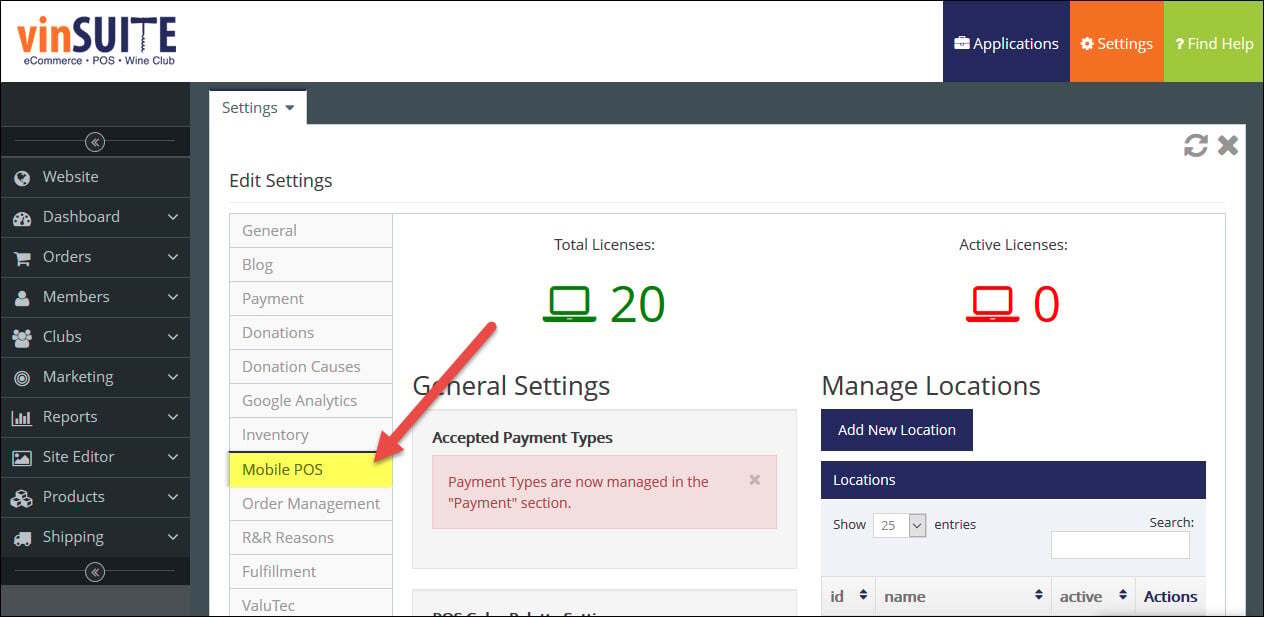
2) The System Settings will open in the work space. Click the 'Mobile POS' tab from the Settings sub-menu.
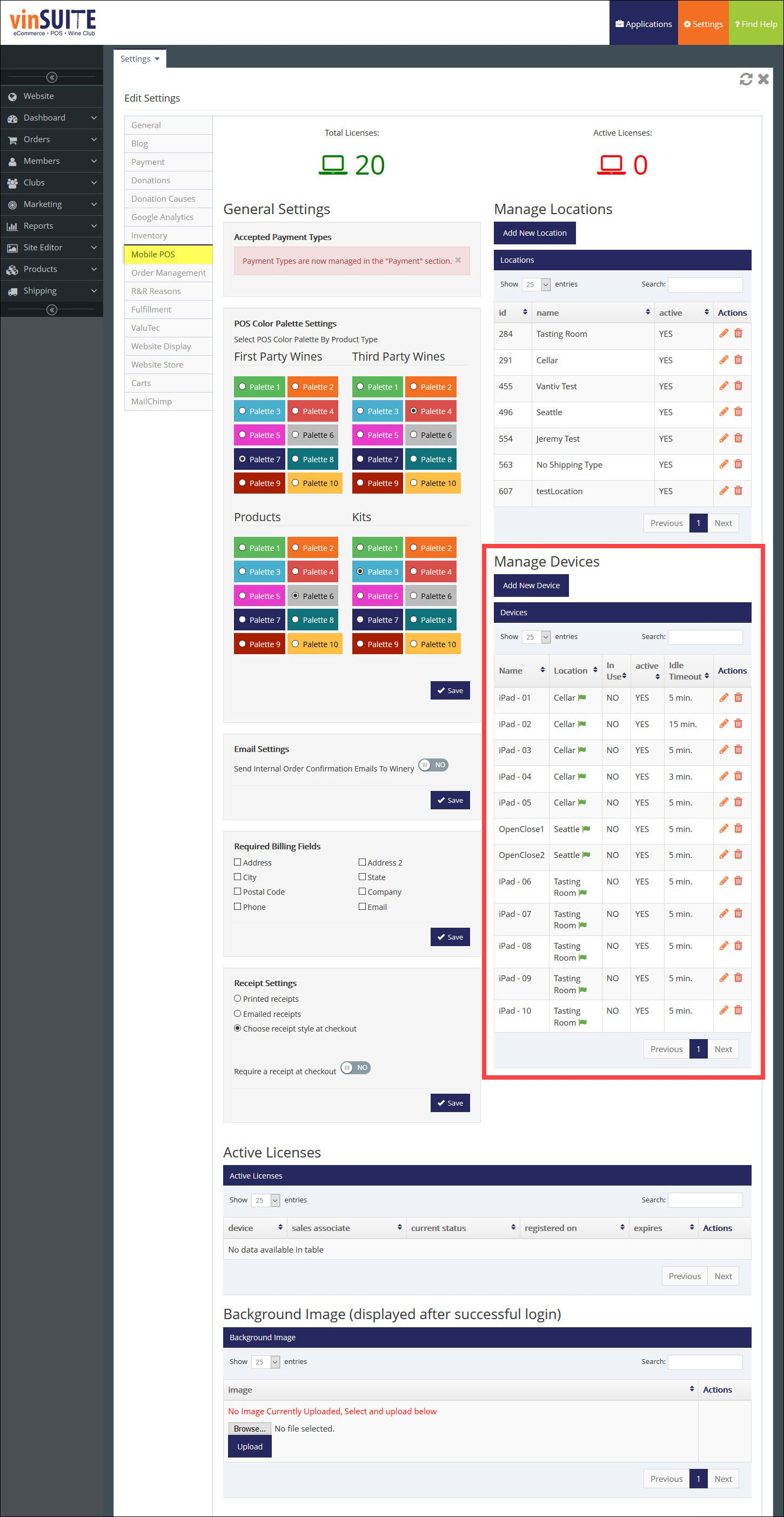
3) The Mobile POS tab will open. Navigate to the Manage Devices section.
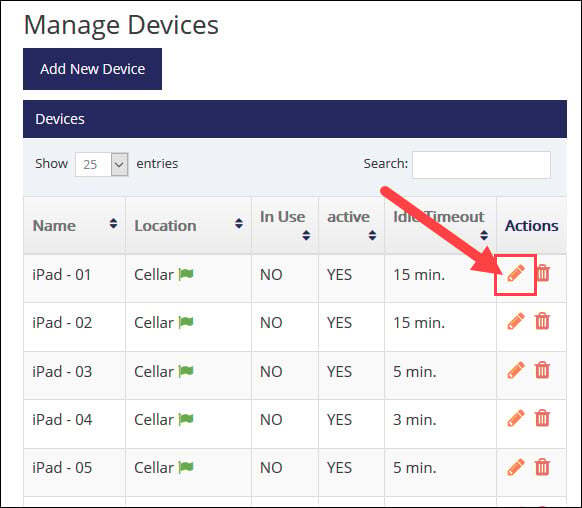
4) Under Manage Devices, click the Edit icon for your desired device.
5) Enter the serial number of your WalkerBT device into the WalkerBT Serial No. field.
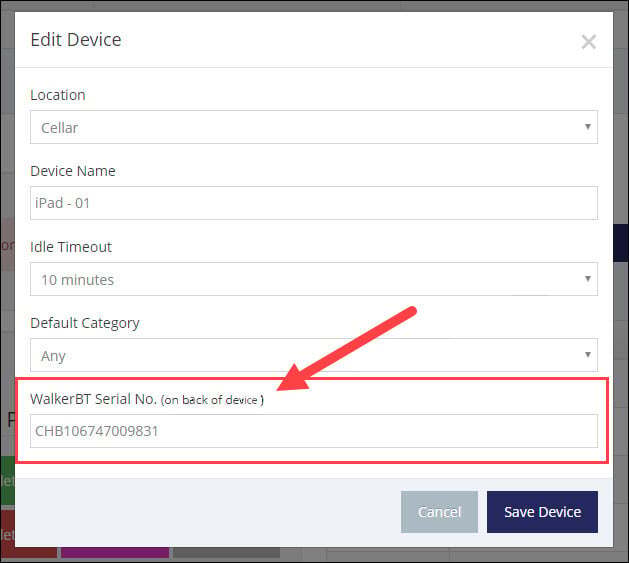
6) Click the 'Save Device' button.
Once you have completed this step, you are ready to use you iPad to finish the pairing process.
Pair Hardware with TabletPOS Device
With your iPad in-hand, you are ready to complete the pairing process.1) Sign-in to the TabletPOS and select the device that you previously configured in the admin panel.
Note: This device will have an (EMV) tag to signify the back-end configuration is set up properly.
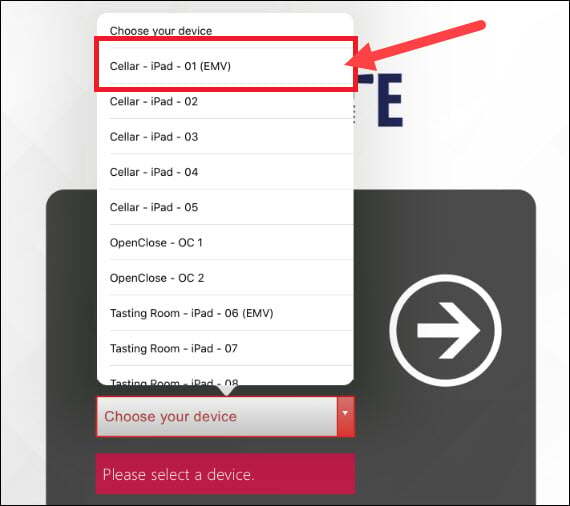
2) Enter your PIN.
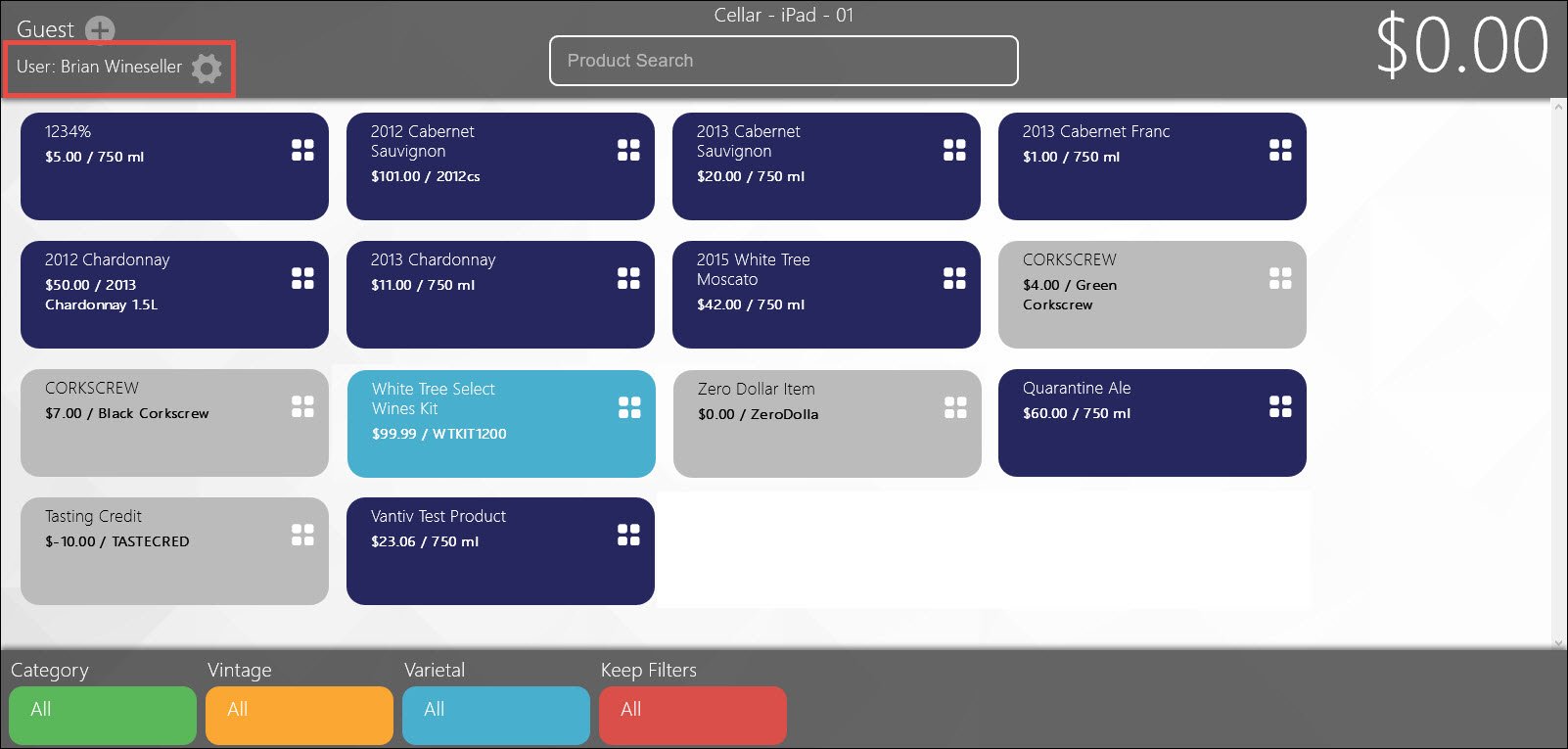
3) Once you are signed into the TabletPOS application, select the 'Settings' button located at the top left corner of the TabletPOS home screen. The 'Settings' button is represented by a cog wheel.
4) You will then be presented with a list of settings. Select the 'Pair with EMV' option.
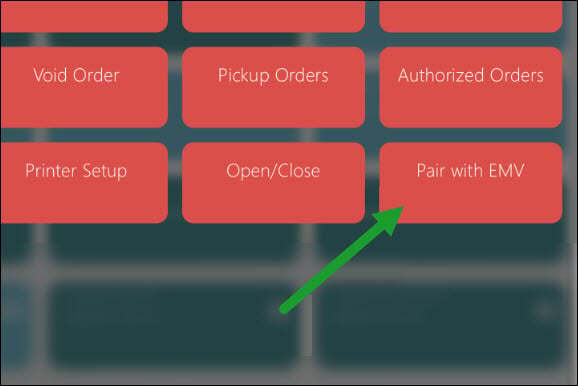
5) Select the "green thumbs up" to confirm the pairing.
After a brief moment, you will receive a notification that the device is connected.
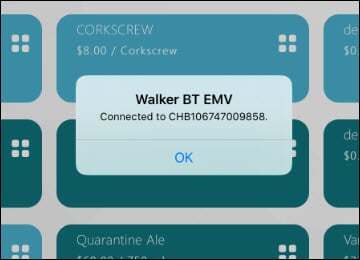
6) The pairing process is complete and you are ready to start collecting EMV payments.
Note: We have modified the payment workflow for tip users. The system will now prompt to add a tip before requesting the credit card insert.