TabletPOS Lockout
As a measure to better secure the system and prevent the possibility of malicious attacks to obtain sensitive data, we have added a lockout feature to the system that will prohibit login attempts after 6 failed login attempts. This has become a standard practice for many software systems and has proven to be an effective security measure.Why am I locked out of the TabletPOS system?
When a login attempt has failed 6 consecutive times, we place the session into a locked state. Once the system is in this locked state, any further attempts to login will prompt the user informing them of the locked status. To unlock the system, an admin user will need to login to the admin panel and reset the lock-out through controls we have added to your TabletPOS settings.Reset lockout on vinSUITE Admin Panel
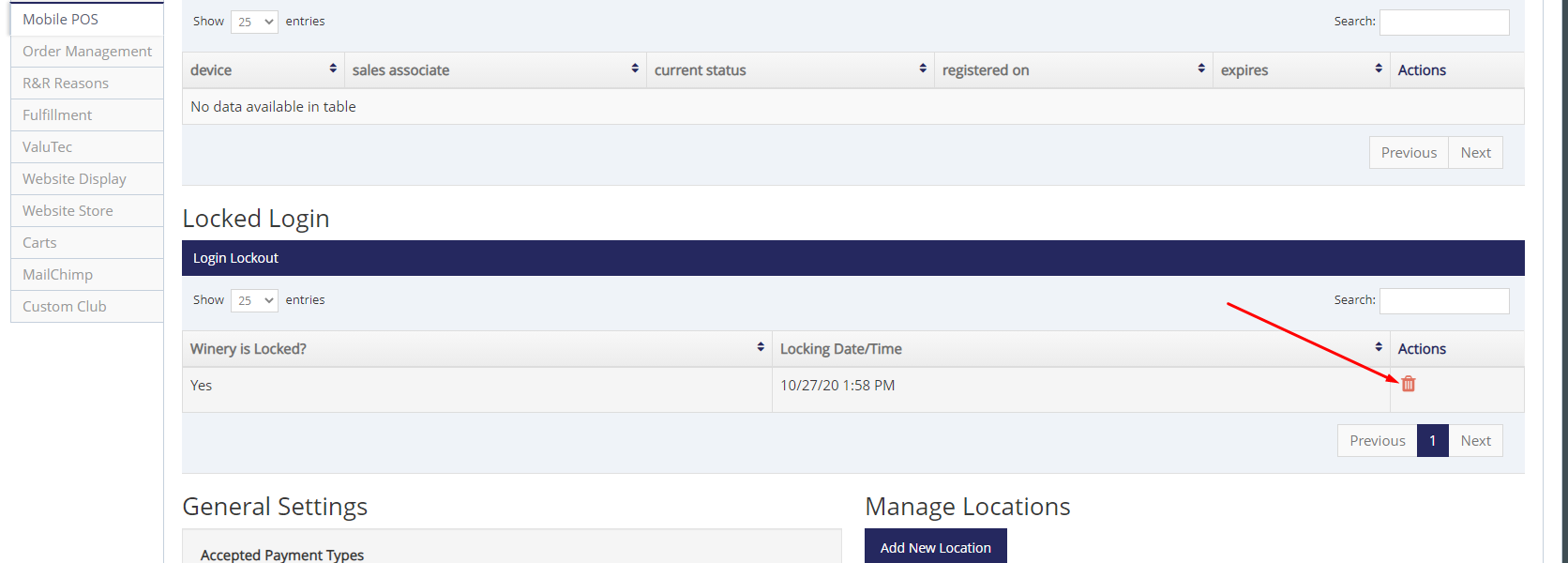
Go to Settings > System Settings > Mobile POS tab > Click the Trashcan icon in the Locked Login section:
Reset lockout in eWinery Admin Panel
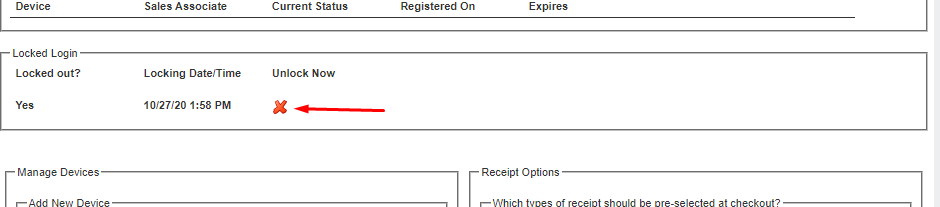
Go to Settings > mPOS tab > Click the X icon in the Locked Login section: