Club Levels
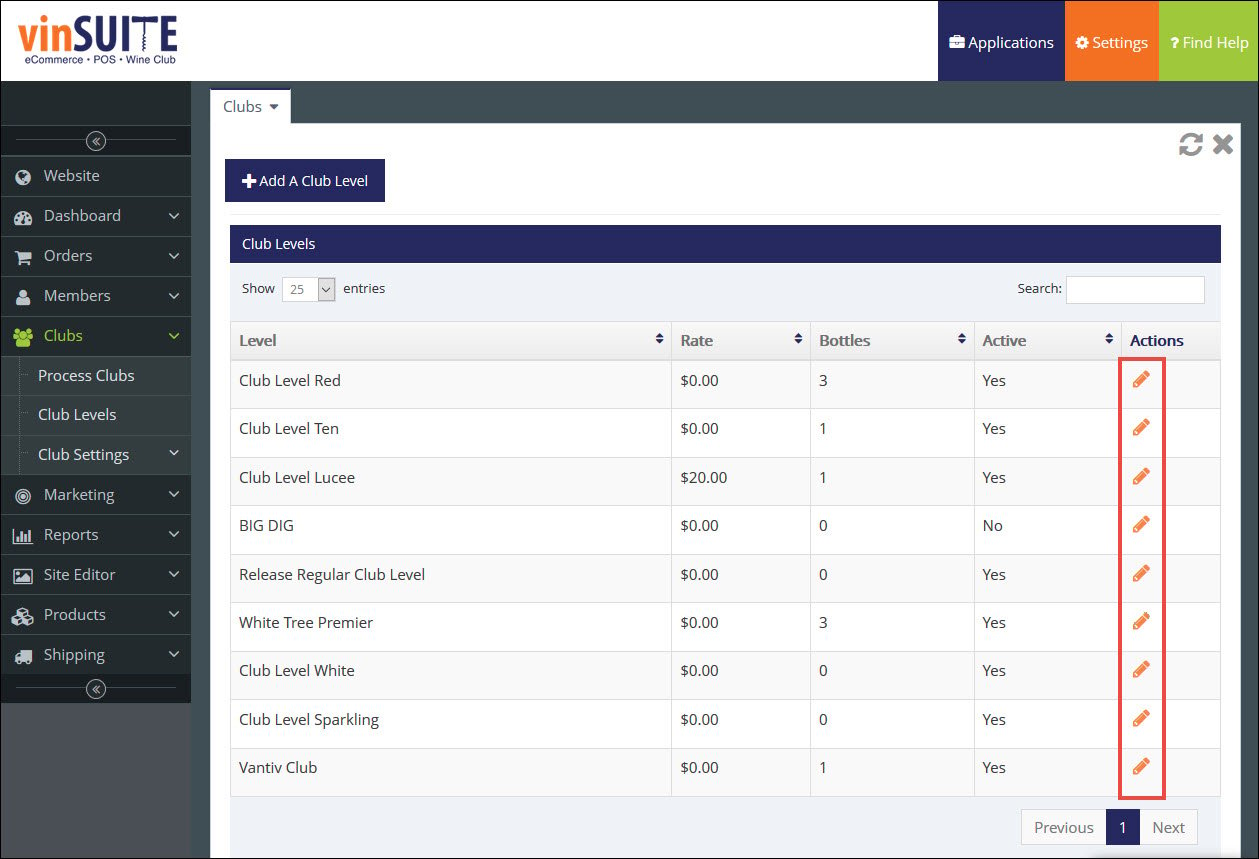
Club Levels are assigned to a club member to designate their club membership and determine their club batch options. Club Levels are set up under the Clubs module.To learn more about assigning a club level to a member, please visit the vinSUITE Member Record: Club Info page.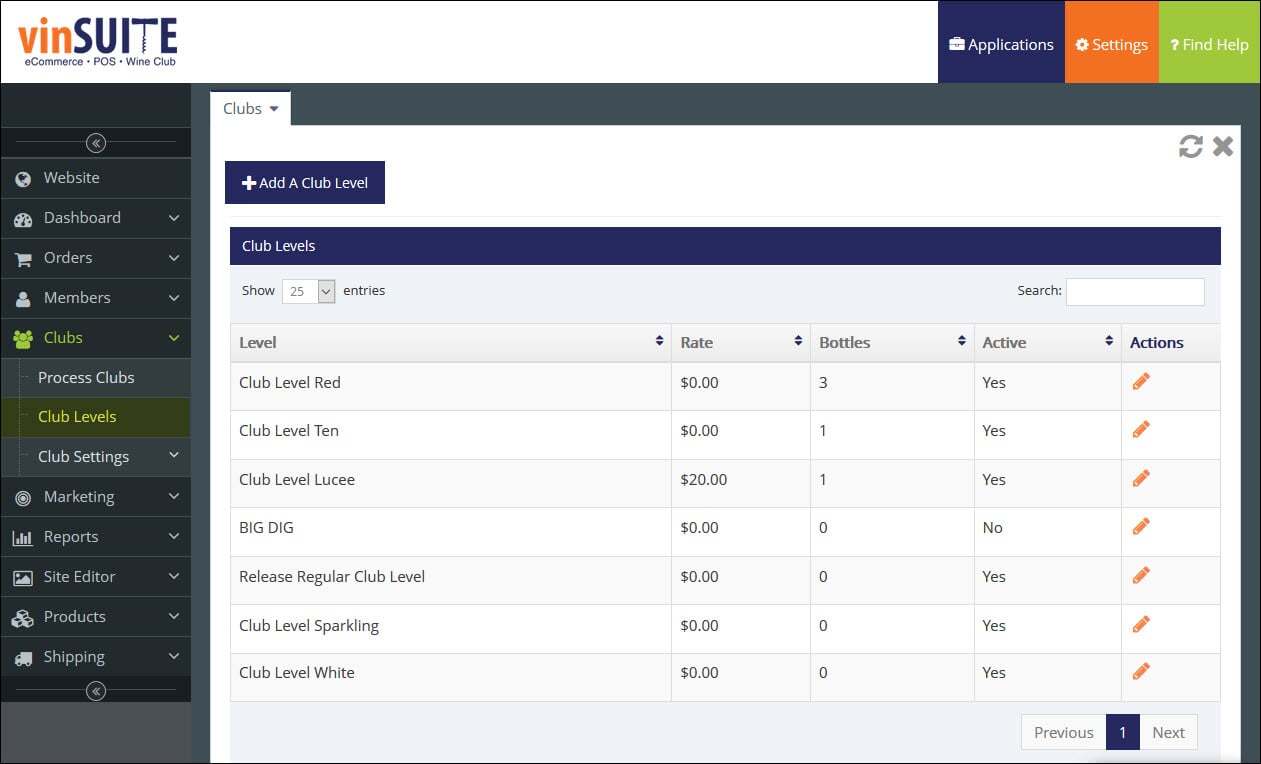
Club Levels manage the settings for the club and control how the club is presented on your website for online sign-ups.
Club levels are typically defined by any combination of the following:
- The frequency at which the club is shipped. (Monthly, Bi-Monthly, Quarterly, etc.)
- The number of bottles included in each shipment.
- The cost per shipment.
- Special/specific fulfillment requirements (Three-Tier shipping, fulfillment house used only for club, etc.)
Add Club Level | Edit Club Level
Add Club Level
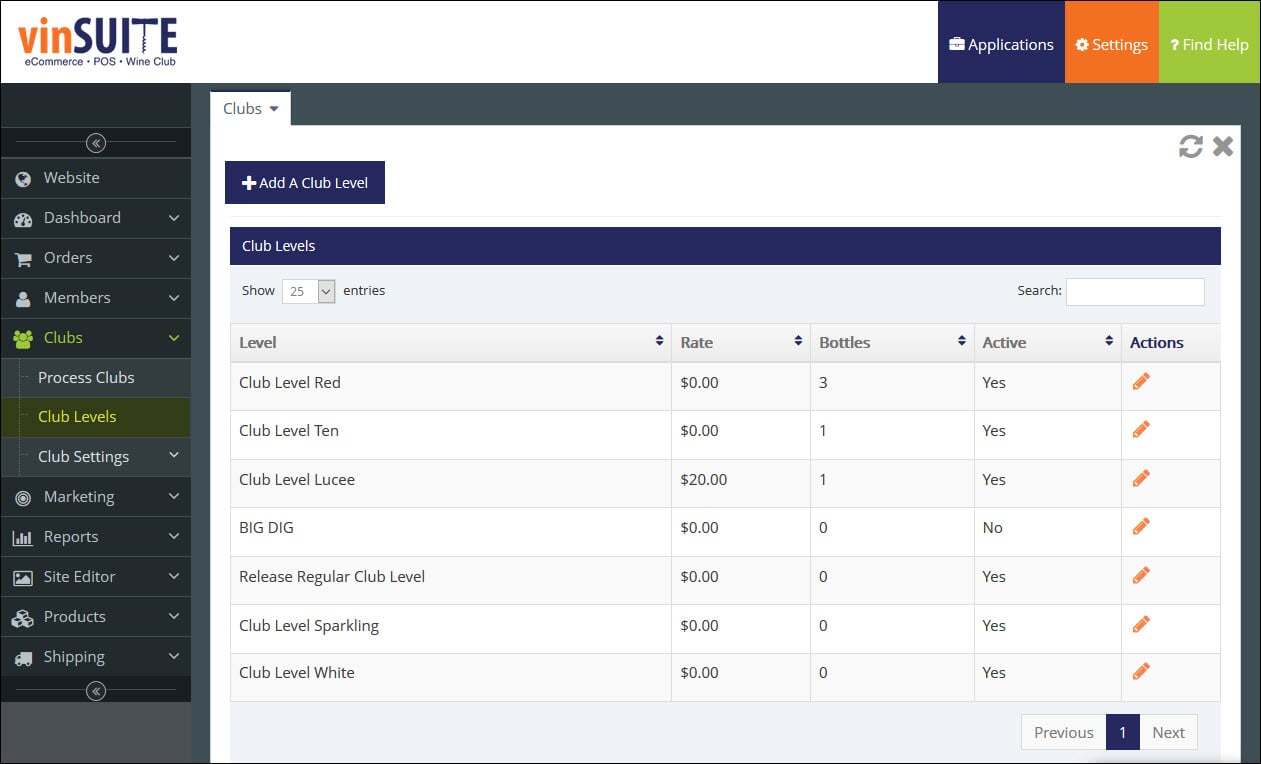
1) Open the Clubs module in the admin panel. In the drop-down list, select Club Levels.
2) The Club Levels page appears.
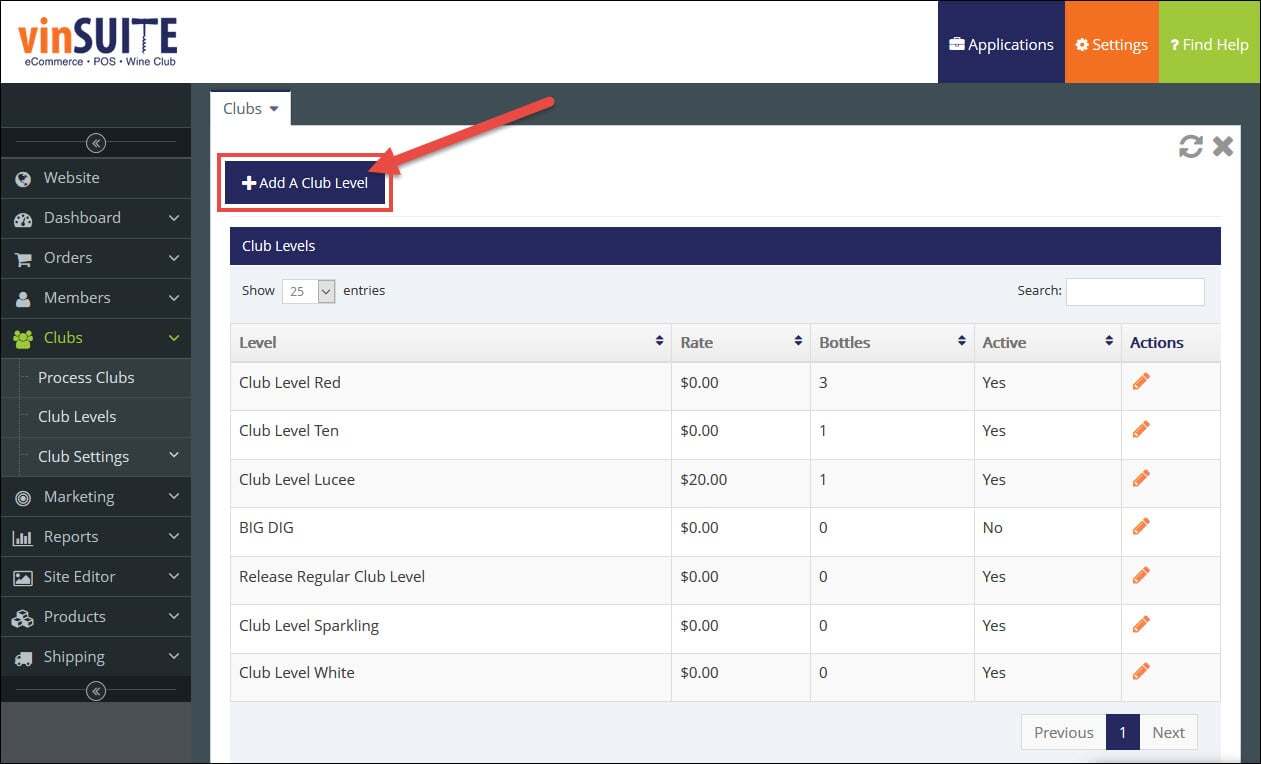
3) On the left pane of the Club Levels page, click 'Add a Club Level'.
4) When the Add Club Level page opens, enter the title of the club and other appropriate information.
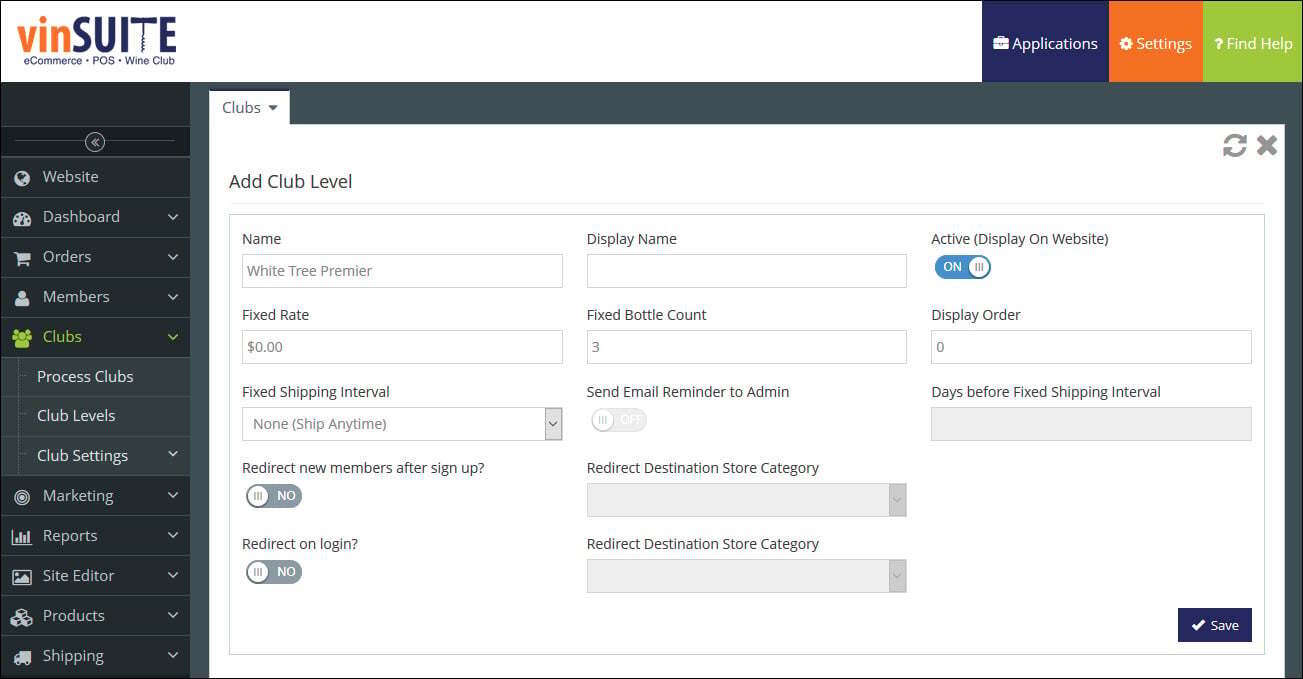
Name | Enter the name for the club level. Note: This title will only be visible internally on the eWinery admin panel.
- Display Name
- Enter the display name for the club level.
Note: This display name will be visible on your website.
- Active toggle
- Switch the Active toggle to "YES" to ensure this club level is active in vinSUITE and your online web store.
Note: If you mark your club as Inactive, you will still be able to process the club and add members to the club within the admin panel. This club level will not display as an option for customers to sign up for online.
- Fixed Rate
- Set your rate if there is a specific amount that each club order must equal. If your rate will be variable, set it to $0.00.
Note: When both rate and bottle count are set, the customer must abide by both parameters, not one or the other.
- Fixed Bottle Count
- Set your bottle count if there is a specific number of bottles each club shipment will have. If your number of bottles will be variable, set it to 0.
Note: When both rate and bottle count are set, the customer must abide by both parameters, not one or the other.
- Display Order
- Set the order position for the club listing on the Club Levels page.
- Fixed Shipping Interval
- Fixed Shipping Interval defines how often a club member receives shipments.
Select how often the club order will be sent to members using the drop-down menu and options provided.
If your club shipment schedule varies or does not fit in the within the options provided choose "No Frequency".
- Send Email Reminder to Admin toggle
- Select "YES" if you'd like to send the admin email address a reminder before the fixed club shipping interval.
Tip: This feature can be incredibly useful to give yourself enough time to prepare for fixed interval club shipments.
- Days before Fixed Shipping Interval
- Enter the number of days before the fixed interval club shipment when you would like a reminder email.
- Redirect new members after sign up? toggle
- Select "YES" if you'd like to redirect new members to a different web page after they sign up for this club membership online. Choose the redirect destination webpage, based on the category pages in your web store.
Select "NO" if you don't want to redirect new members to a new web page after they sign up online.
- Redirect on login? toggle
- Select "YES" if you'd like to redirect club members to a different web page once they login. Choose the redirect destination webpage, based on the category pages in your web store.
Select "NO" if you don't want to redirect members once they login.
4) Click the "Save" button to save the club level.
Note: You will not see any tabs displayed until you save the club level.
General tab
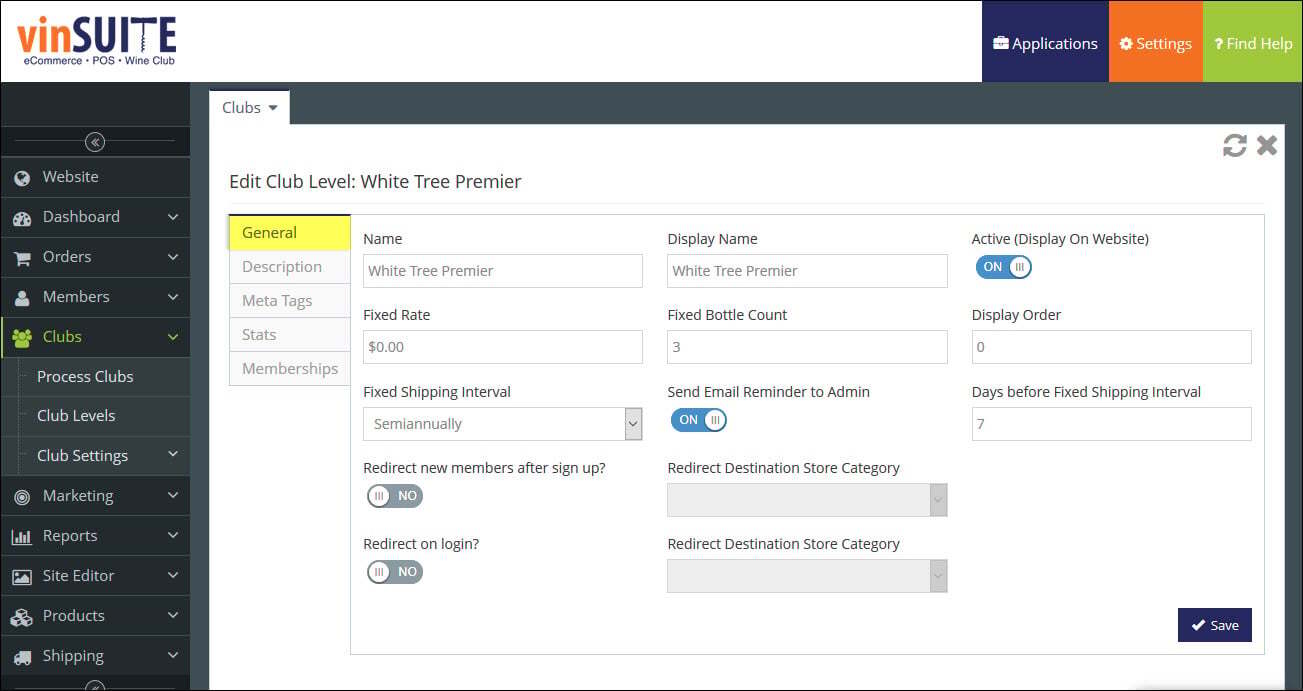
Name | Enter the name for the club level. Note: This title will only be visible internally on the eWinery admin panel.
- Display Name
- Enter the display name for the club level.
Note: This display name will be visible on your website.
- Active toggle
- Switch the Active toggle to "YES" to ensure this club level is active in vinSUITE and your online web store.
Note: If you mark your club as Inactive, you will still be able to process the club and add members to the club within the admin panel. This club level will not display as an option for customers to sign up for online.
- Fixed Rate
- Set your rate if there is a specific amount that each club order must equal. If your rate will be variable, set it to $0.00.
Note: When both rate and bottle count are set, the customer must abide by both parameters, not one or the other.
- Fixed Bottle Count
- Set your bottle count if there is a specific number of bottles each club shipment will have. If your number of bottles will be variable, set it to 0.
Note: When both rate and bottle count are set, the customer must abide by both parameters, not one or the other.
- Display Order
- Set the order position for the club listing on the Club Levels page.
- Fixed Shipping Interval
- Fixed Shipping Interval defines how often a club member receives shipments.
Select how often the club order will be sent to members using the drop-down menu and options provided.
If your club shipment schedule varies or does not fit in the within the options provided choose "No Frequency".
- Send Email Reminder to Admin toggle
- Select "YES" if you'd like to send the admin email address a reminder before the fixed club shipping interval.
Tip: This feature can be incredibly useful to give yourself enough time to prepare for fixed interval club shipments.
- Days before Fixed Shipping Interval
- Enter the number of days before the fixed interval club shipment when you would like a reminder email.
- Redirect new members after sign up? toggle
- Select "YES" if you'd like to redirect new members to a different web page after they sign up for this club membership online. Choose the redirect destination webpage, based on the category pages in your web store.
Select "NO" if you don't want to redirect new members to a new web page after they sign up online.
- Redirect on login? toggle
- Select "YES" if you'd like to redirect club members to a different web page once they login. Choose the redirect destination webpage, based on the category pages in your web store.
Select "NO" if you don't want to redirect members once they login.
Click the "Save" button to save any information in the General tab.
Description tab
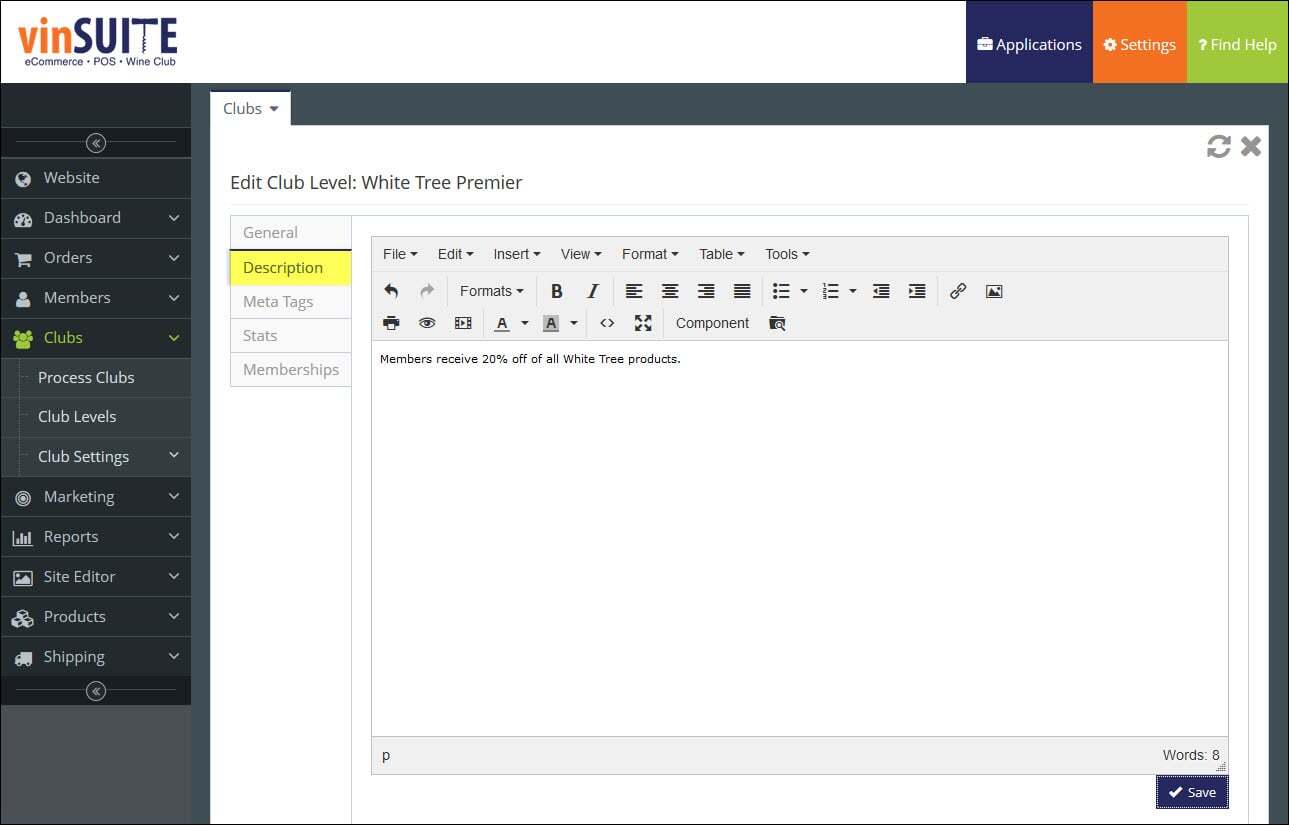
Description | Enter a description of the wine club. This description will appear in the preview box on your main wine club page, as well as at the top of this club's sign-up page.
Click the "Save" button to save any information in the Description tab.
Meta Tags tab
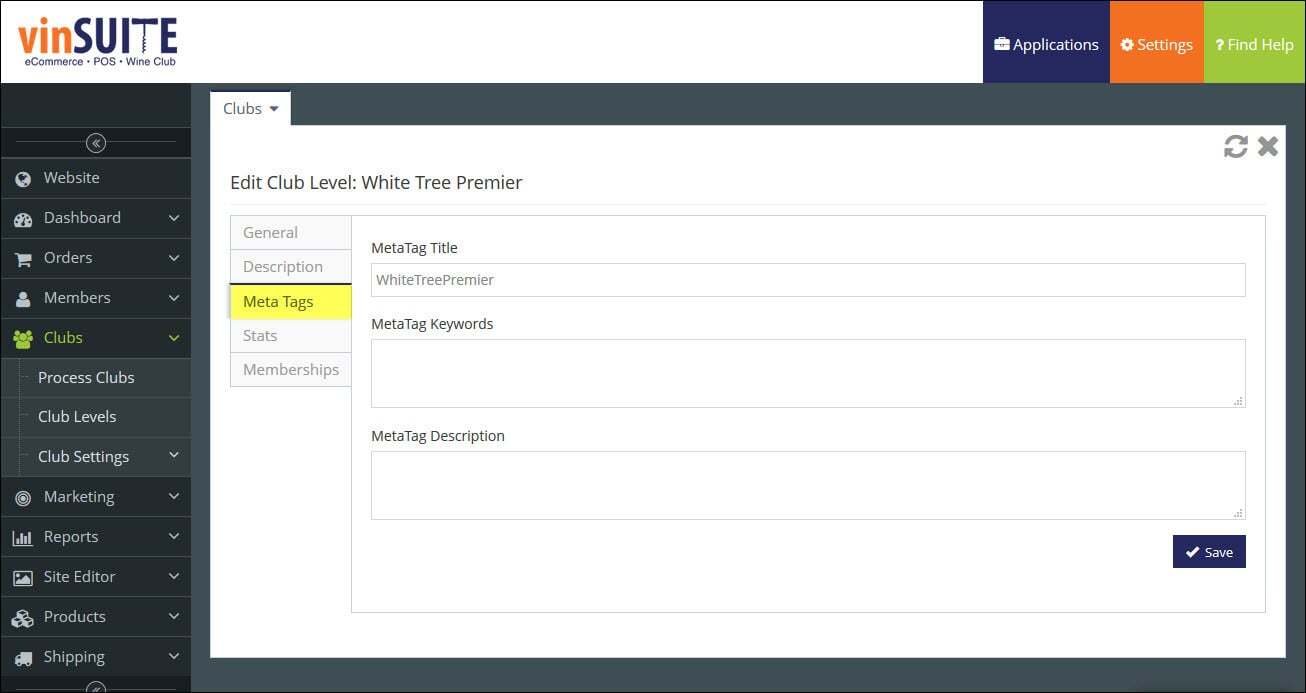
Meta Tag Title | Enter the title for the meta tag. The title tag can be used for Search Engine Optimization (SEO) and will be displayed in several different places. It will be shown at the top of the browser window on the club's details page. It will also be the main text displayed in web search results, and will often be pulled as the title of posts when a link to this page is shared on social media. Tip: Keep title tags short and put the most important words first.
- Meta Tag Keywords
- Enter any keywords for the meta tag.
Note: Previously, meta tag keywords were important for search results. However, they are less important, if used at all, for modern search engines.
Tip: If you choose to use keywords in your SEO strategy, be cautious not to use too many keywords, and make sure all of your keywords relate to content on this page ? using too many irrelevant keywords can flag your page as spam.
- Meta Tag Description
- Enter the description for the meta tag.
The description briefly summarizes what your site or page is about, and the text is displayed underneath the title tag in search results. Without a meta tag description, search engines will pull a random sentence or two from your page ? the description tag allows you to control how this page is displayed in search results.
Tip: Keep this meta tag description between 150 and 160 characters.
Website Example: Meta Tags Title
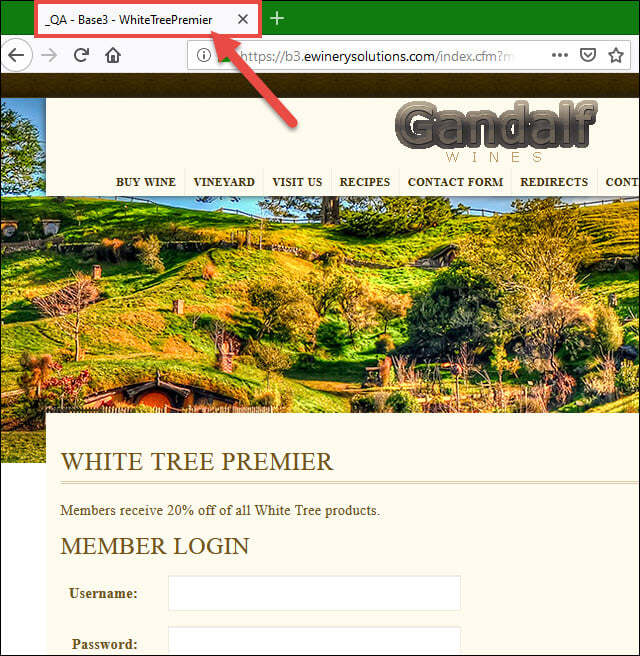
Click the "Save" button to save any information in the Meta Tags tab.
Stats tab
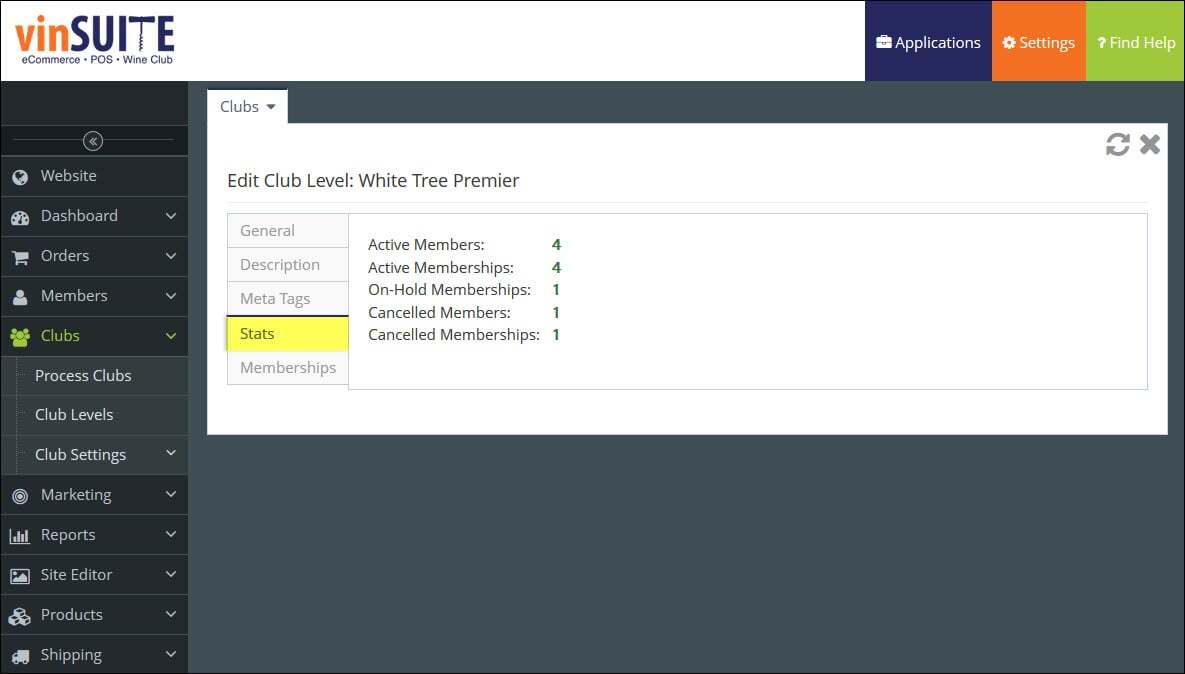
Active Memberships | Lists the number of active club members. Note: For more information about activating members for club batches, please visit Club Info on the vinSUITE Member Record: Club Info page.
- On-Hold Memberships
- Lists number club members that are active but in an on-hold status.
Note: On-Hold status is when an active club member choose to halt shipments for a period of time, but wants to remain a member of the club.
Memberships tab
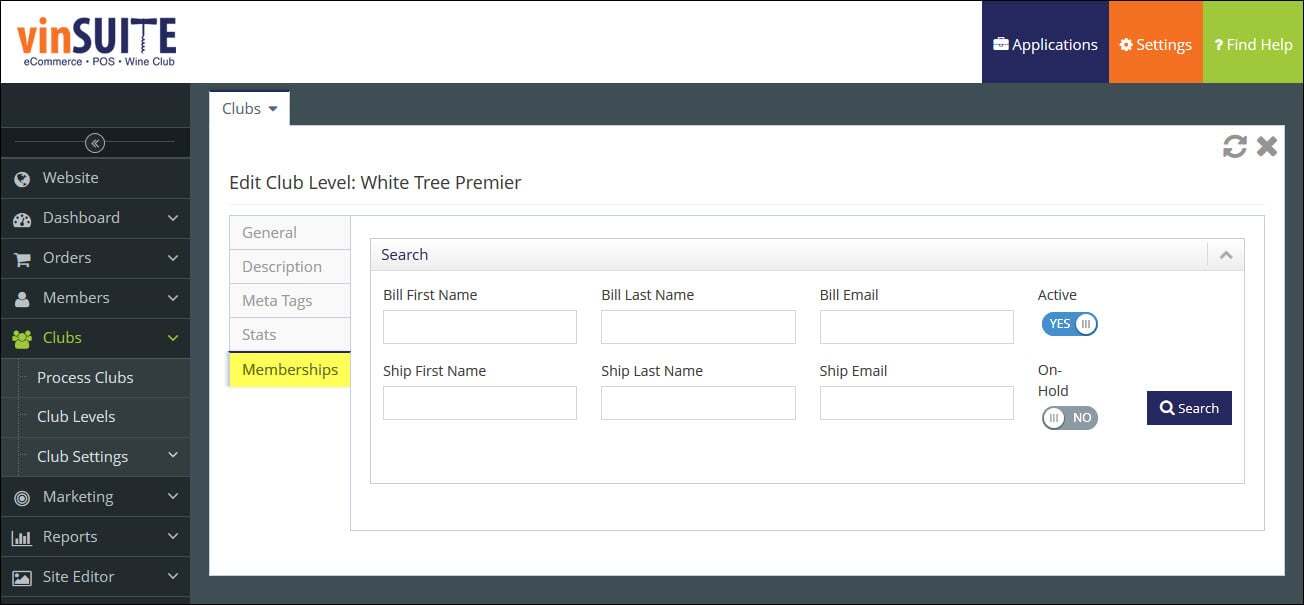
Search | Search for club memberships utilizing the following filters: Billing First and Last Name Billing Email Address Shipping First and Last Name Shipping Email Address Active Memberships On-Hold Memberships Click the 'Search' button to populate search results.
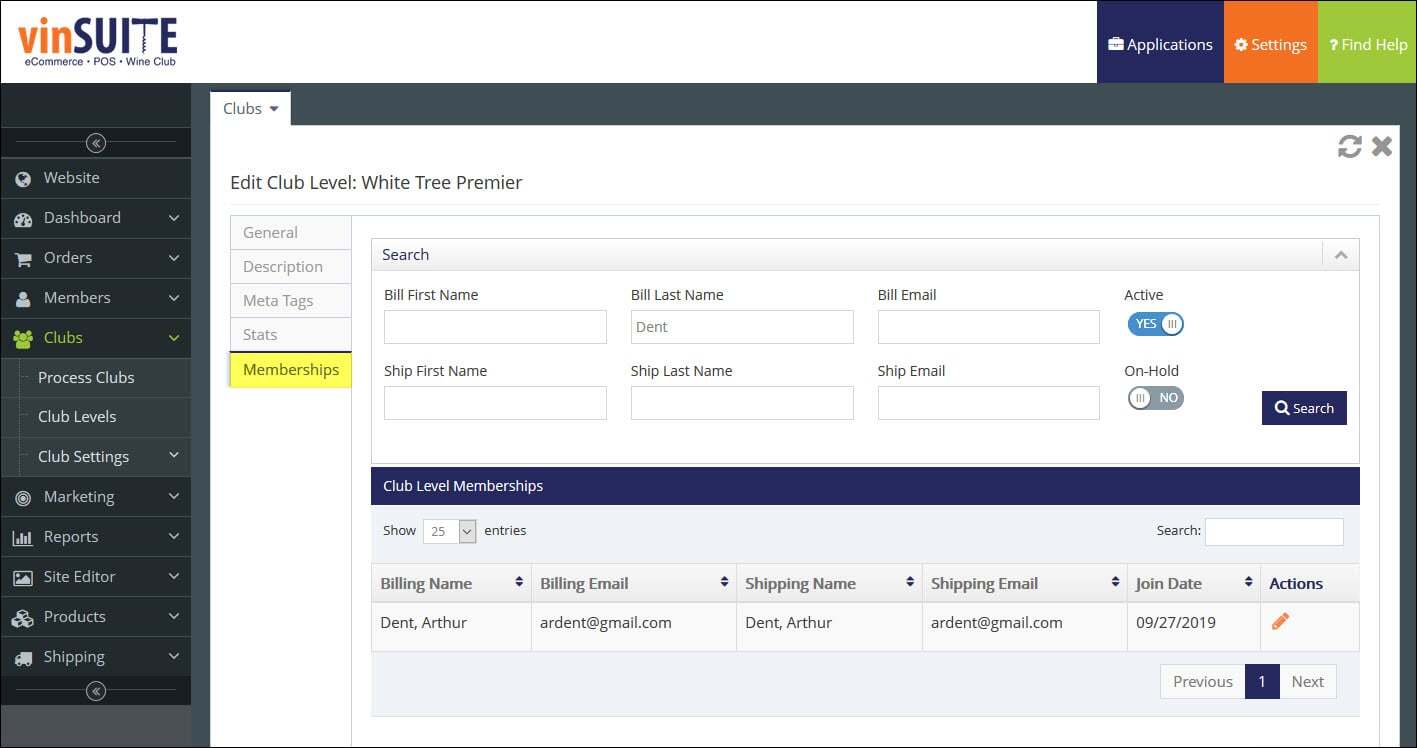
Click the Edit icon
 in a member entry to open his or her
vinSUITE Member Record.
in a member entry to open his or her
vinSUITE Member Record.
Edit Club Level
1) Open the Clubs module in the admin panel. In the drop-down list, select Club Levels.
2) The Club Levels page appears.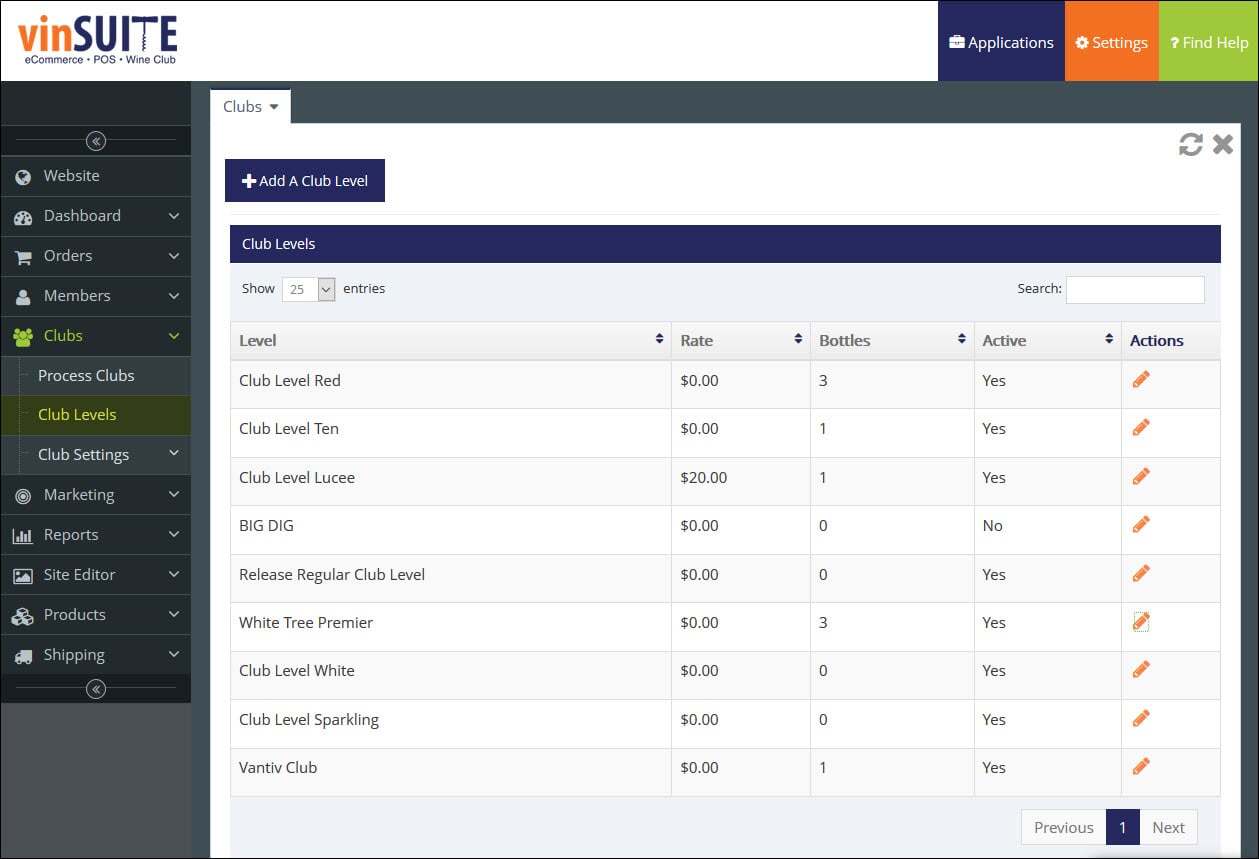
3) Select a club level from the list, and click the Edit icon  to open the Edit Club Level window. All the same tabs will be available to edit.