
Step 3: Create Orders
After the custom club order template has been made, orders can be created.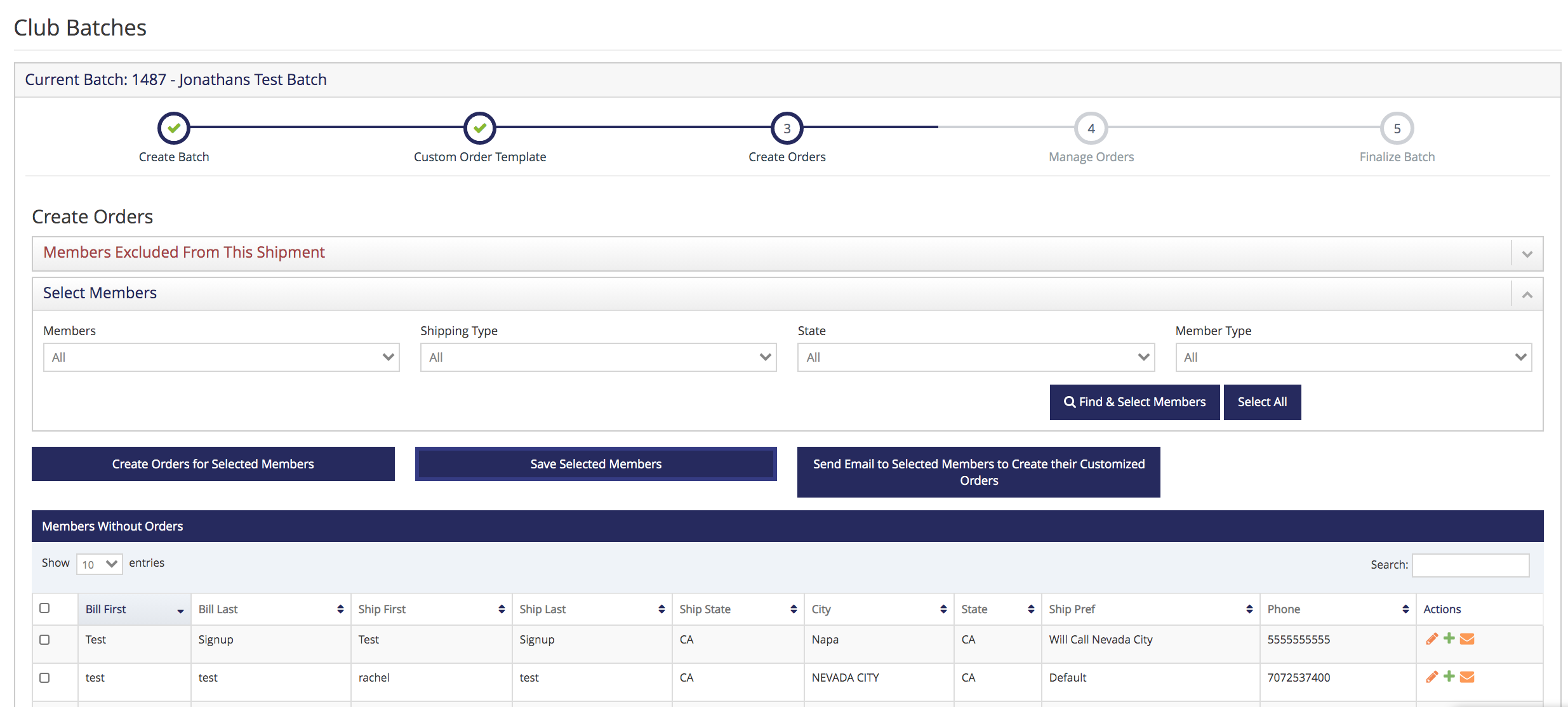
In Step 3 all of the members are organized into sections based on their order status.
Members Excluded from this Batch | Members in this section have been excluded from the batch based on their sign up date and/or the date of their last shipment. To make adjustments here, return to the Setup Info tab and adjust the Order Creation Settings .
- Members Without Orders
- Members in this section are eligible for a custom club shipment in this batch but have not logged in to your website to create an order yet.
In the 'Members Without Orders' section, select the check boxes for specific members (or the top check box for all the members) and click the 'Send Email to Selected Members to Create their Customized Orders' button. This notifies the customers via an automated system email when they are able to log in to your website and modify their custom club orders.
Tip: Be sure to review your "Customize Your Club Order" ASE before sending to custom club members!
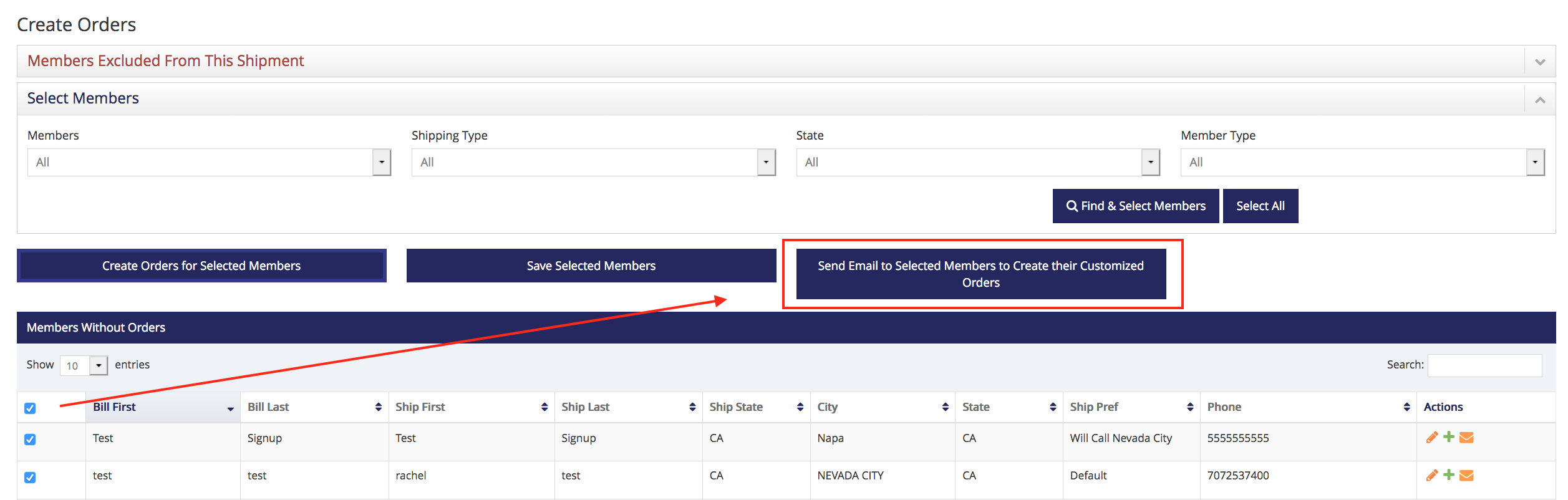
Once a customer has been notified they can customize their order, a check mark will appear in the Actions column.

NO NEED TO SELECT THE 'CREATE' BUTTON. In order for your customer to have access to modify their own orders on your website, you cannot create their orders beforehand.
Note: To learn more about your customer's workflow to create their custom club order on your website, please visit the Customize Your Club Order page.
TO CREATE STANDARD ORDERS after the customization period is over, or to create and customize for a club member,
- Select members and click Create Order button
- Click the + button in the Actions column