
Product tax rates apply to non-wine products that are taxable. Product tax rates are entered on a per-state basis in eWinery. All non-wine products are automatically compliant in all states and set to be fulfilled from the winery.
If you wish to change these settings per product, you can edit the compliance at the individual product level on the States tab of the product setup. Please visit a Add A First-Party Product page to learn more
Note: Product Taxes is only used for the compliance & shipping status of non-wine products. Please visit the vinSUITE State Profiles to edit the compliance settings for wine products.
Add or Edit First Party Product Taxes
1) Click the Store icon on the Admin Panel. In the menu bar, select Product Taxes. 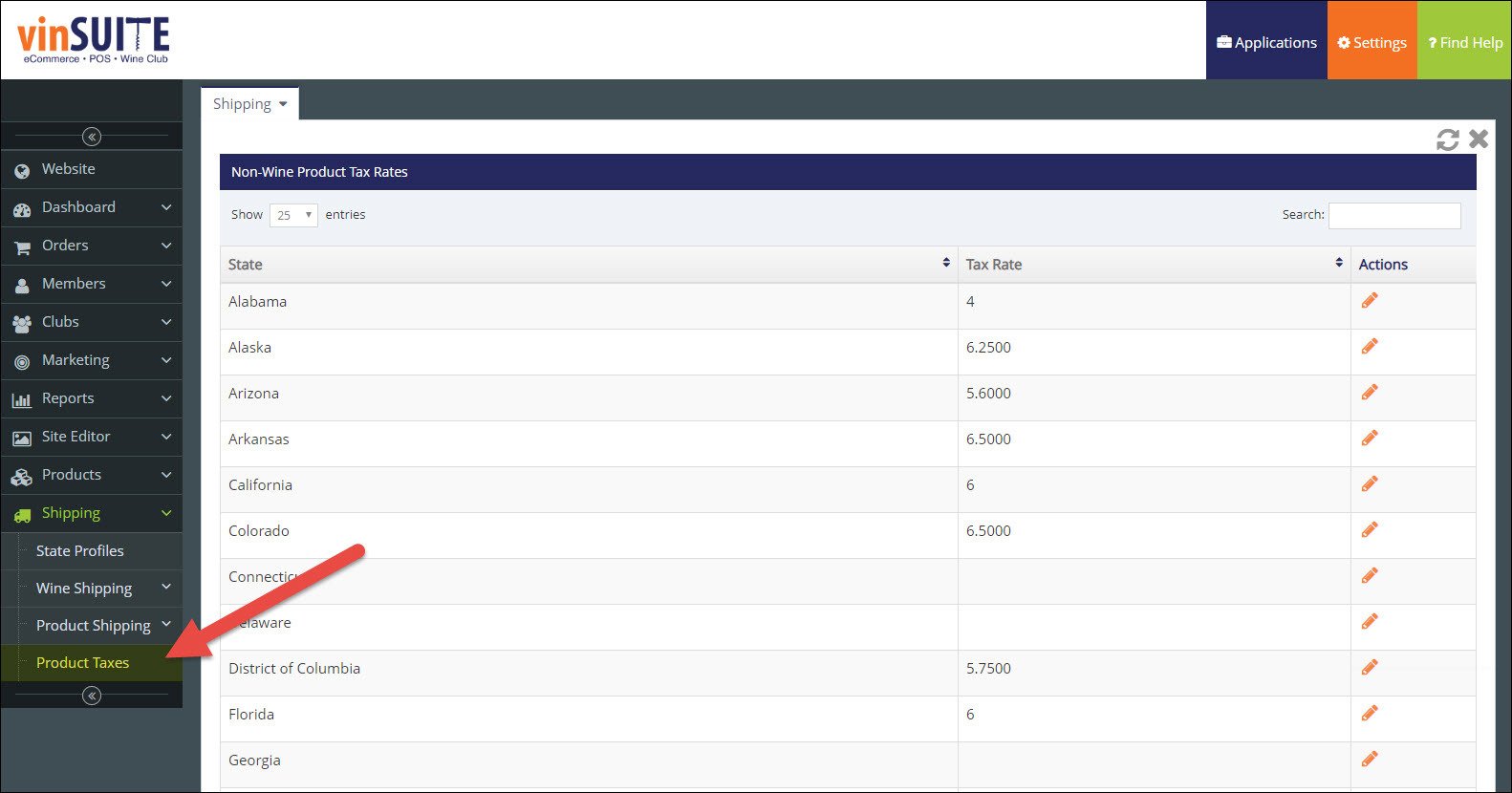
2) A list of states and previously entered tax rates (if applicable) appears in the right pane.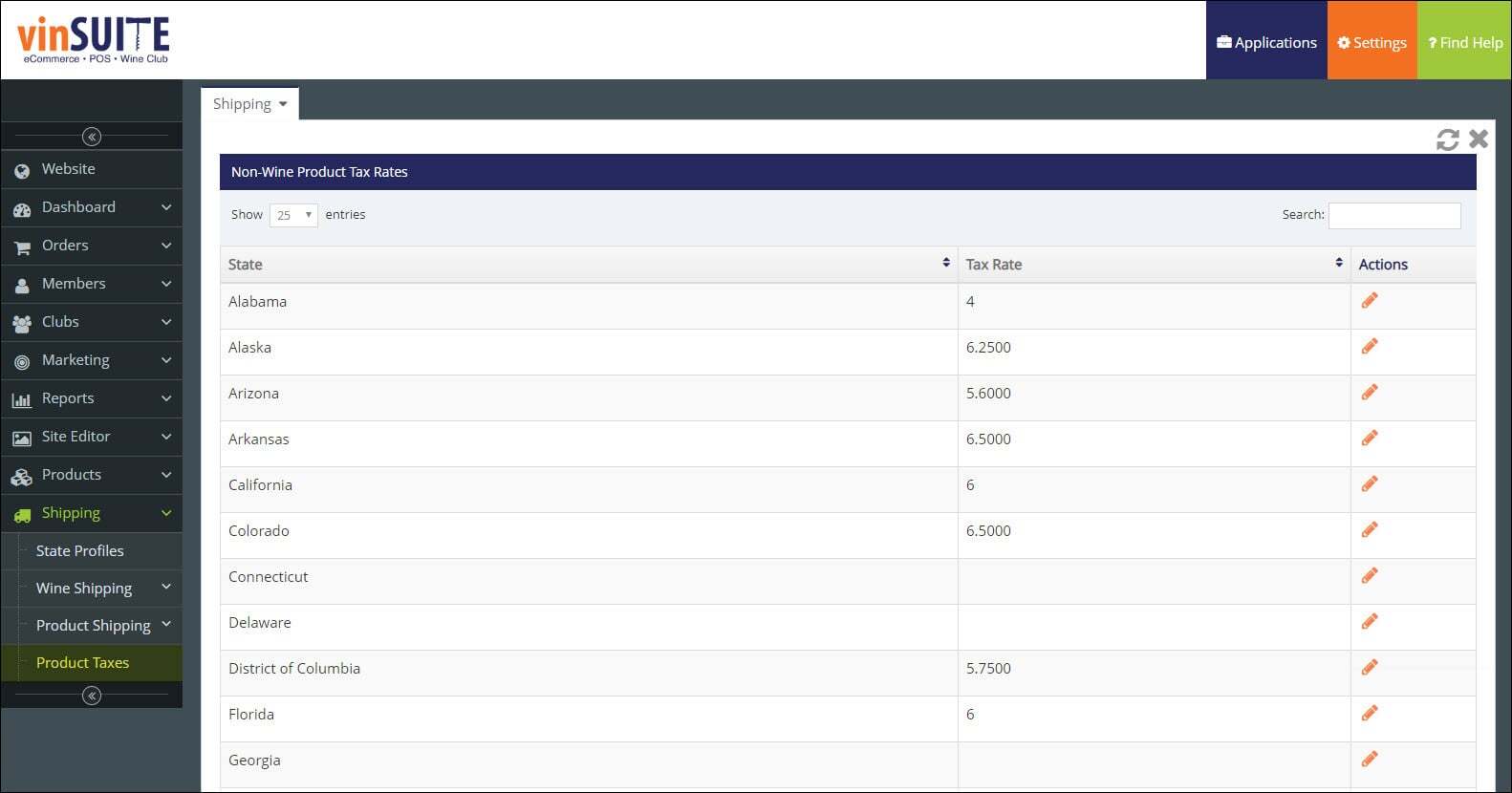
3) Select the Edit icon  for the state you want to edit.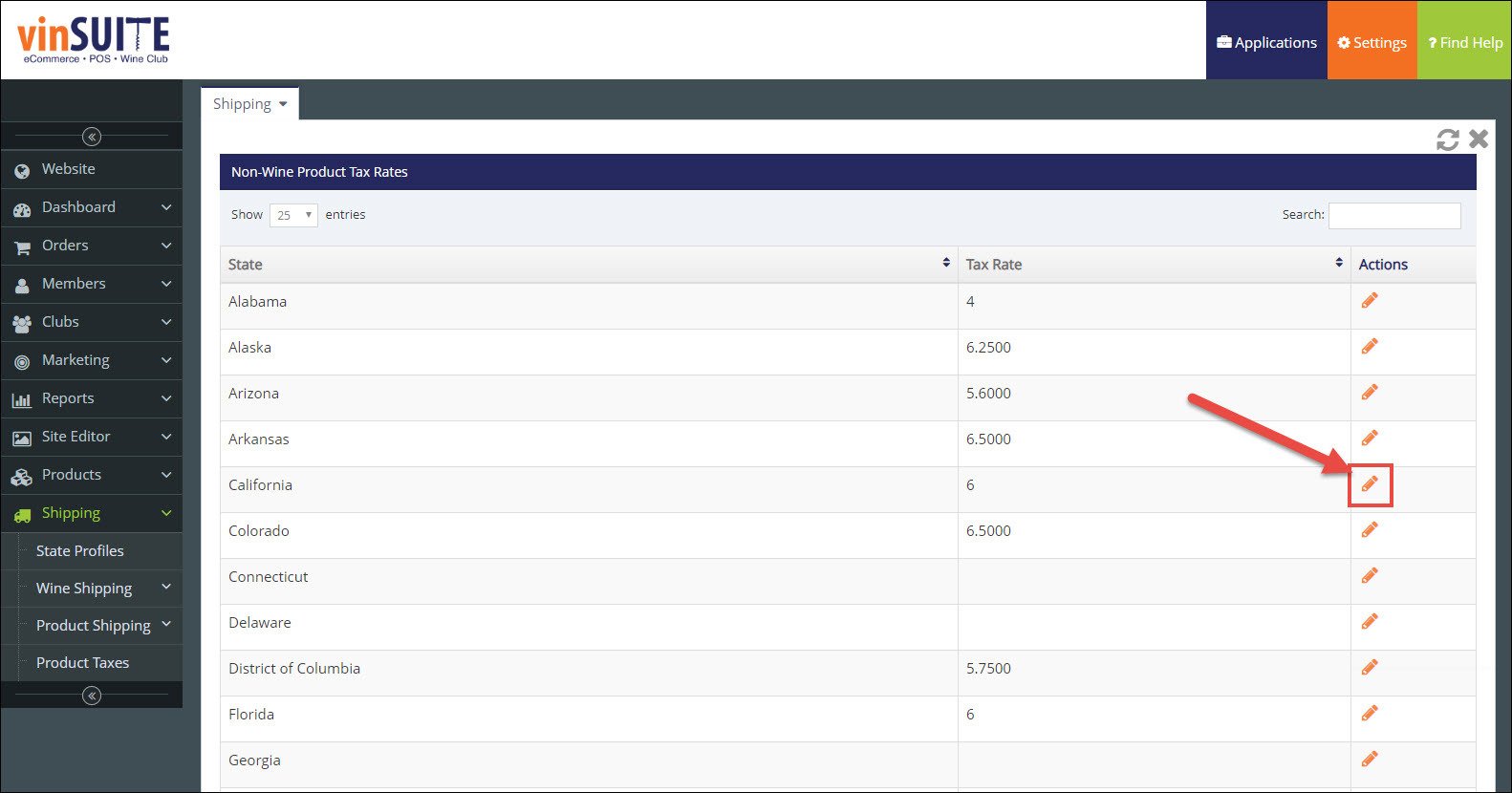
4) The Edit Taxes/State dialog box appears. Enter the product tax rate for the state you selected. 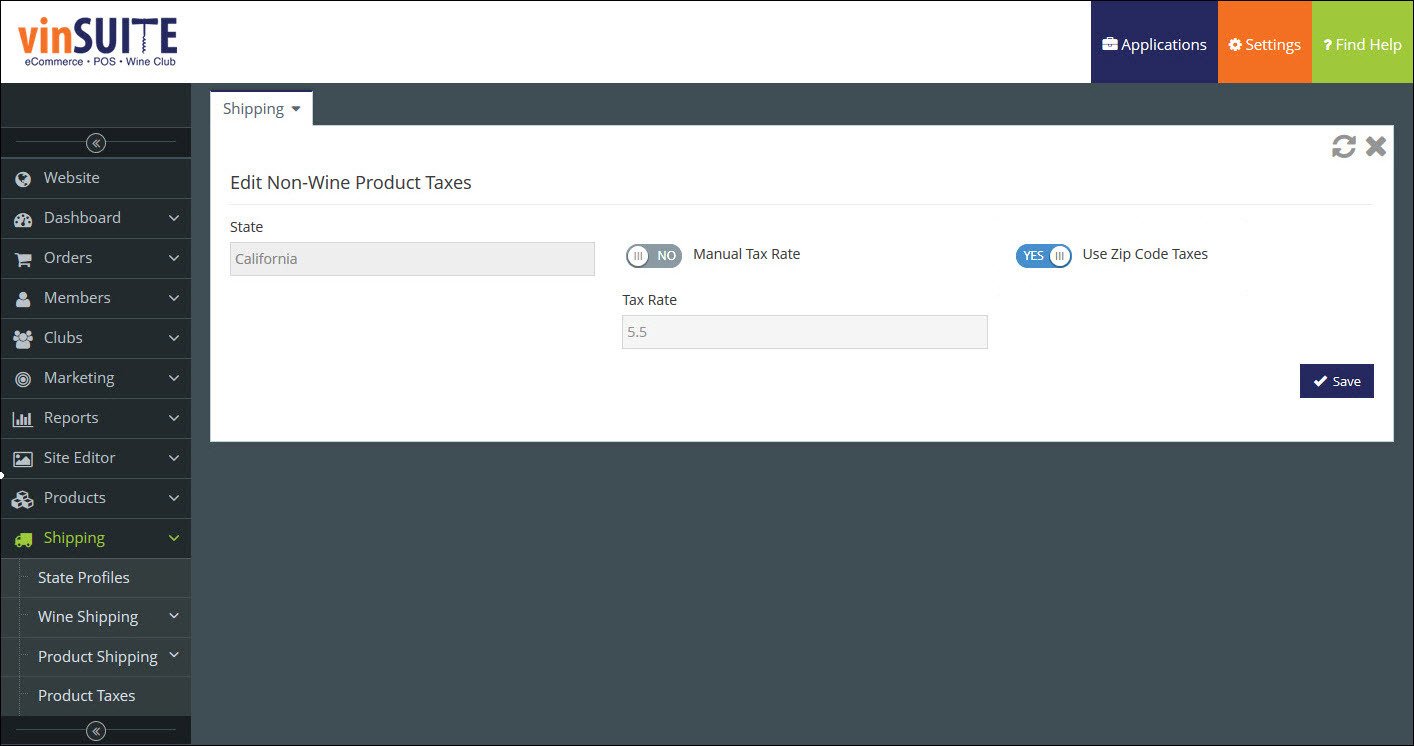
Tax Rate:
Select the method to calculate the tax rate information for this particular state. Manual Tax Rate - This method calculates the tax rate based on one manually entered percentage and applies to the whole state. Zip Code Tax - This method automatically calculates the tax rate based on the zip code where the order is shipped or picked up. Each zip code within the state may have an individual tax rate. Note: It is highly recommended that you enter a manual tax rate even if you enable Zip Code Tax to ensure an alternative is available for shipping orders.
Tip:
Don't see a Zip Code Tax toggle? Zip Code Tax is only available for those who are NOT using ShipCompliant.
Click the "Save" button to save any information for First Party Product Taxes.