
Step 4: Manage Orders
Once the End Customization Date has passed, custom club members are no longer able to customize orders online.
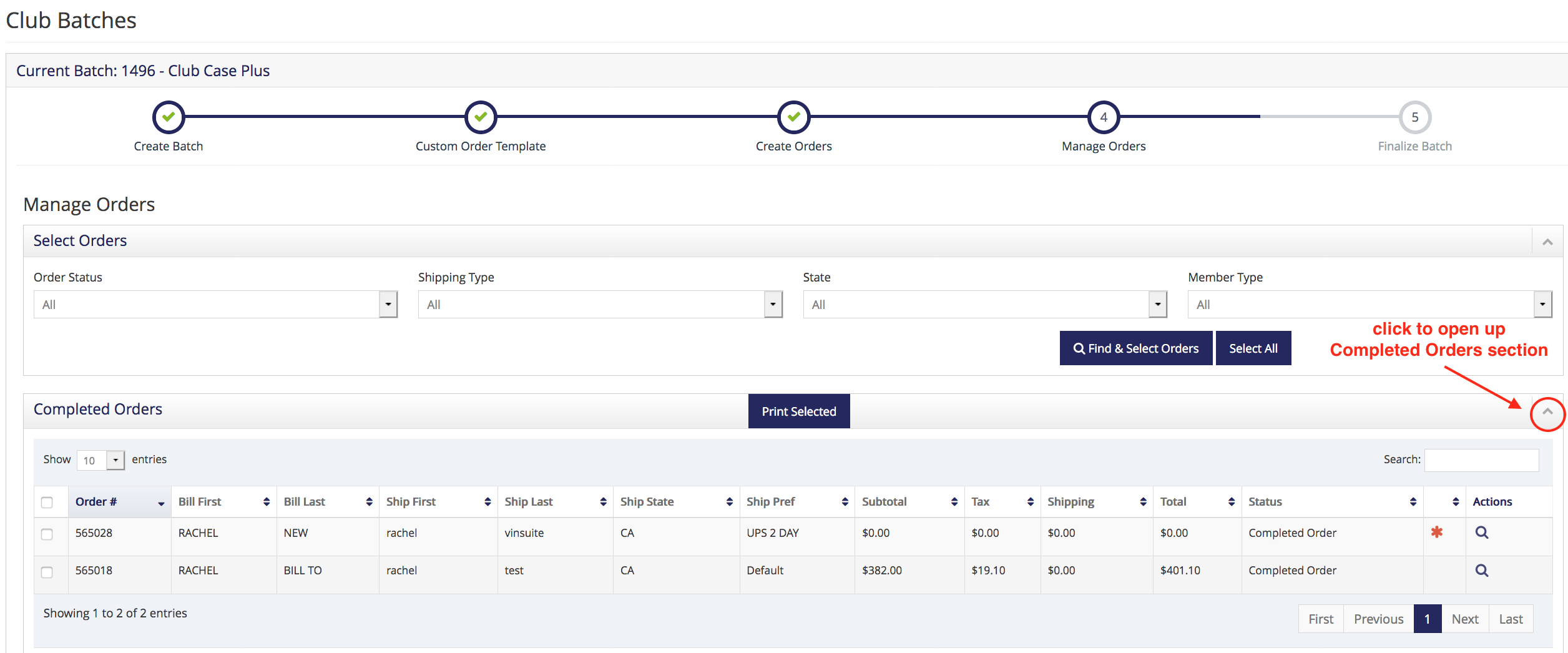
Note: The End Customization Date can be edited if a longer window of time is needed.- If you chose to have custom club orders created on your website flow into a Completed status, then those orders have already been processed and payment has been collected. The completed orders are ready to be shipped. Click the arrow to expand the Completed section and view orders.
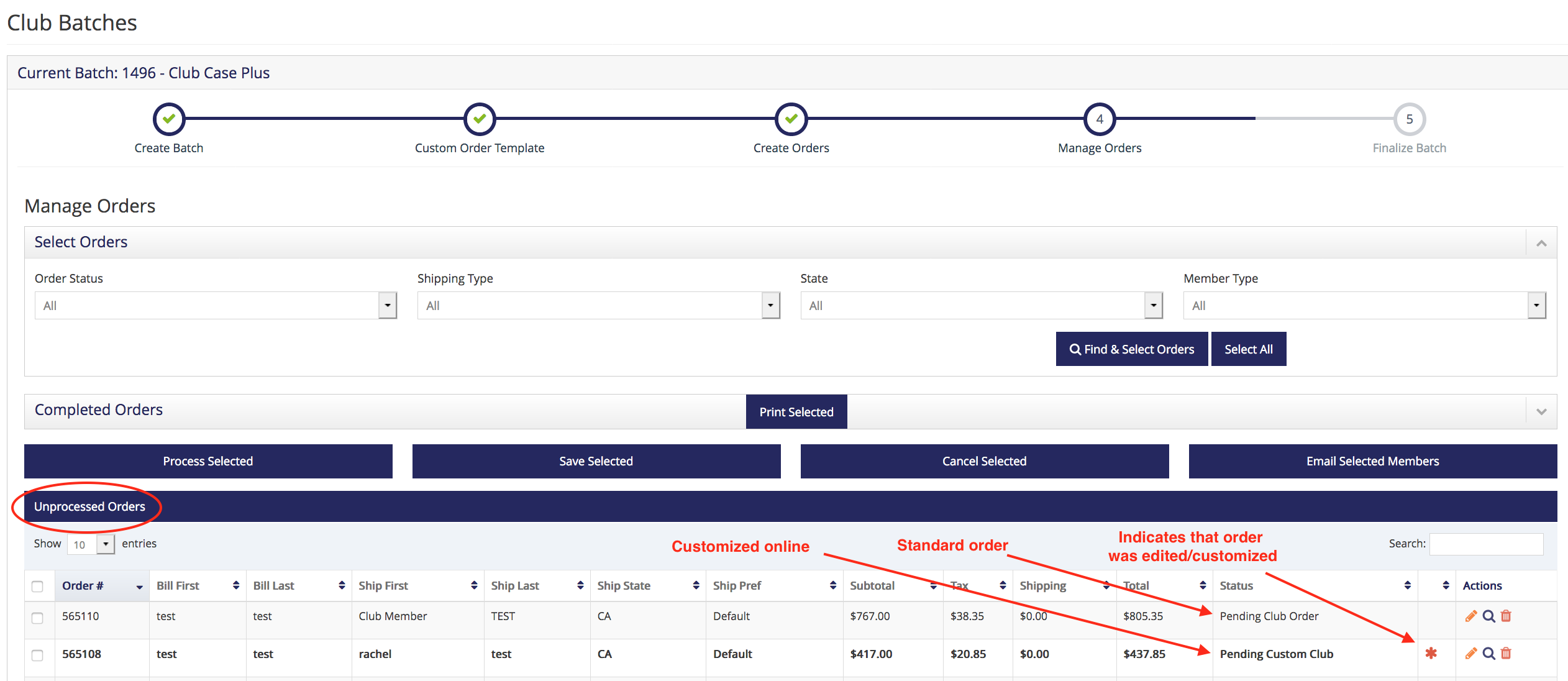
- If custom club orders modified on your website flow into a Pending Custom Club Order status, then you need to manually process the orders to collect payment. These orders will appear under the 'Unprocessed Orders' section with an orange asterisk to indicate it was customized/edited.
Note: If club members haven't customized their club orders on your website, an admin user can create and modify a custom club batch order with the OMS. See Step 3 instructions.
- Orders created in the admin panel club batch are standard orders and display as Pending Club Order status. If a standard order has been edited after it was created, it will show an orange asterisk. These orders need to be processed to collect payment.
The following automated actions will occur when you process a club:
- The members' primary credit card on file (or other payment method) will be charged for the full amount of their order.
- Orders will be checked and committed to ShipCompliant, if you are a ShipCompliant user.
- The member will receive a Custom Club Order Confirmation email sent to their primary billing email address.
In the 'Unprocessed Orders' section, there are a few options for how you can process your club orders.
Option #1: Select all or individual orders and click the 'Process Selected' button. This action will work through the list of selected members processing their orders one by one.

Option #2: You can also edit and process each individual order in the OMS by clicking the edit pencil in the Actions column.
Option #3: Recommended for Larger Batches
- Select all or individual orders and click the 'Save Selected Orders' button. This action will save your selections in this batch.

- Navigate back to the Process Clubs screen that lists club batches.
- Select the batch(es) that have orders you want to process, choose the batch action 'Process Saved Orders in Selected Batches' and click the 'Go' button. Orders will begin to process for the selected batch in multi-instance, making the entire process much faster.
- When the batch is done processing, return to Step 4: Manage Orders. If any orders remain in the 'Unprocessed Orders' section due to payment or compliance issues, proceed to resolve these issues until all orders are in a Completed status.
Note: To learn more about resolving payment or compliance issues, please visit the eWinery Manage Club Orders page.