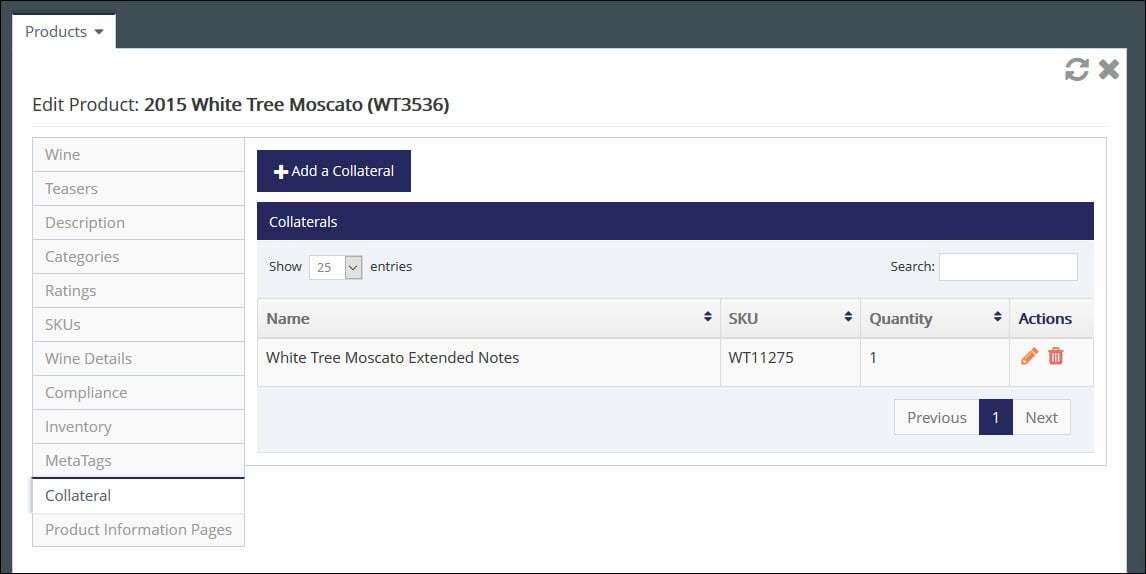
Add Collateral
Note: Before continuing, verify all the Product Settings are configured. For additional information, please visit the Setting Up Products page.
Collateral products are additional items that accompany a wine or first party product without any additional cost. Collateral items do not have any price and do not affect any of the sales, tax, or shipping details of the product it is attached to.
Example: Collateral could include:
- Thank you note
- Wine club newsletters or brochures
- Free tasting passes for the customer?s next visit
- Special packaging (gift bags or boxes)
Add Collateral
Attach Collateral to a Product
Best Practice: If you are using either ShipCompliant and/or vinSUITE Desktop POS, confirm that the collateral has been setup in the appropriate platforms before placing any orders. This will ensure that the product can flow smoothly from the POS to vinSUITE and from vinSUITE to ShipCompliant.
Add Collateral
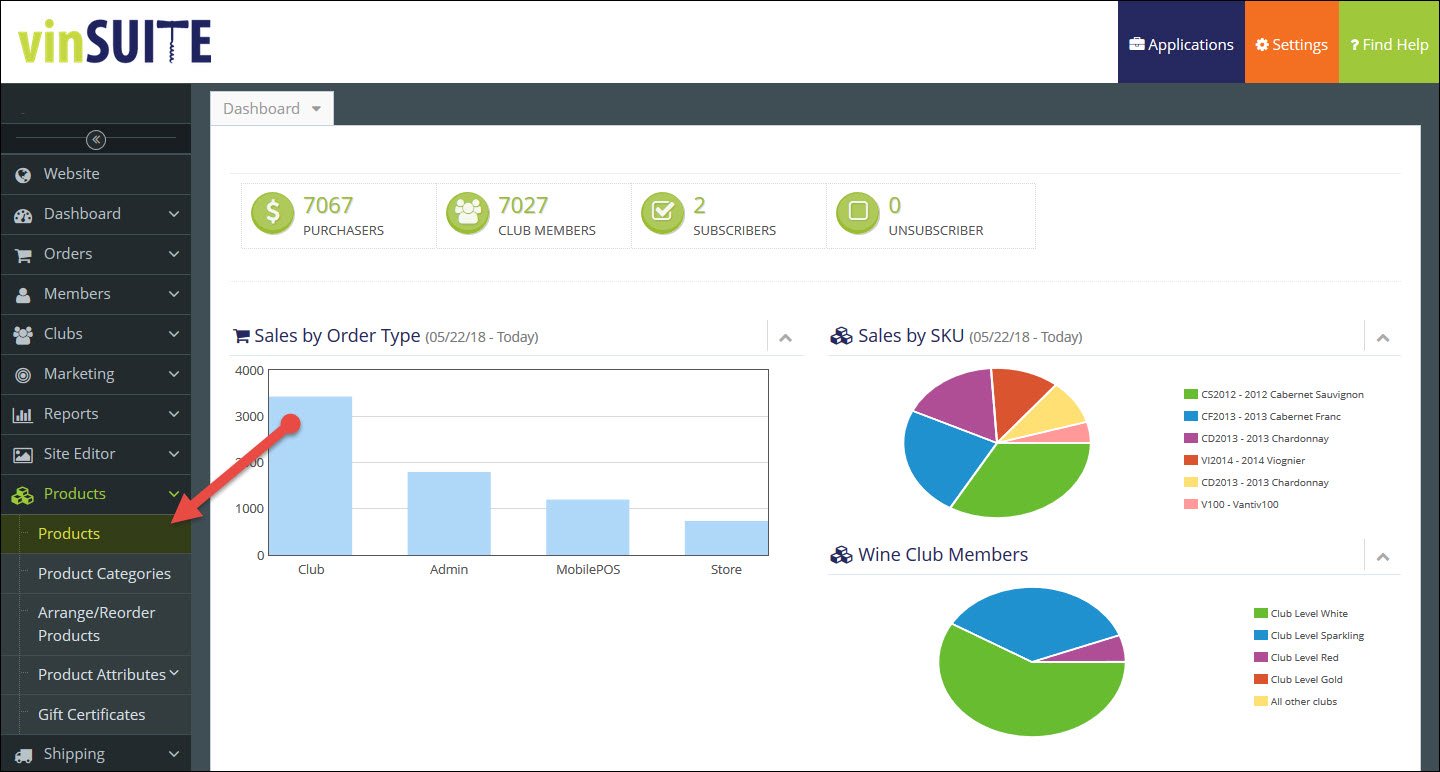
1) In the vinSUITE admin panel, expand the 'Products' section in the left hand navigation, then click 'Products' from the sub menu.
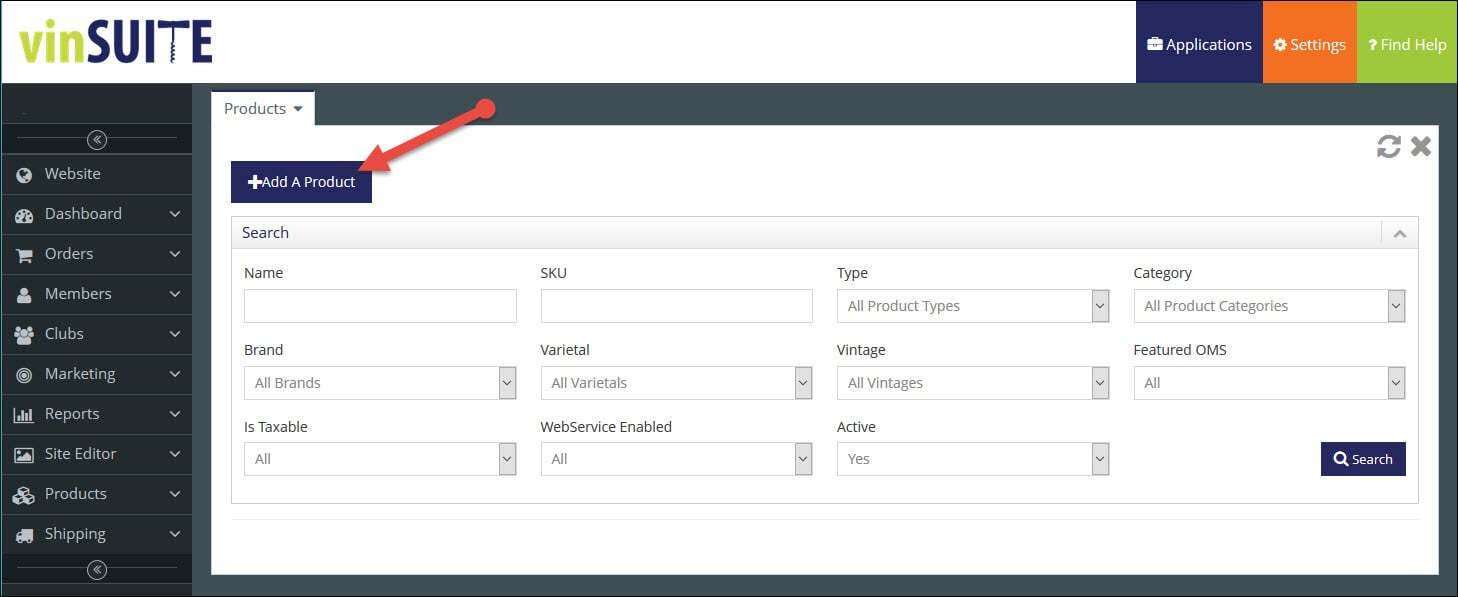
2) From the Products search screen, click the ?Add A Product? button.
3) Select 'Collateral' from the drop-down menu,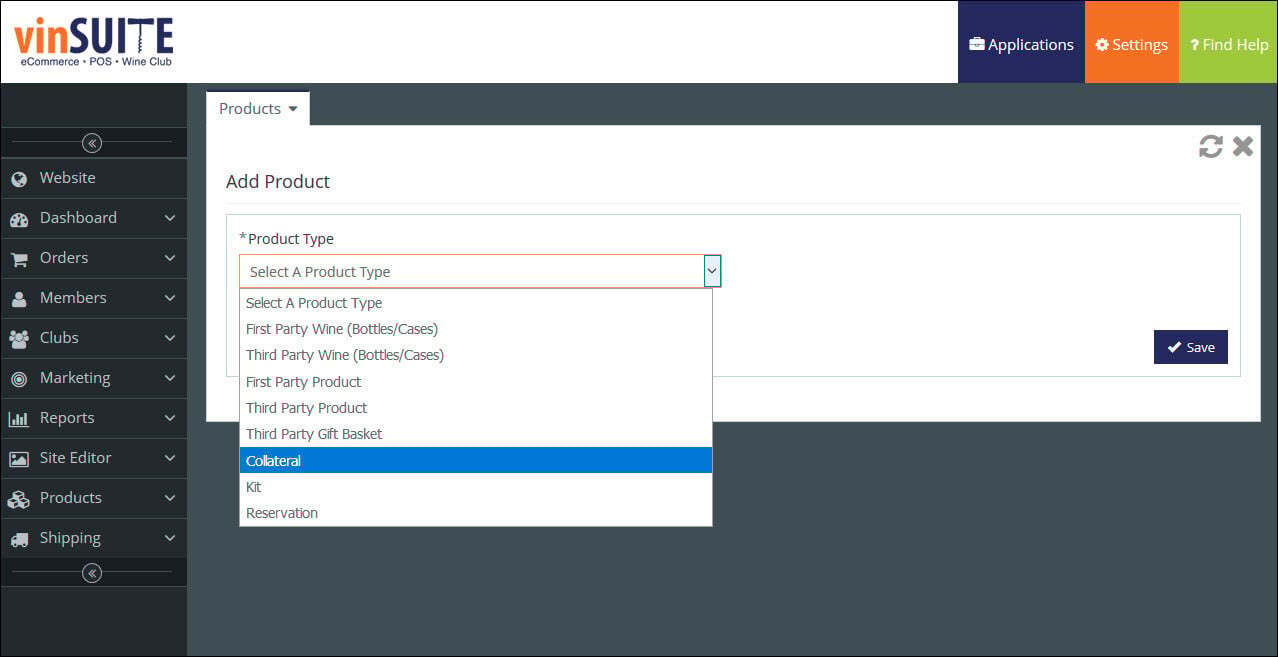
4) Name the collateral and click the 'Save' button.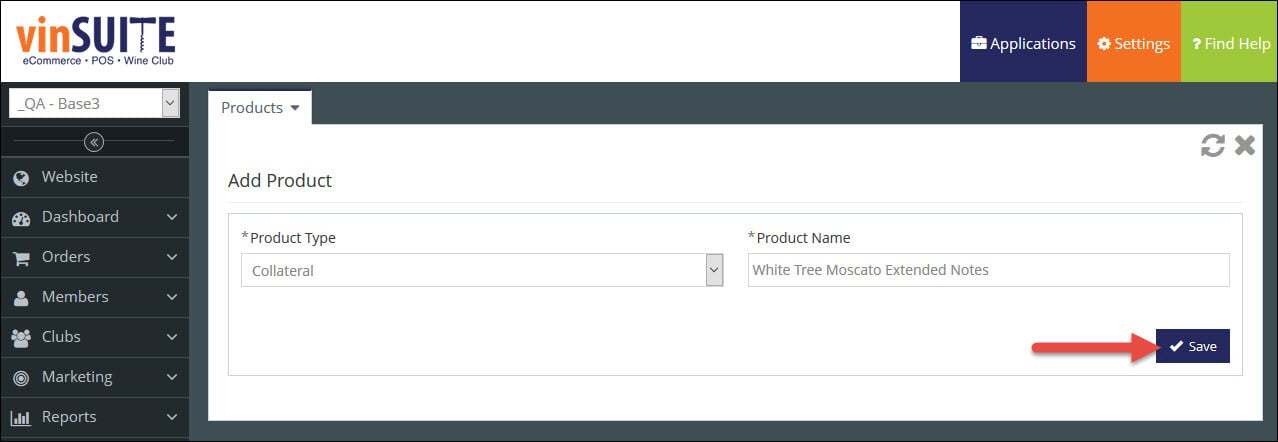
5) The Edit Collateral page will open.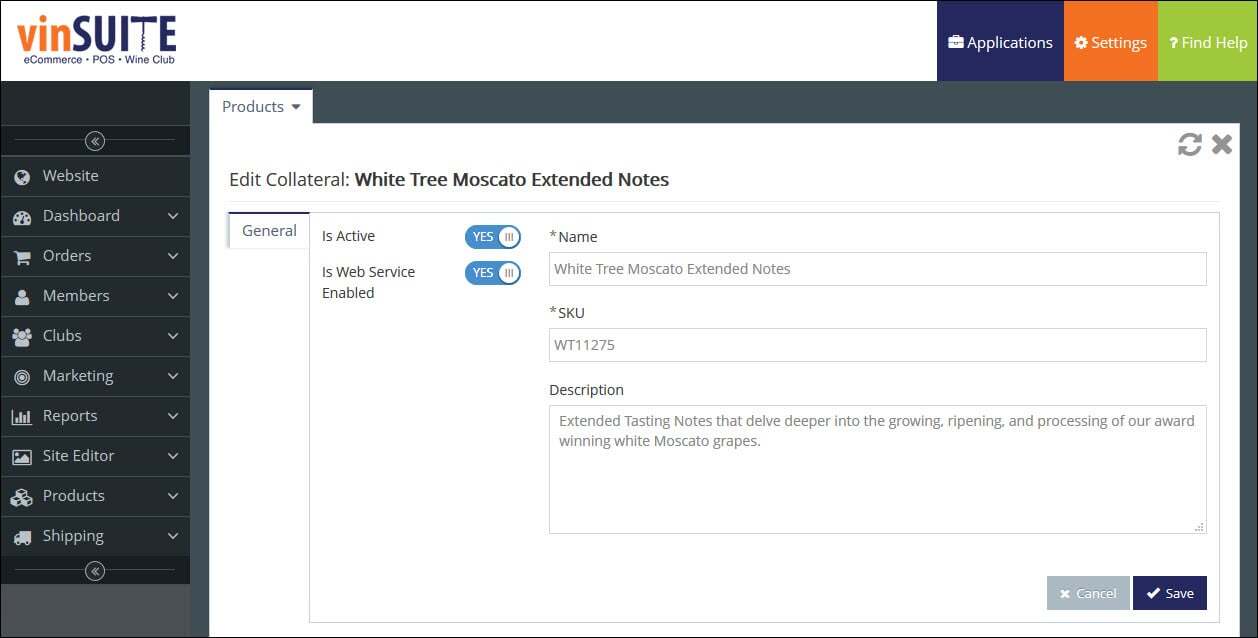
6) Switch the Active toggle to "YES" to enable this collateral.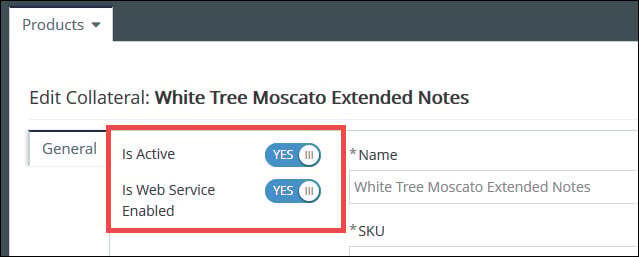
Note: It is highly recommended that all products have WebService enabled, so third party platforms (like ShipCompliant or tPOS) can access the product.
7) Enter the SKU and description for the collateral.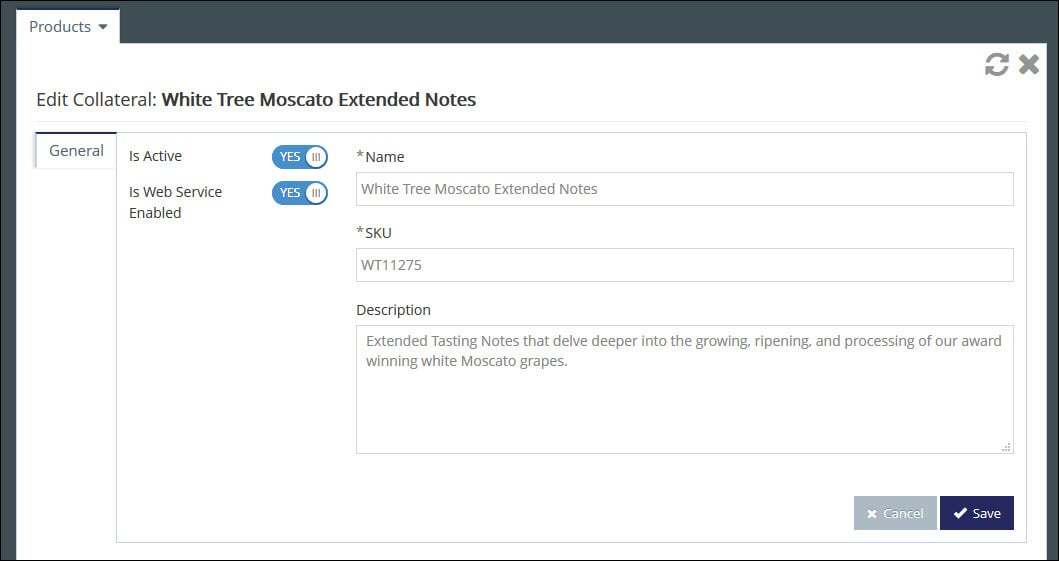
Note: If you are a ShipCompliant user, you will need to make sure to set up your Collateral SKU in ShipCompliant with a brand key of NONWINE
8) Click the 'Save' button.
Attach Collateral to a Product
1) In the vinSUITE admin panel, expand the 'Products' section in the left hand navigation, then click 'Products' from the sub menu.
2) Locate your product utilizing a number of search filters.

Name | Enter the name of a Product.
- SKU
- Enter the Stock Keeping Unit (SKU) for a Product.
- Type
- Select the Product Type from the drop-down menu.
- Category
- Select the Product Category from the drop-down menu.
Note: If All Product Categories is chosen, all of the Products will be displayed, whether a Product is in a Category or not.
This list is able to be edited by vinSUITE admin users. For more information, please visit the vinSUITE Product Categories page.
- Brand
- Select a Brand from the drop-down menu.
Note: This list is able to be edited by vinSUITE admin users. For more information, please visit the vinSUITE Product Attributes page.
- Varietal
- Select the Varietal from the drop-down menu.
Note: This list is able to be edited by vinSUITE admin users. For more information, please visit the vinSUITE Product Attributes page.
- Vintage
- Select a Vintage for the product from the drop-down menu.
- Featured OMS
- Select an option based on if the product is featured in the vinSUITE Order Management System.
Note: You can verify if a product is featured by checking the bottom of the screen in Products > Edit Products > Categories tab.
- Is Taxable
- Select an option based on if the product is taxable.
- WebService Enabled
- Select an option based on if the product has WebService enabled.
- Active
- Select an option based on if the product is active.
3) Browse over the appropriate search result and click the Pencil icon to edit the product.
4) The Edit Product page will open. Click the Collateral tab.
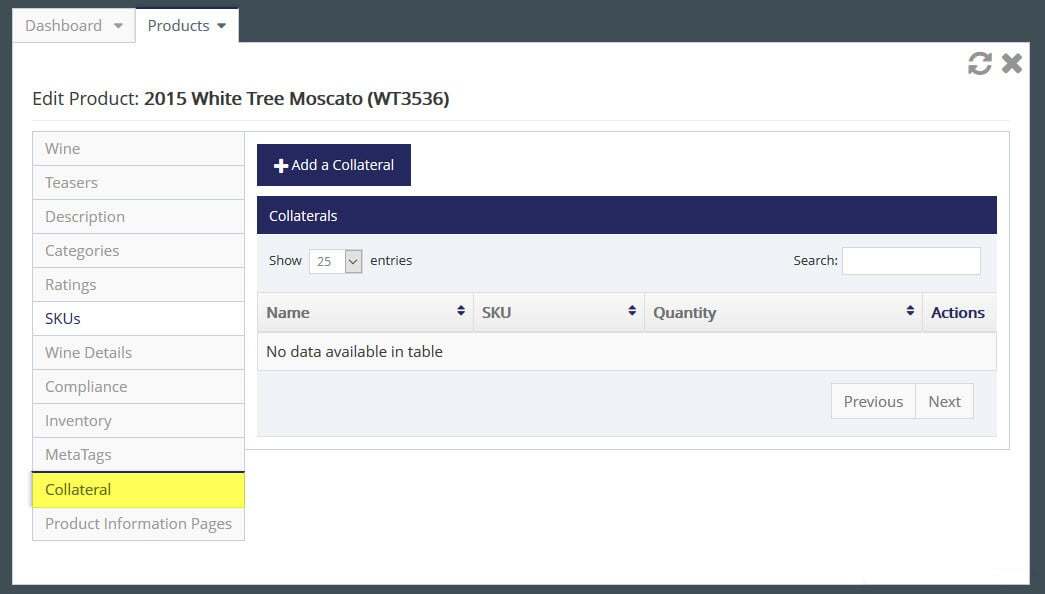
5) Click the 'Add Collateral' button within the Collateral page.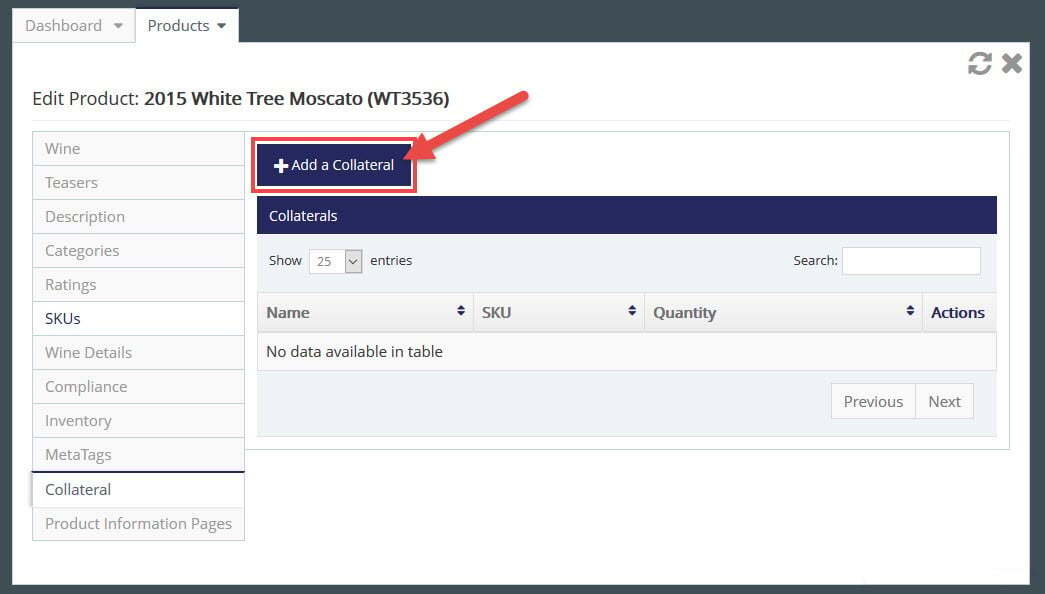
6) Select the Collateral from the drop-down menu you would like to accompany this particular wine product.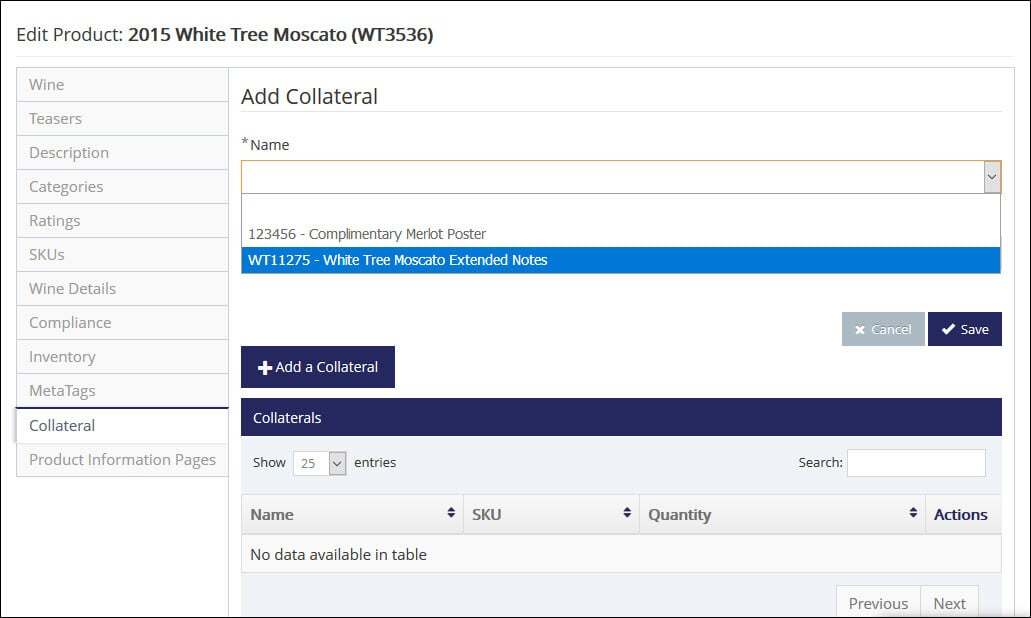
7) Enter the quantity for the Collateral.
8) Click the 'Save' button.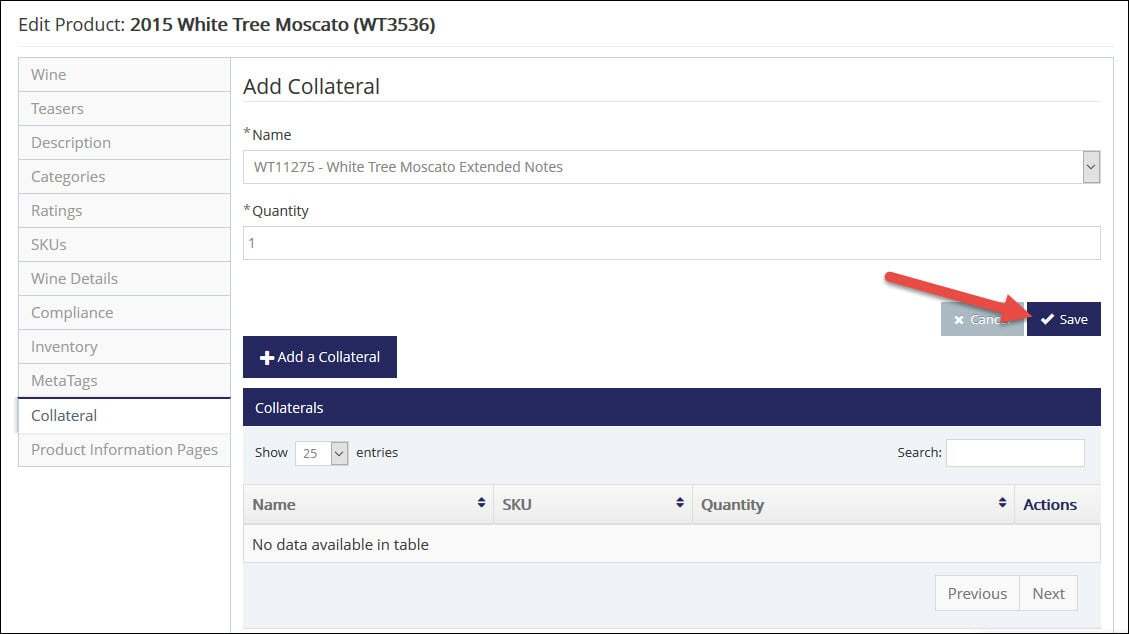
9) The new Collateral will be displayed. If you make a mistake or later wish to change this Collateral, you can click the 'Edit' or 'Delete' button for this entry.