What is Zip Code Tax?
Zip Code Tax is an option to determine tax rates for orders based on the zip code, which helps you comply with the new California Law AB-147. Once Zip Code Tax is enabled, the system will calculate the tax rate for orders based on the zip code where they are shipped or picked up.Zip Code Tax is available in both eWinery and vinSUITE admin panels. There is also a new filter in Report Builder that reports on Zip Code Tax.
Note: Zip Code Tax is only available for wineries that do not use an integration with ShipCompliant.
Enable Zip Code Tax in vinSUITE
Note: It is highly recommended that you enter a manual tax rate to ensure an alternative is always available for shipping orders before you toggle on Zip Code Tax.
For Wine Products
1) Navigate to the Shipping module, and select State Profiles from the menu.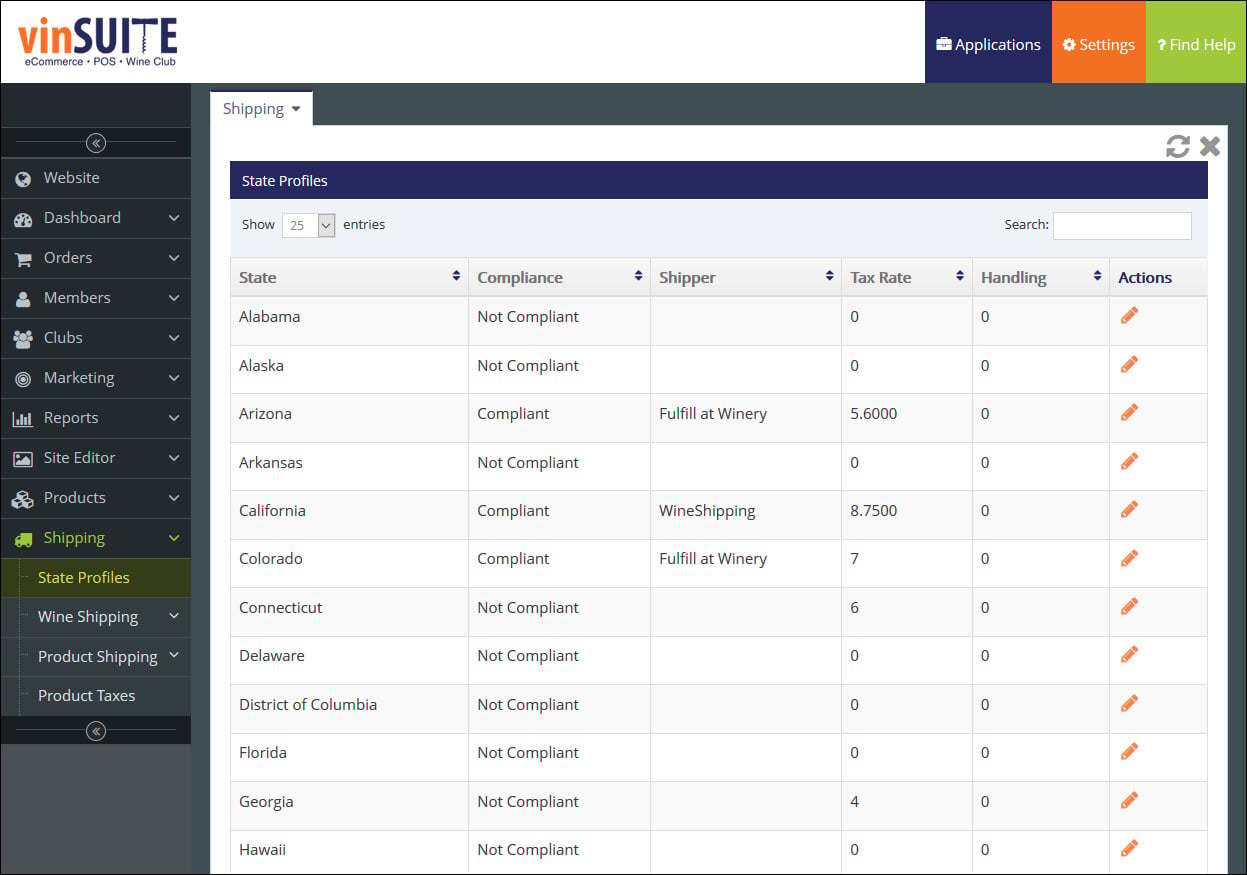
2) Select the Edit icon
 for the appropriate state.
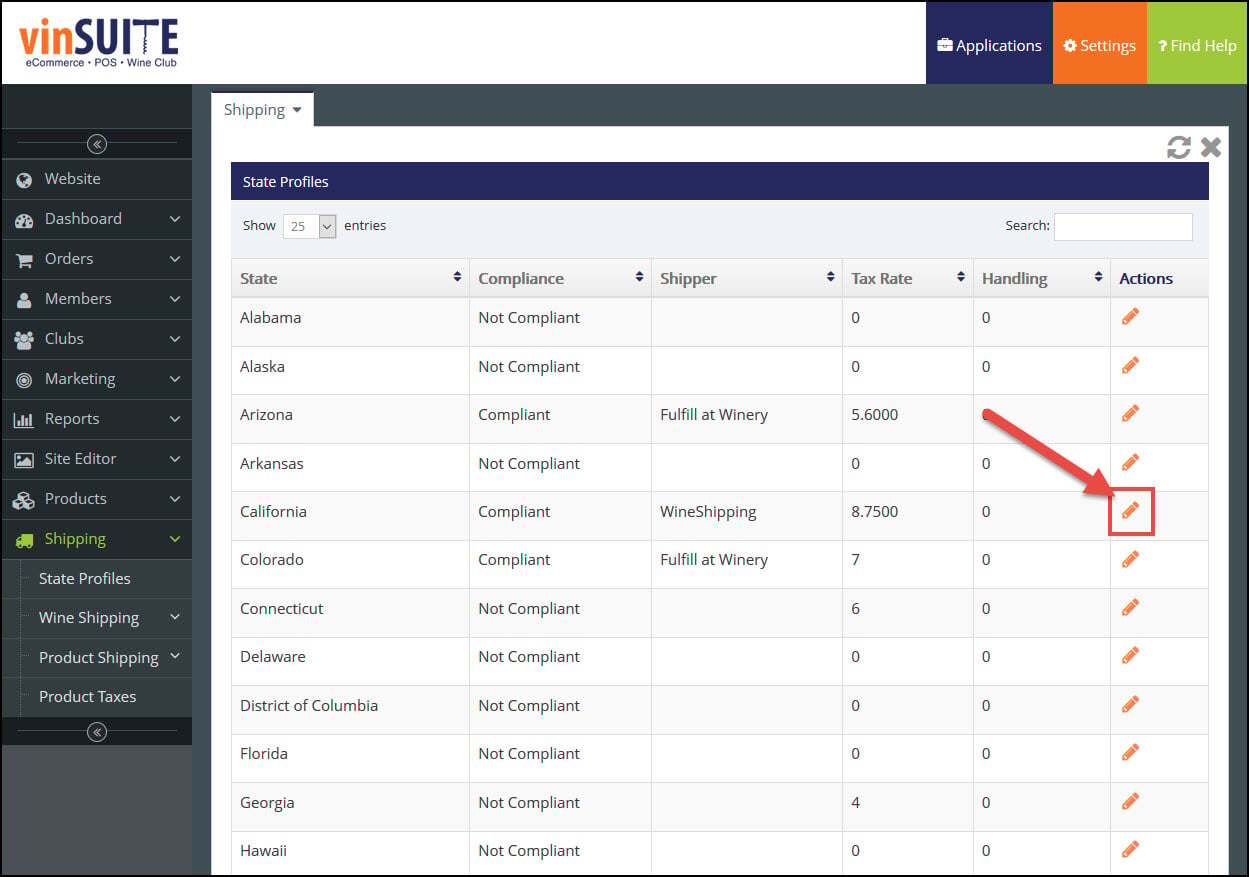
3) Switch the 'Use Zip Code Taxes' toggle to "YES" in the Taxes section of the General Settings.
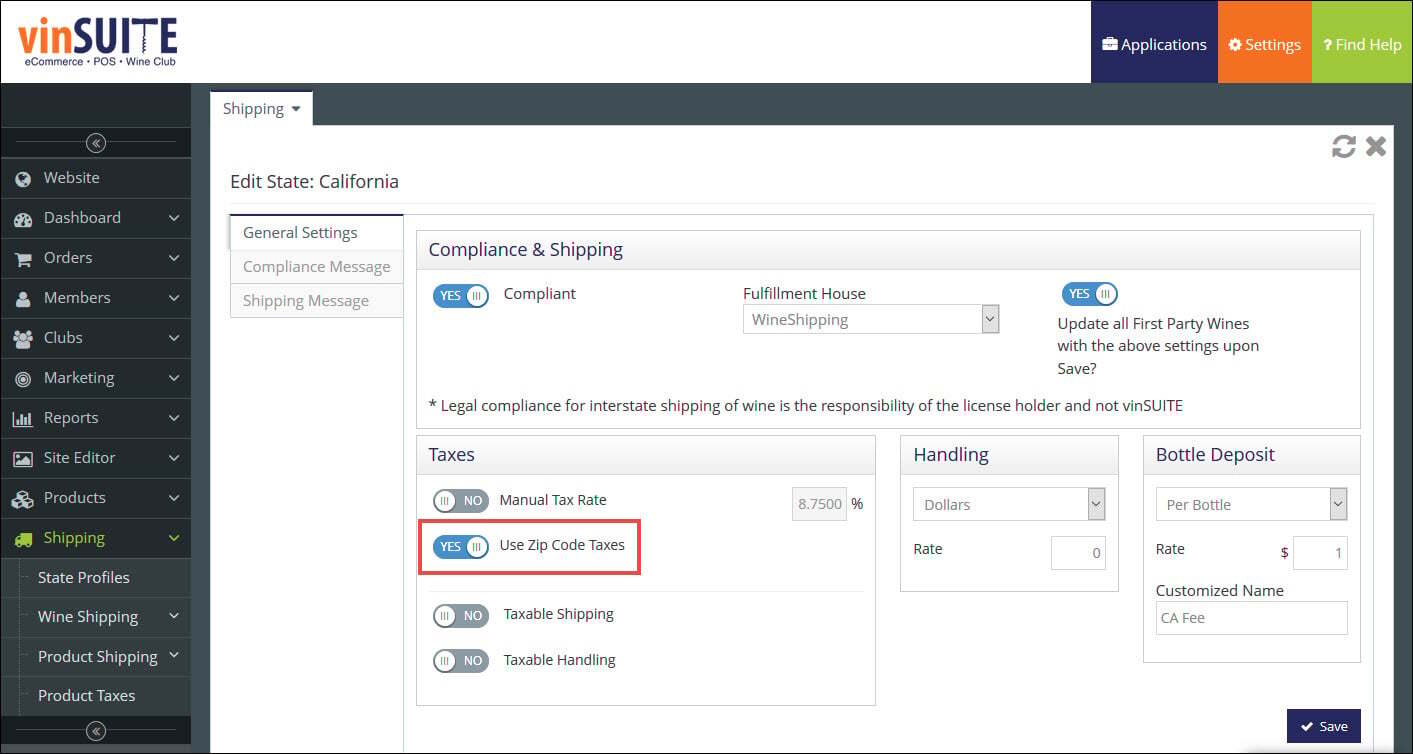
4) Click the 'Save' button.
For Non-Wine Products
1) Navigate to the Shipping module, and select Product Taxes from the menu.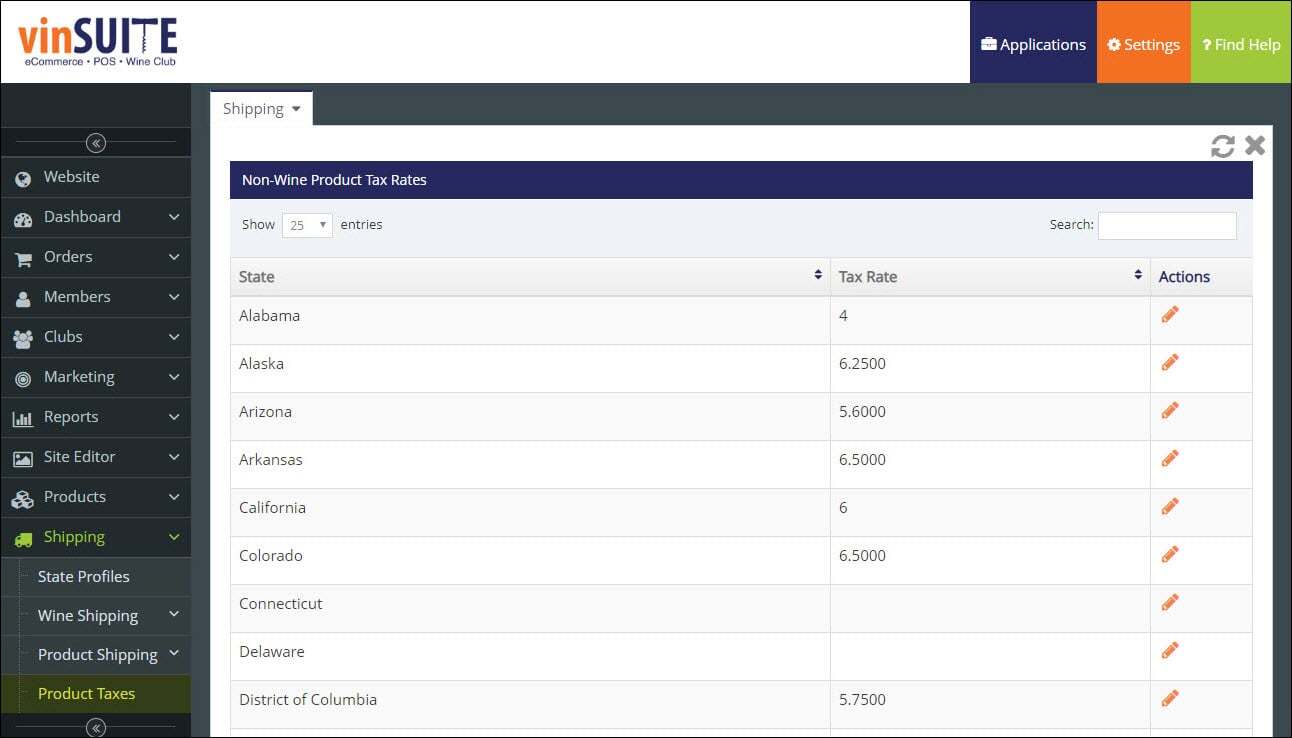
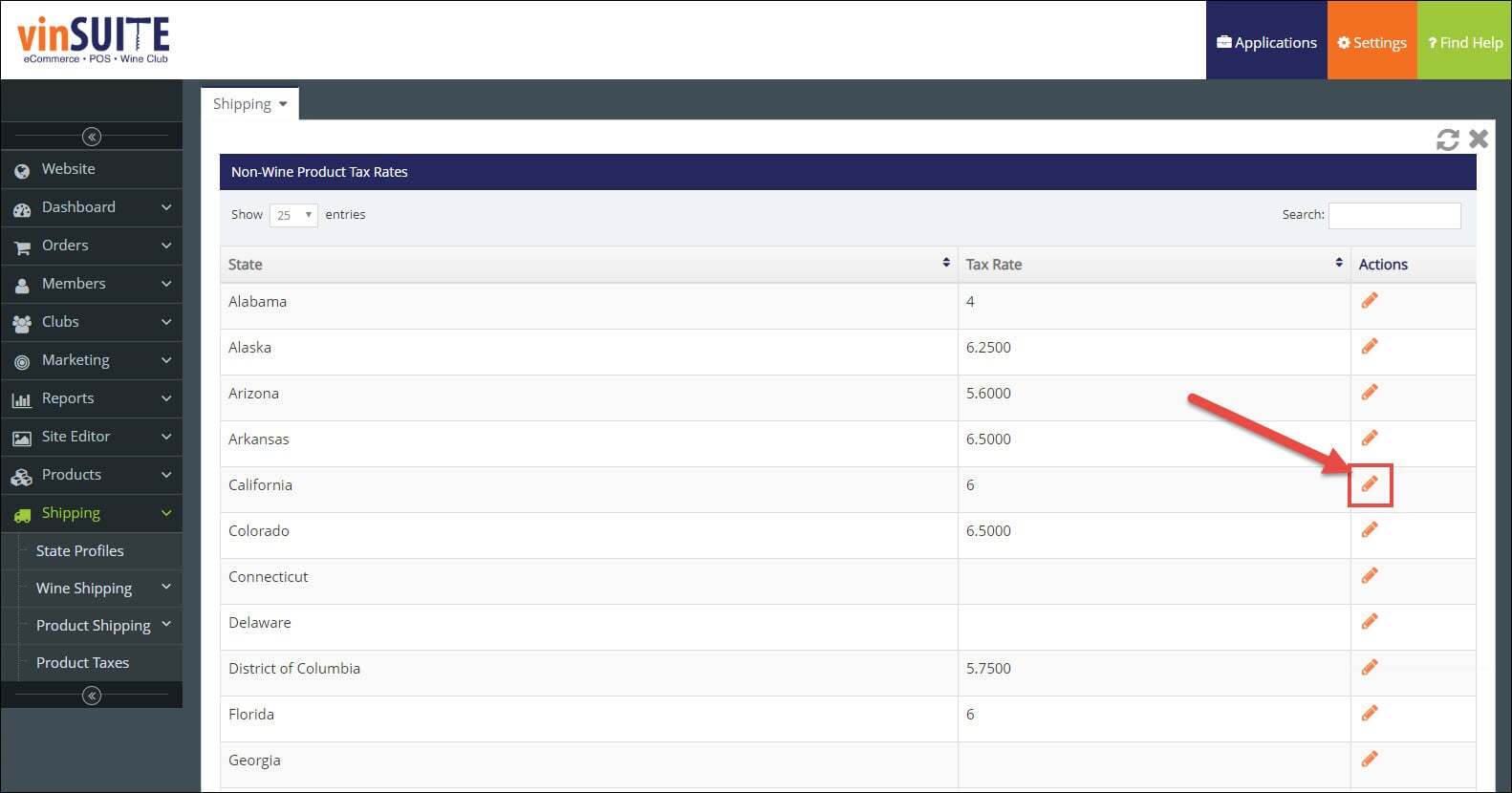
2) Select the Edit icon
 for the appropriate state.
3) Switch the 'Use Zip Code Taxes' toggle to "YES."
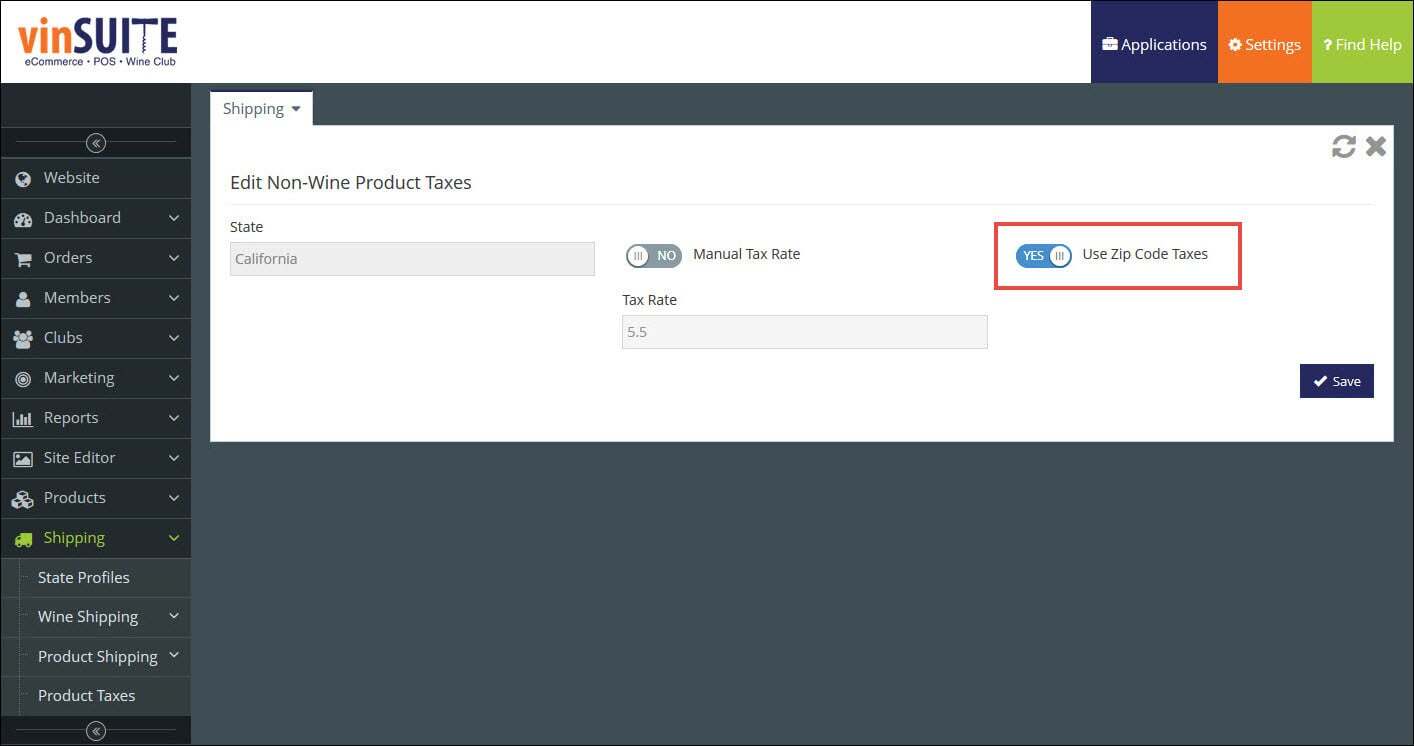
4) Click the 'Save' button.
Enable Zip Code Tax in eWinery
Note: It is highly recommended that you enter a manual tax rate to ensure an alternative is always available for shipping orders BEFORE you toggle on Zip Code Tax.For Wine Products
1) Navigate to the Store icon, and select State Profiles from the sub-menu.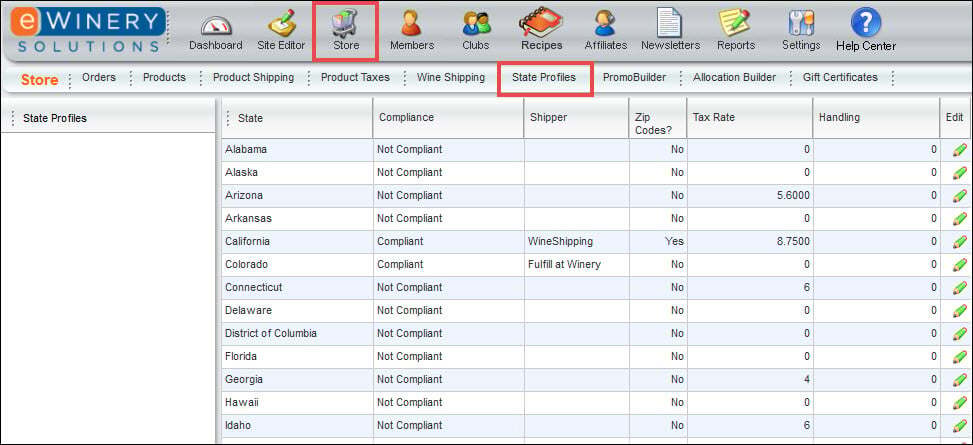
2) Select the Edit icon for the appropriate state.
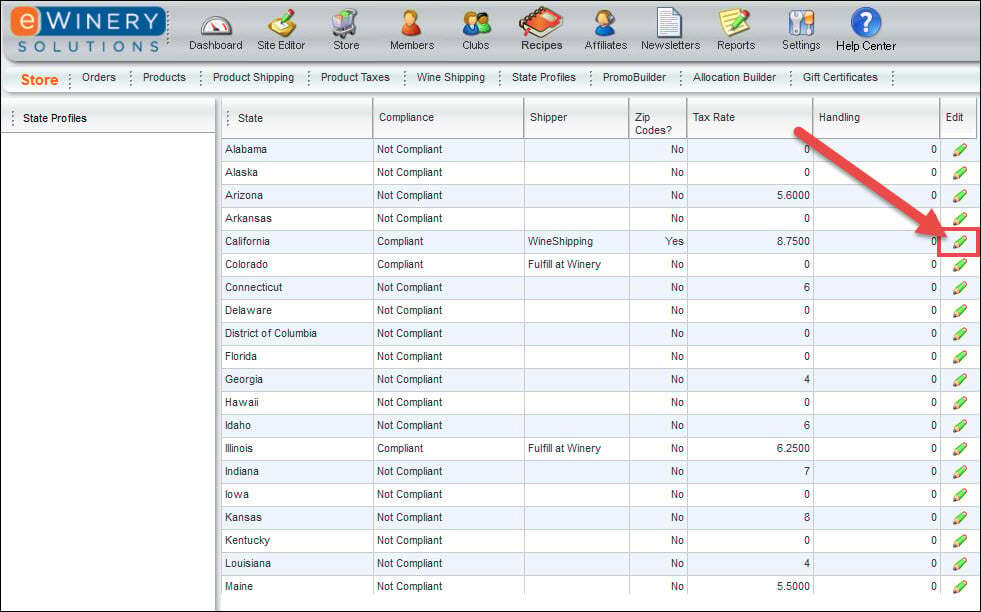
3) Select 'Use Zip Code Tax Rates' in the Taxes section of the General Settings.
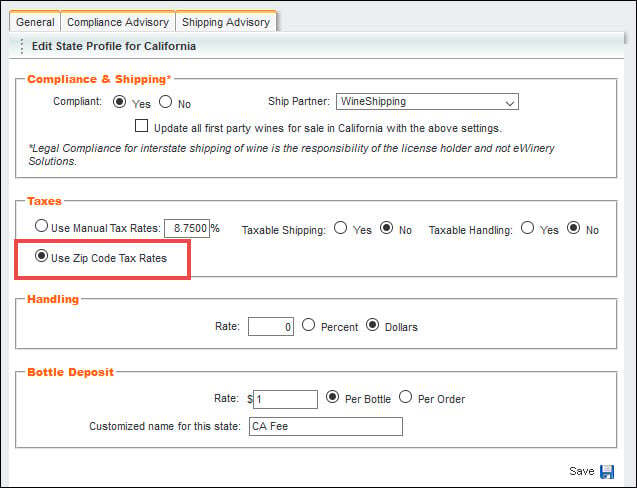
4) Click the 'Save' button.
For Non-Wine Products
1) Navigate to the Store icon, and select Product Taxes from the sub-menu.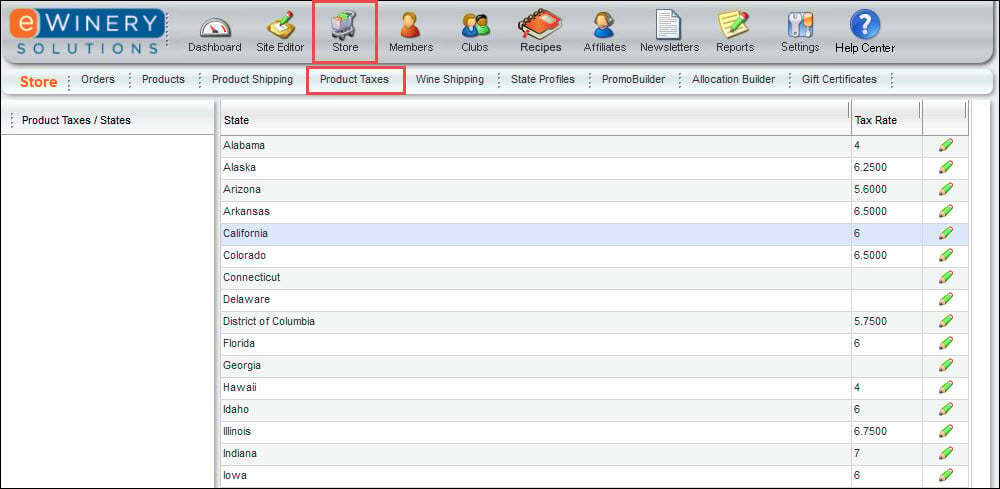
2) Select the Edit icon  for the appropriate state.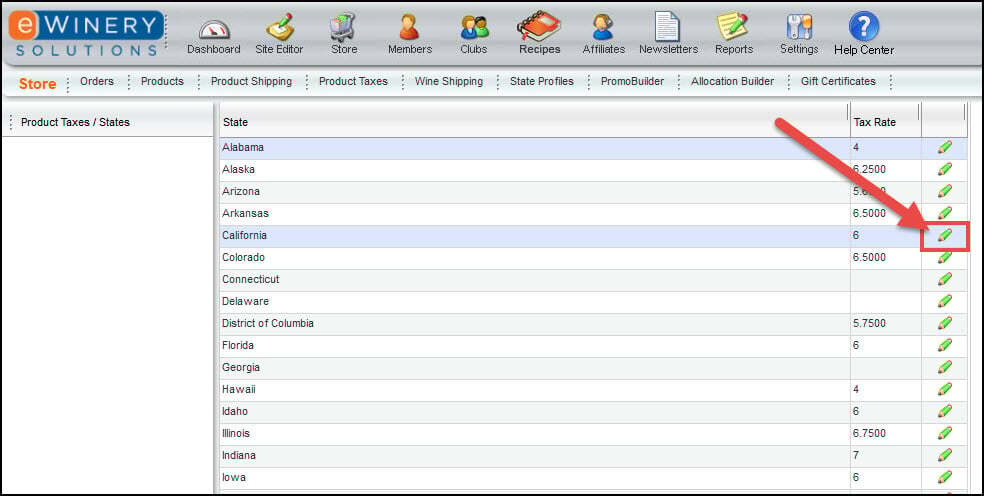
3) Select 'Use Zip Code Tax Rates'.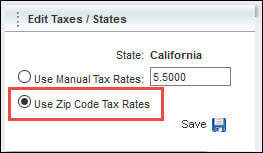
4) Click the 'Save' button.
Reports with Zip Code Tax
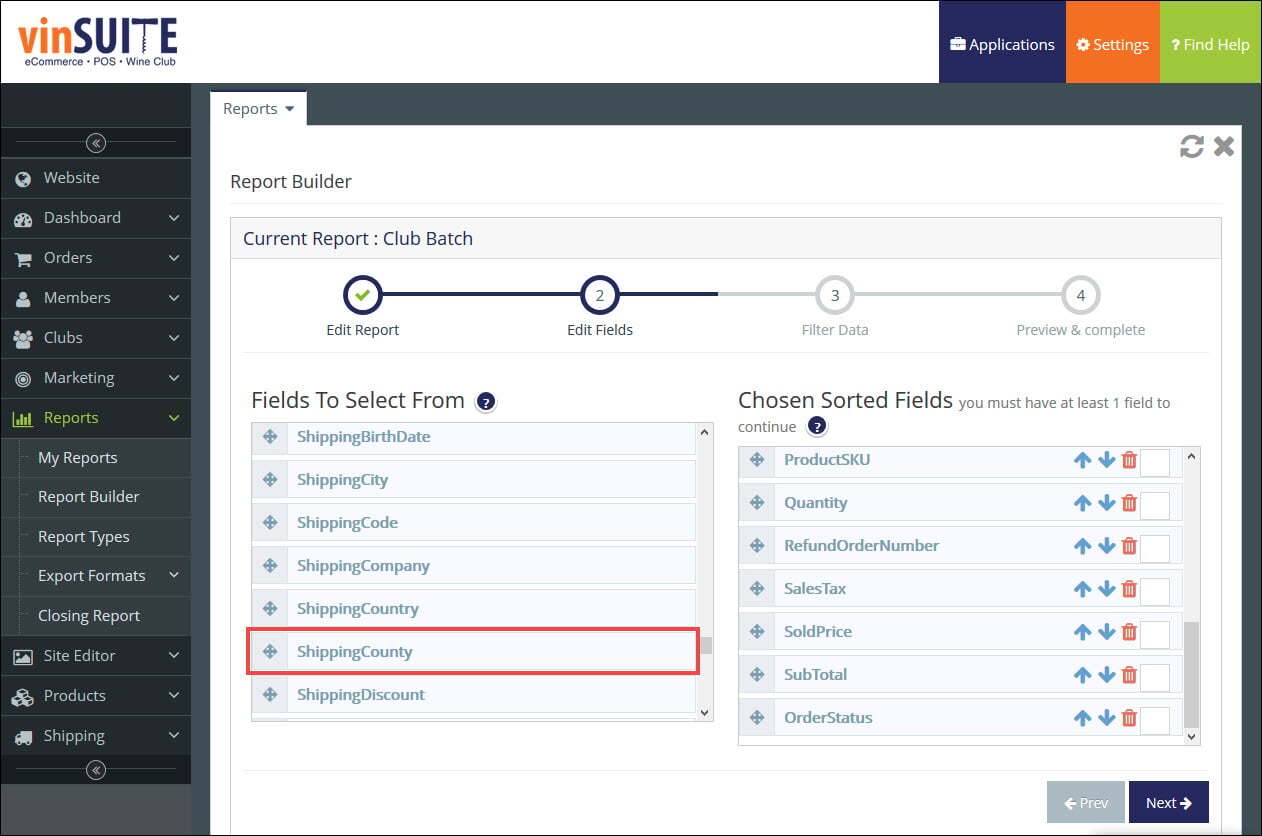
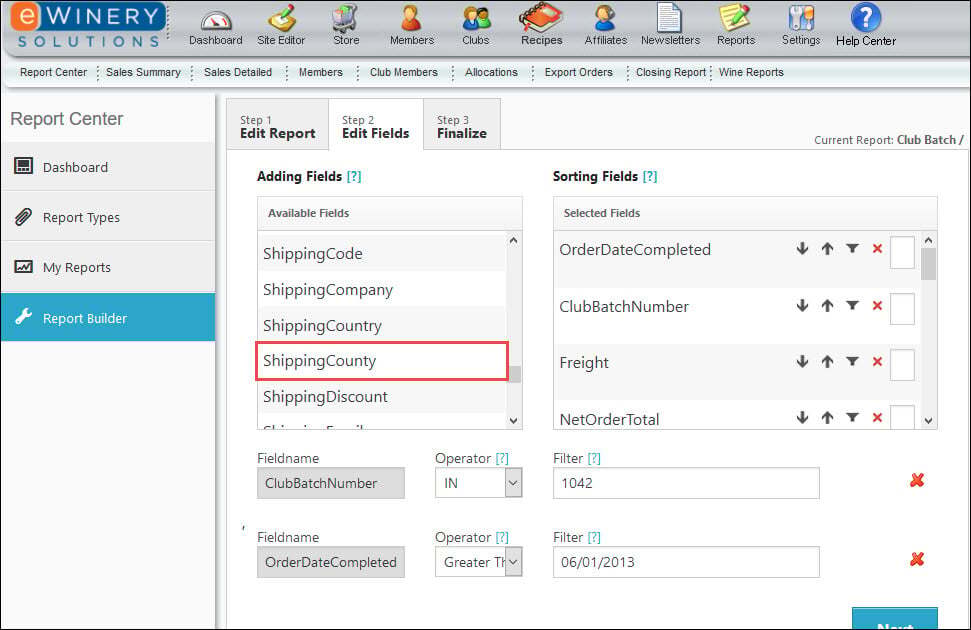
The Sales Detailed and Sales Summary reports will incorporate a "ShippingCounty" field to track the county for shipped orders.
Note: County data will only be captured if the Zip Code Tax feature is enabled.